AI Subtitle
A service that takes a VOD video stored in S3 as input and performs AI STT (speech-to-text) and multilingual translation.
It converts the speech in the original video into text using STT (Speech-to-Text) technology, then translates the result into the languages you've configured to generate subtitle files.
AI Subtitle work generally follows this order:
Original video (S3) → Speech recognition (STT) → Subtitle generation → Multilingual translation → Subtitle file generation
You can find the AI Subtitle feature under Service → AI Subtitle in the left-hand console menu. 🔗console.inisoft.video/service/subtitle
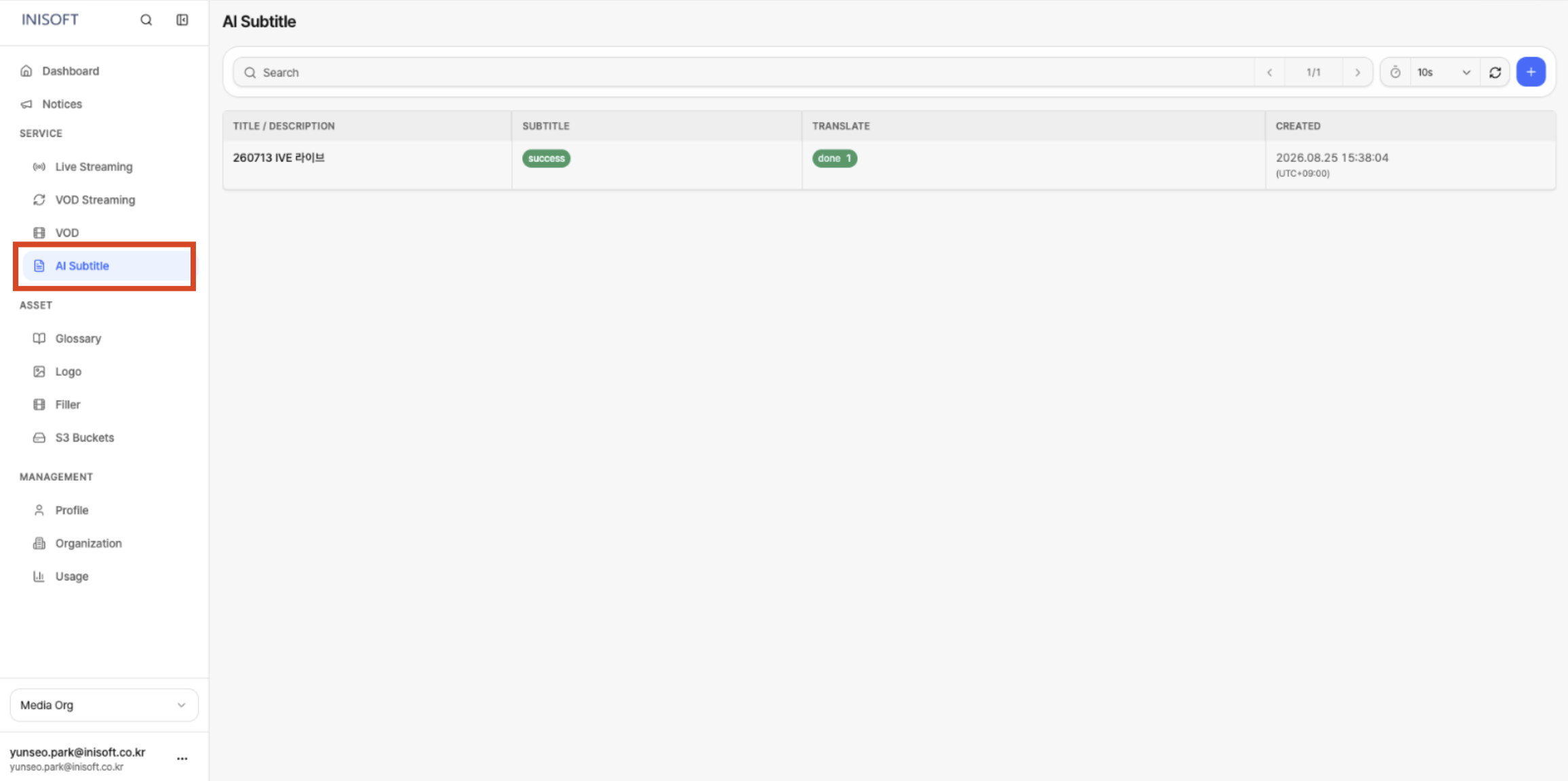
Fig. Console location of the AI Subtitle feature
What is AI Subtitle?
In AI Subtitle, you create a Subtitle Job to process a single video.
Once you create a Subtitle Job, the audio of the VOD video you provided is analyzed to generate subtitles, and if you've configured target languages, the subtitles are translated into those languages as well.
How a Subtitle Job Is Processed
-
Select the original video
Choose the VOD video stored in S3 to use as the source for generating subtitles. -
Speech recognition (STT)
Analyzes the audio in the video and converts the spoken content into text. -
Subtitle generation
Arranges the speech recognition result into subtitle form, timed to match the video's playback. -
Multilingual translation
If needed, translates the generated subtitles into your configured target languages. -
Subtitle file generation
Once the job is complete, you can view or download the generated subtitles in VTT or SRT format.
A Subtitle Job is the unit of work for generating and translating subtitles for a single VOD video.
You create a separate Subtitle Job for each video, so you can check the status and output of each one individually.
To generate subtitles in real time during Live Streaming, enable the AI Subtitle feature using the Enable AI Subtitle option on the Live Streaming channel.
This document explains how to create and manage Subtitle Jobs for VOD videos.
Before starting AI Subtitle work, check the following settings.
-
Register an S3 bucket: The S3 Bucket where the original video you'll generate subtitles from is stored must be registered under Asset → S3 Buckets.
-
Register a Glossary (optional): If you need certain terms translated consistently in a specific way, register a Glossary in advance under Asset → Glossary. Registered Glossaries can be used during the translation step of a Subtitle Job.
Related Features
| Linked Menu | Relationship |
|---|---|
| Asset → S3 Buckets | Register and select the input video Bucket |
| Glossary | Improves STT and translation quality (up to 2 per Job, must be Verified) |
| VOD | Subtitle tracks are linked in Packaging Step 3 |
| Live Streaming | Live AI Subtitle - real-time subtitle/translation editor |