Creating an AI Subtitle Job
An AI Subtitle Job converts the audio of a registered VOD video into original-language subtitles using STT (Speech-to-Text), and if needed, translates the generated subtitles into your configured languages.
You can configure both subtitle generation and multilingual translation together in a single Subtitle Job, and once it's complete you can view the generated subtitle files.
4 Steps to Create an AI Subtitle Job
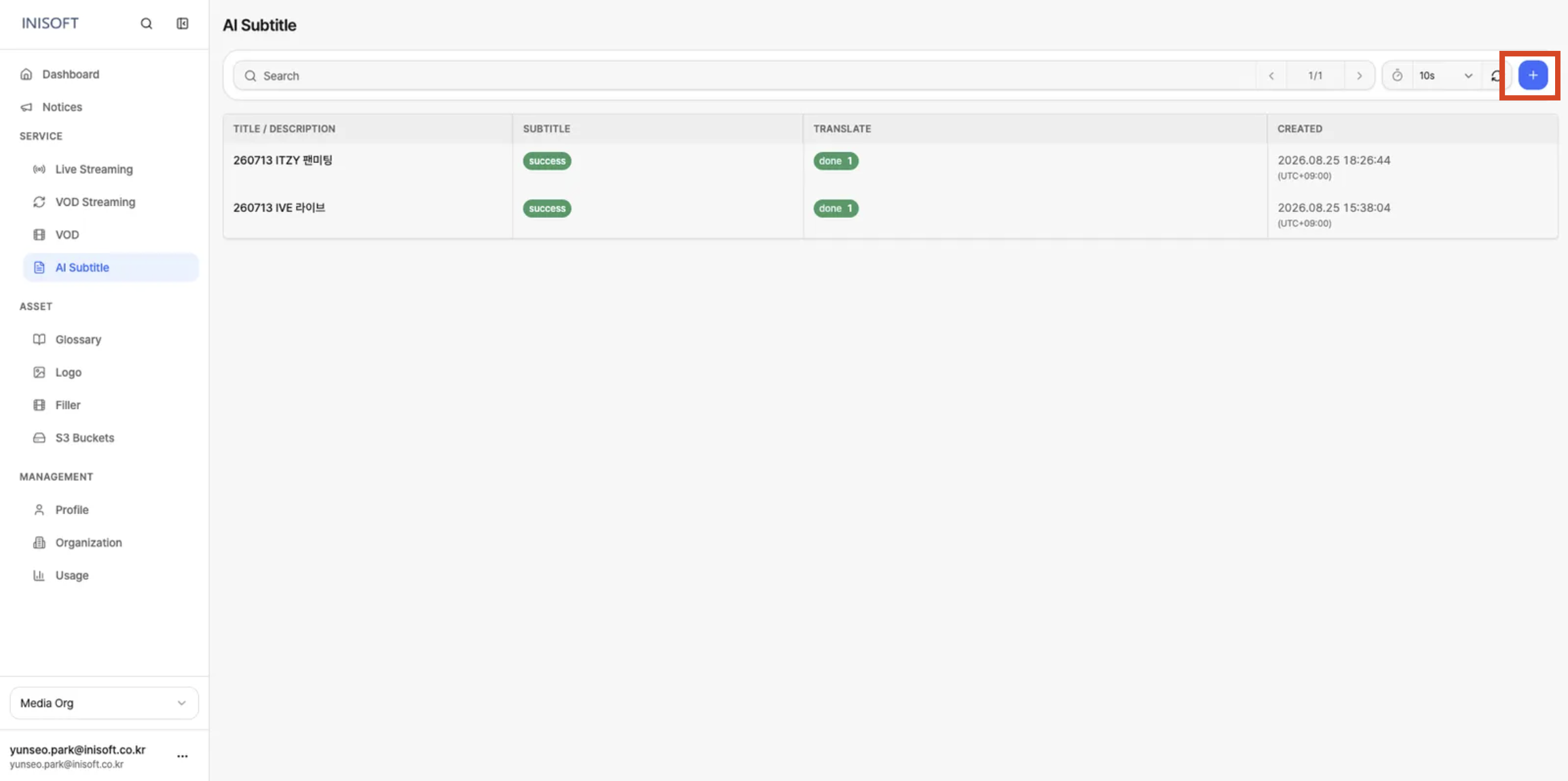
- Click Add AI Subtitle (+) at the top right of the list.
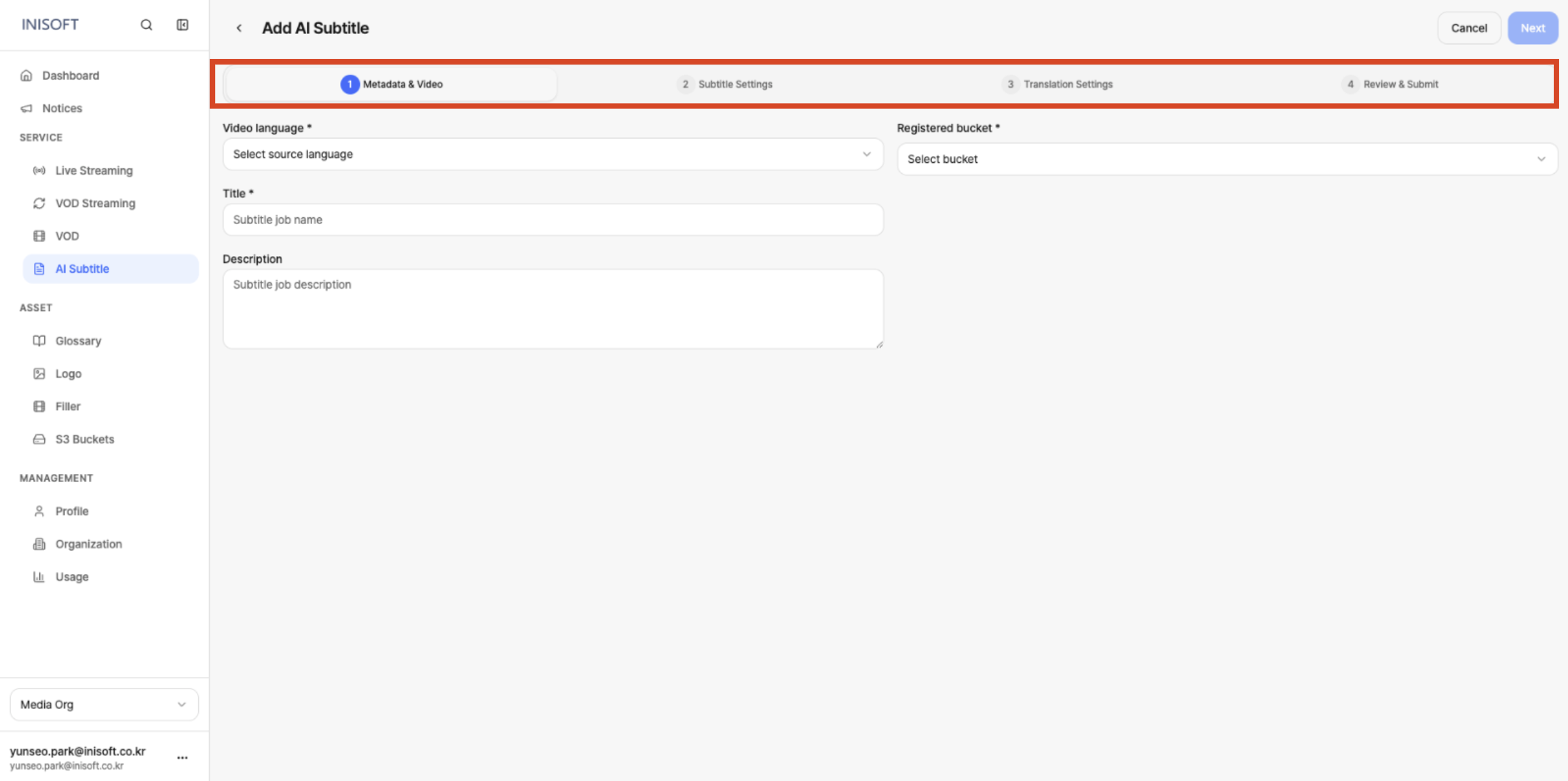
- Go through the 4-step wizard:
Metadata & Video→Subtitle Settings→Translation Settings→Review & Submit.
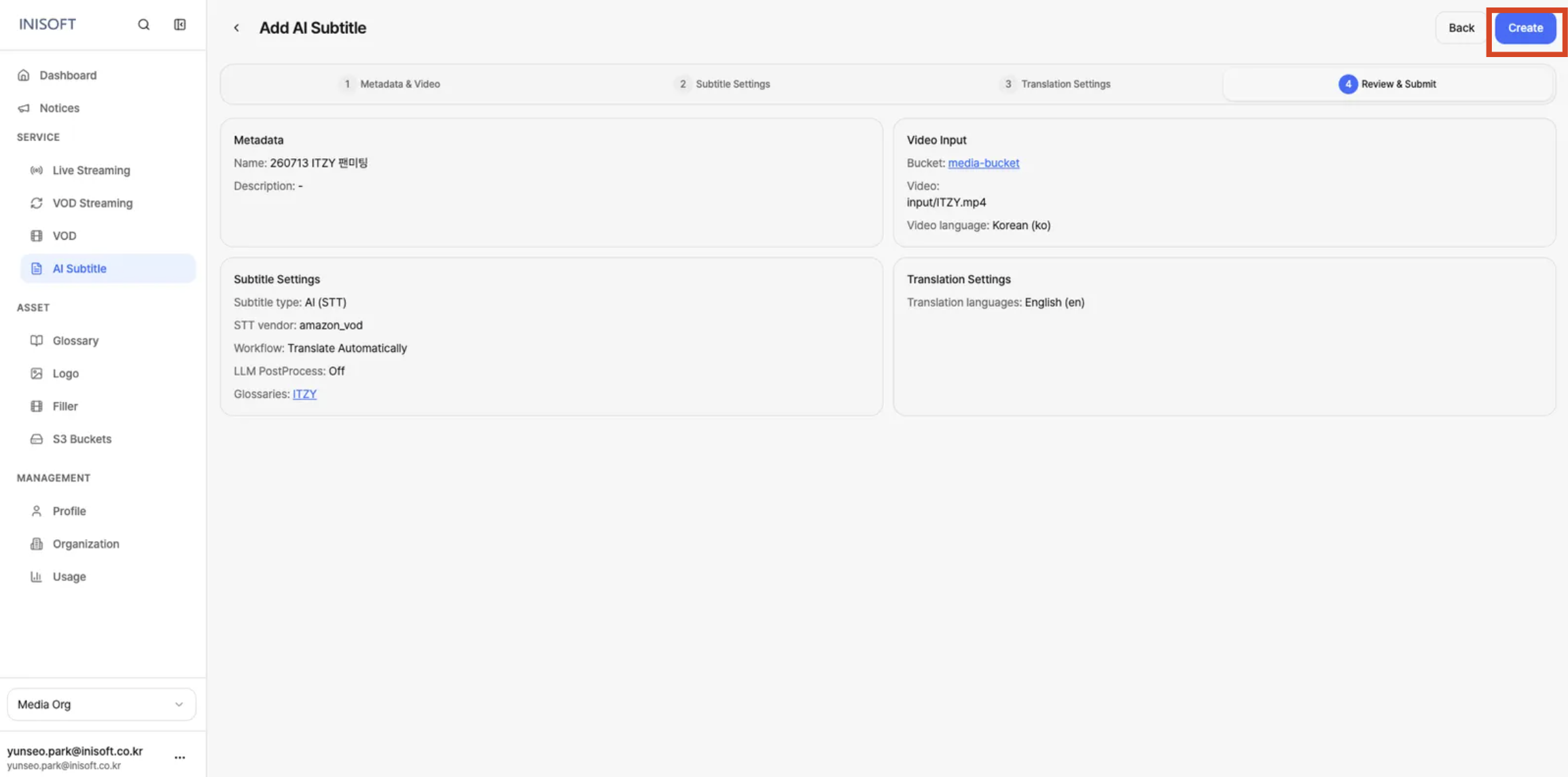
- Review the settings at the Review & Submit step, then click the Create button to submit the job.
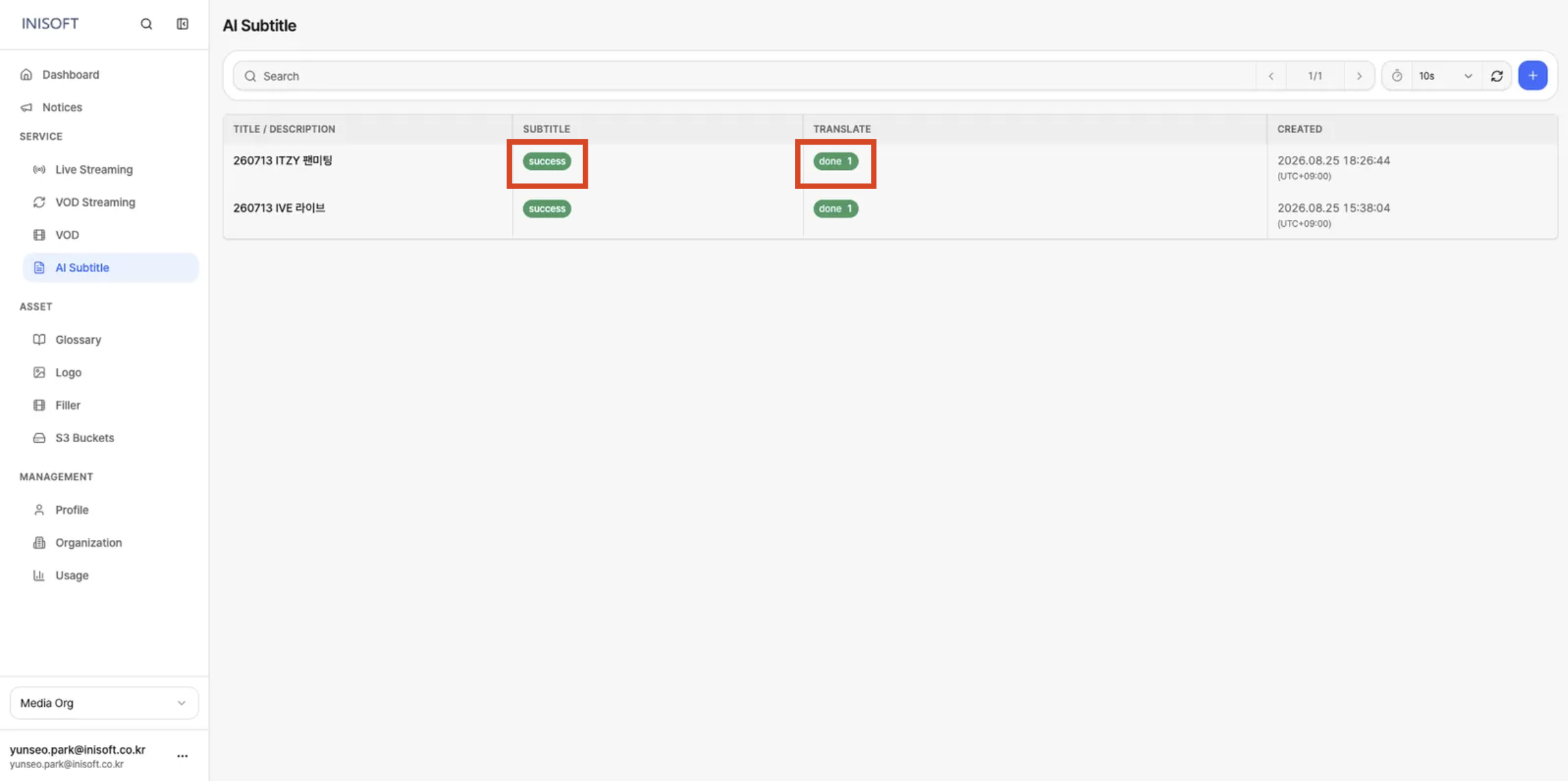
- Once the job is submitted, check the Subtitle and Translate status in the list.
Wait until Subtitle finishes assuccess, and if you configured translation, until Translate finishes asdone.
The list updates automatically according to the Auto Refresh setting.
- Step 1: Metadata & Video
- Step 2: Subtitle Settings
- Step 3: Translation Settings
- Step 4: Review & Submit
Step 1. Metadata & Video
The step where you enter basic information for the Subtitle Job, and select the original video and its source language to generate subtitles from.
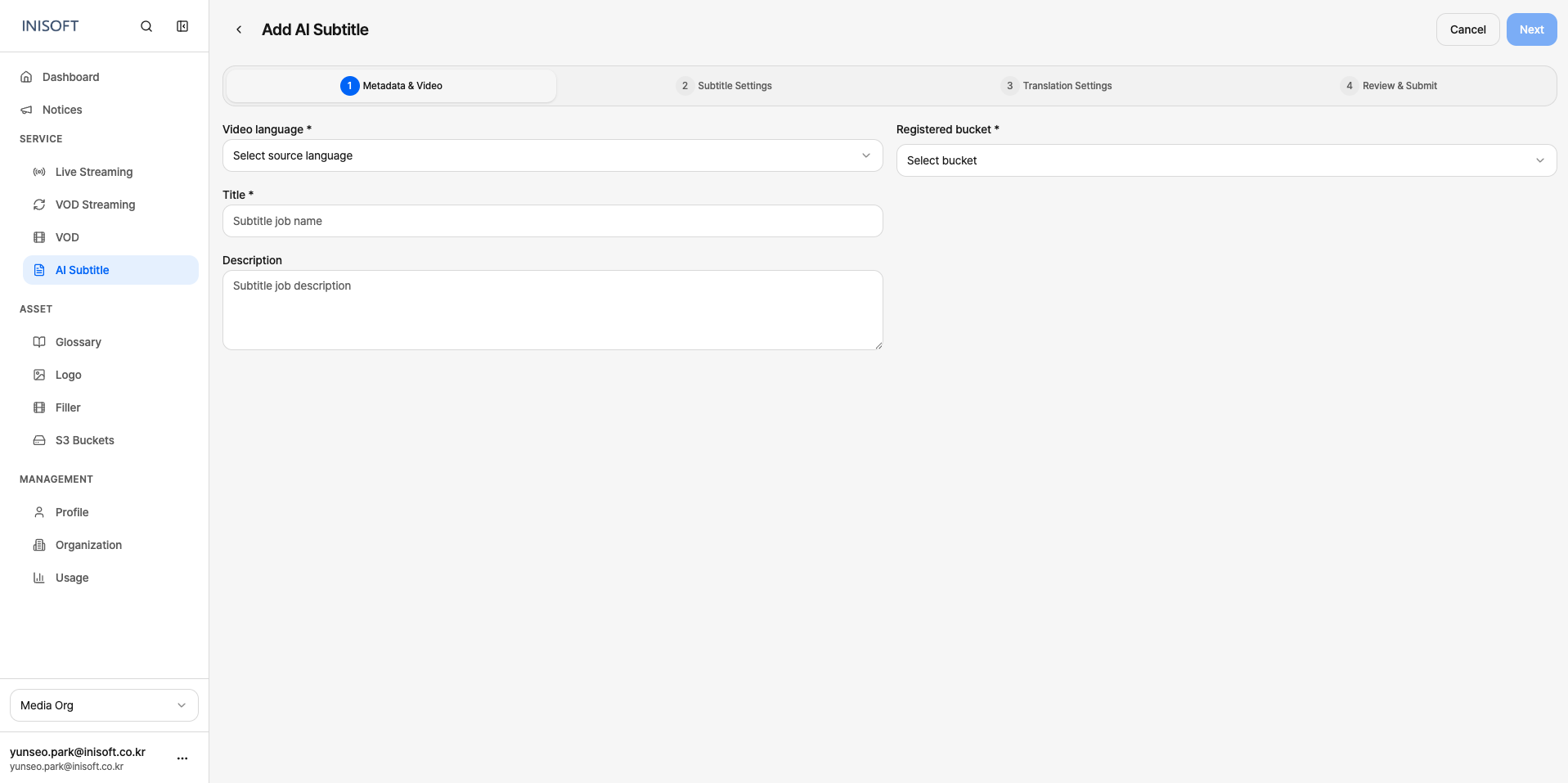
Fig. Step 1 — Video language, Name, Registered bucket
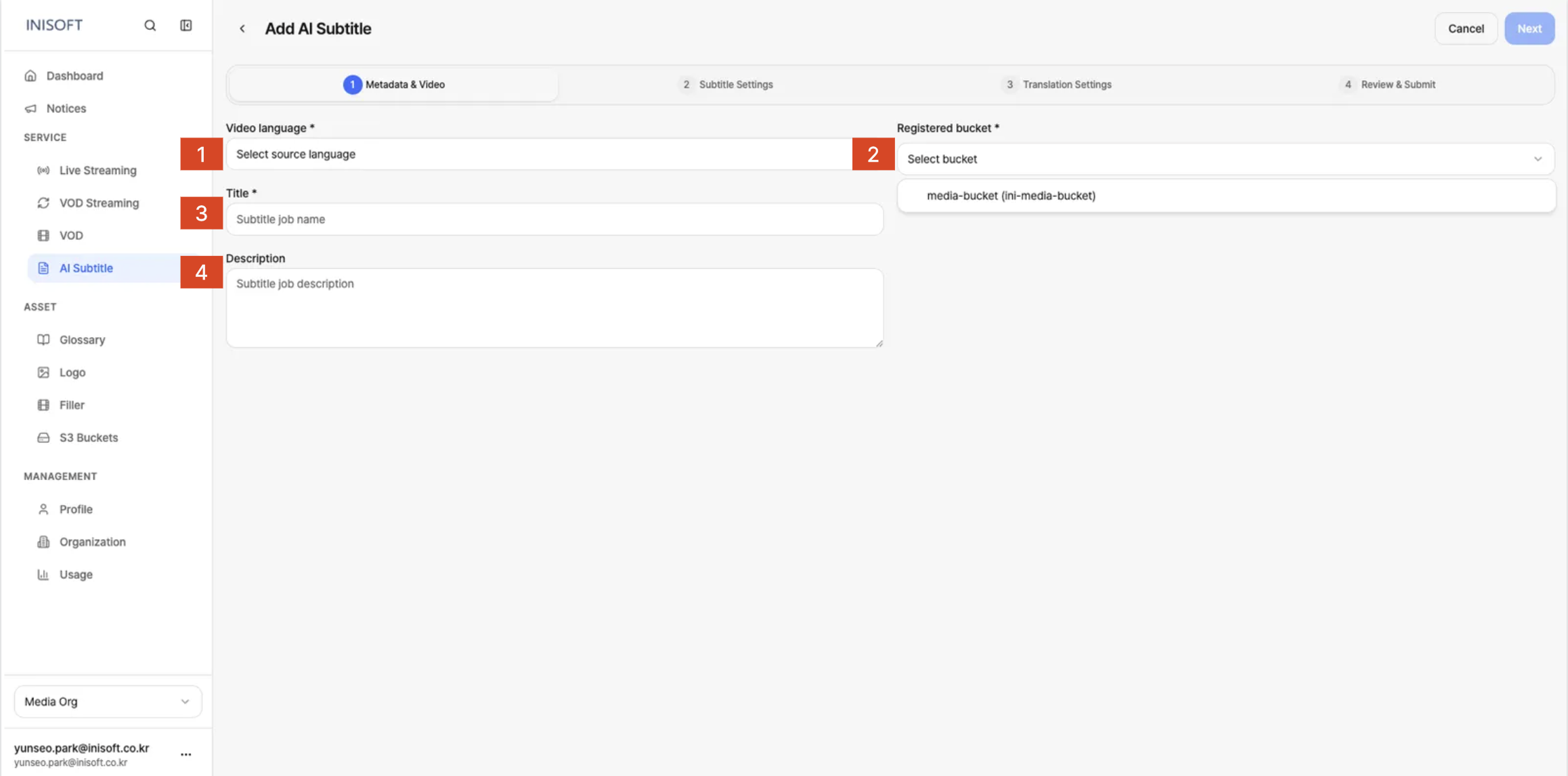
Fig. Step 1 — Selecting a bucket, then clicking a video file (shown as Selected)
| No | Field | Required | Description |
|---|---|---|---|
| 1 | Video language | Yes | Select the source language of the video you're generating subtitles for. STT is performed based on the selected language to generate the original-language subtitles. (e.g. Korean (ko)) |
| 2 | Registered bucket | Yes | Select the S3 Bucket where the original video to generate subtitles from is stored. The bucket you use must already be registered under Asset → S3 Buckets. |
| 3 | Title | Yes | Enter a job name to identify the Subtitle Job. |
| 4 | Description | No | Enter a description of the Subtitle Job or its purpose, if needed. |
Once you select a Registered bucket, the list of files stored in that bucket is shown.
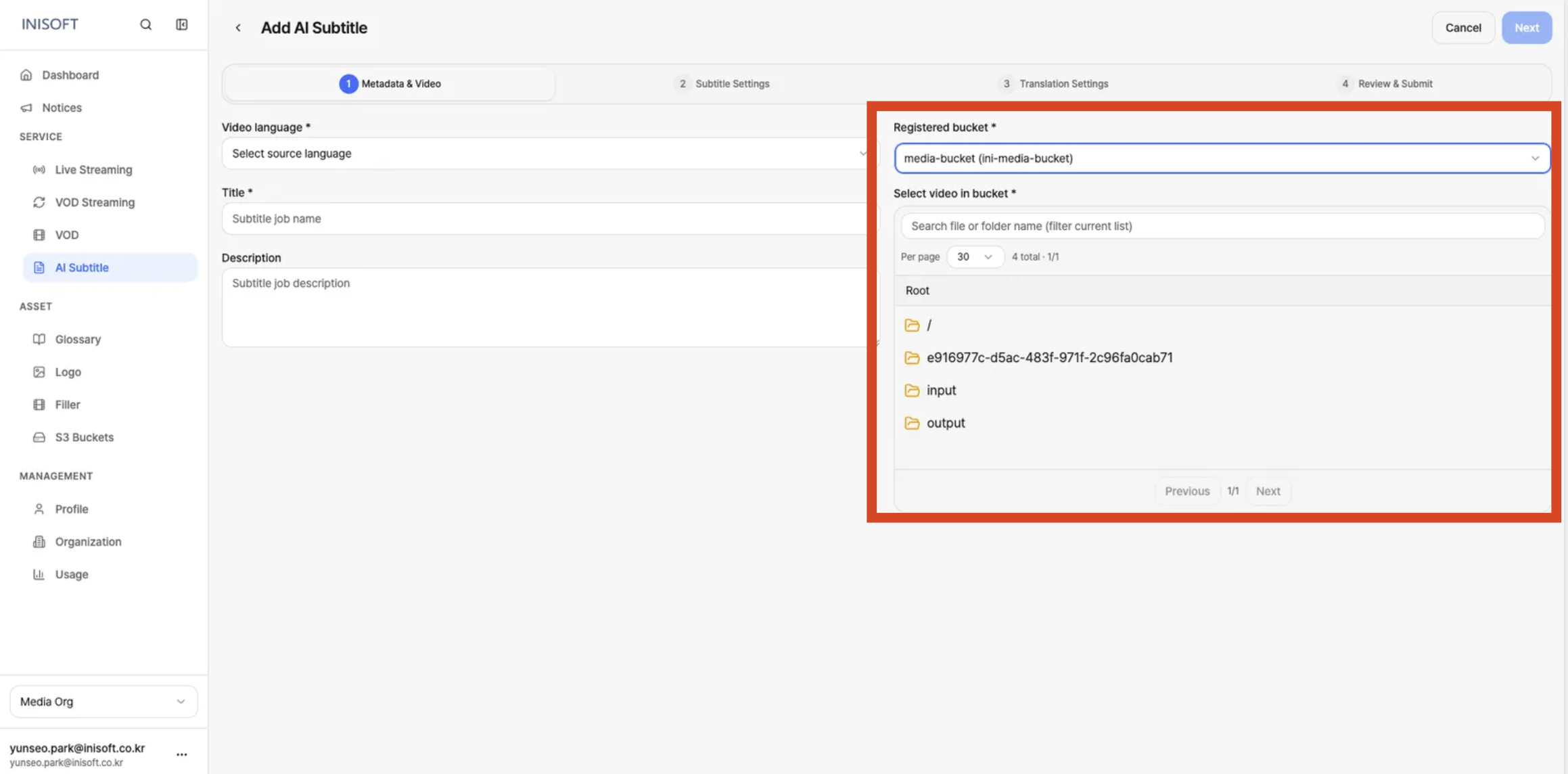
Fig. Add AI Subtitle - Step 1 — Selecting a video file within an S3 Bucket
Selecting the Original Video
From the bucket's file list, click to select the video file to generate subtitles from.
The selected file shows a Selected indicator, and that video becomes the source video for the Subtitle Job.
If there are many files, you can use the filename search, folder browsing, and page navigation features to find the video you want.
Video language must match the actual spoken language in the selected video.
For example, if the video's audio is in Korean, select Korean (ko) as the Video language.
Step 2. Subtitle Settings
The step where you choose how to convert the video's audio into subtitles and select the STT engine, and, if needed, configure a Glossary to improve speech recognition accuracy.
STT (Speech-to-Text) is a technology that analyzes the speech heard in a video and converts it into text subtitles.
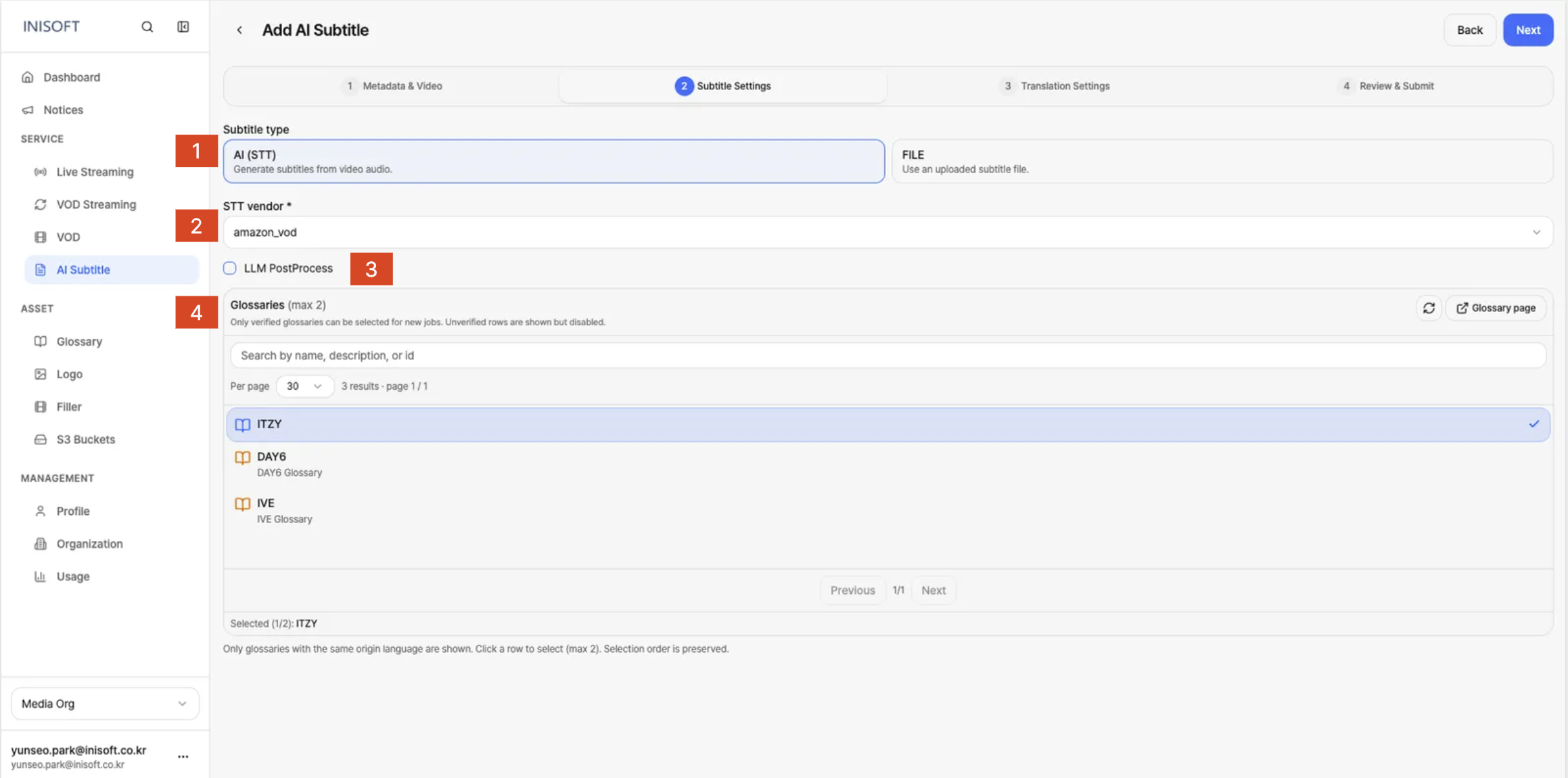
Fig. Step 2 — Subtitle type, STT vendor, LLM PostProcess, and Glossary settings
| No | Field | Required | Description |
|---|---|---|---|
| 1 | Subtitle type | Yes | Select how the subtitles will be prepared. • AI (STT): Automatically generates subtitles by recognizing the video's speech. • FILE: Uses a subtitle file you upload yourself. |
| 2 | STT vendor | Yes | Select the STT engine to use for converting the video's audio into text. (amazon_vod / azure_vod / google_vod) |
| 3 | LLM PostProcess | No | Check this to apply LLM-based post-processing to the subtitles generated by STT. Leave it unchecked if you don't need it. |
| 4 | Glossaries | No | Select the Glossary(ies) to apply to improve recognition accuracy for words that are hard to recognize by speech, such as names of people, companies, products, or technical terms. You can select up to 2. |
Step 3. Translation Settings
The step where you configure when to translate the original-language subtitles generated by STT, and which languages to translate into.
You can set translation to start automatically, or to start manually after first reviewing the original-language subtitles. You can select multiple translation languages within a single Subtitle Job.
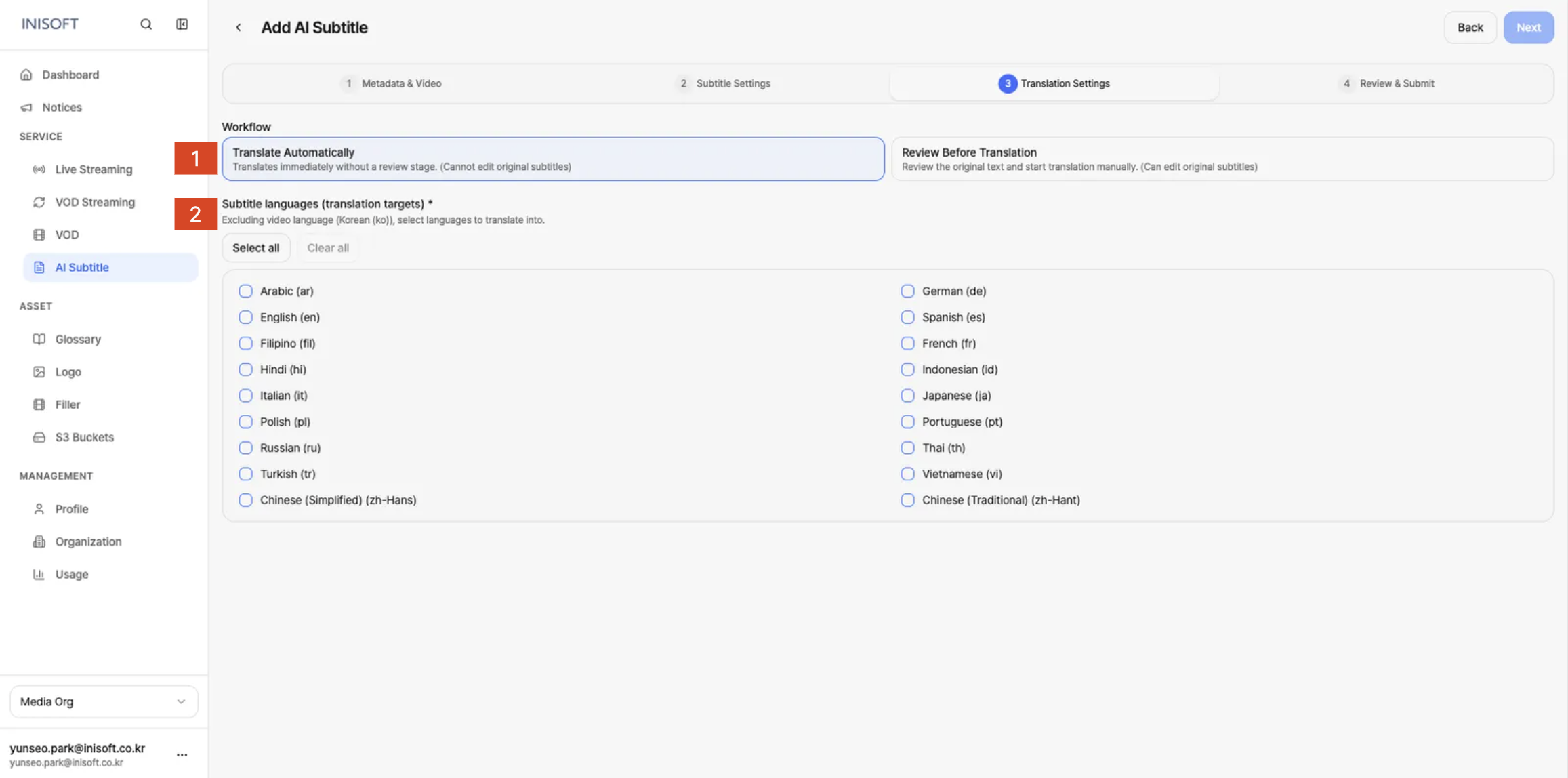
Fig. Step 3 - Translate Automatically · translation target languages
| No | Field | Required | Description |
|---|---|---|---|
| 1 | Workflow | Yes | Select when translation should start after STT generates the original-language subtitles. • Translate Automatically: Automatically starts translation into the selected language(s) as soon as the STT task completes, with no separate review step. With this option, you cannot edit the original-language subtitles before translation. • Review Before Translation: Once the STT task completes, you first review the original-language subtitles, make any needed edits, and then manually start translation. |
| 2 | Subtitle languages (translation targets) | Yes | Select the target language(s) to translate the subtitles into. The video's source language selected in Step 1 is excluded from this list. You can select multiple languages. |
| 3 | Attach subtitle file per language | No | Becomes active once you select translation target languages. Lets you attach a subtitle file for a given translation language. If no file is attached, automatic translation is used for that language. |
Choose Translate Automatically if you want subtitle generation and translation completed quickly.
Choose Review Before Translation if there are many names or technical terms and you need to check the STT result, or if you need to correct misrecognized content before translating.
If you choose Translate Automatically, translation begins immediately after the STT task completes, so you cannot edit the original-language subtitles before translation.
Selecting Languages to Translate Into
Under Subtitle languages (translation targets), select the languages you want translated subtitles for.
- In the language list, check the box for each language you want to translate into.
- If you need subtitles in multiple languages, select all the languages you want.
- To deselect a language, click its checkbox again.
- Once you're done, click Next at the top right of the screen.
- Select all: Selects every language shown in the list.
- Clear all: Deselects every language currently selected.
Step 4. Review & Submit
The step where you do a final review of the settings entered in Metadata, Subtitles, and Translations.
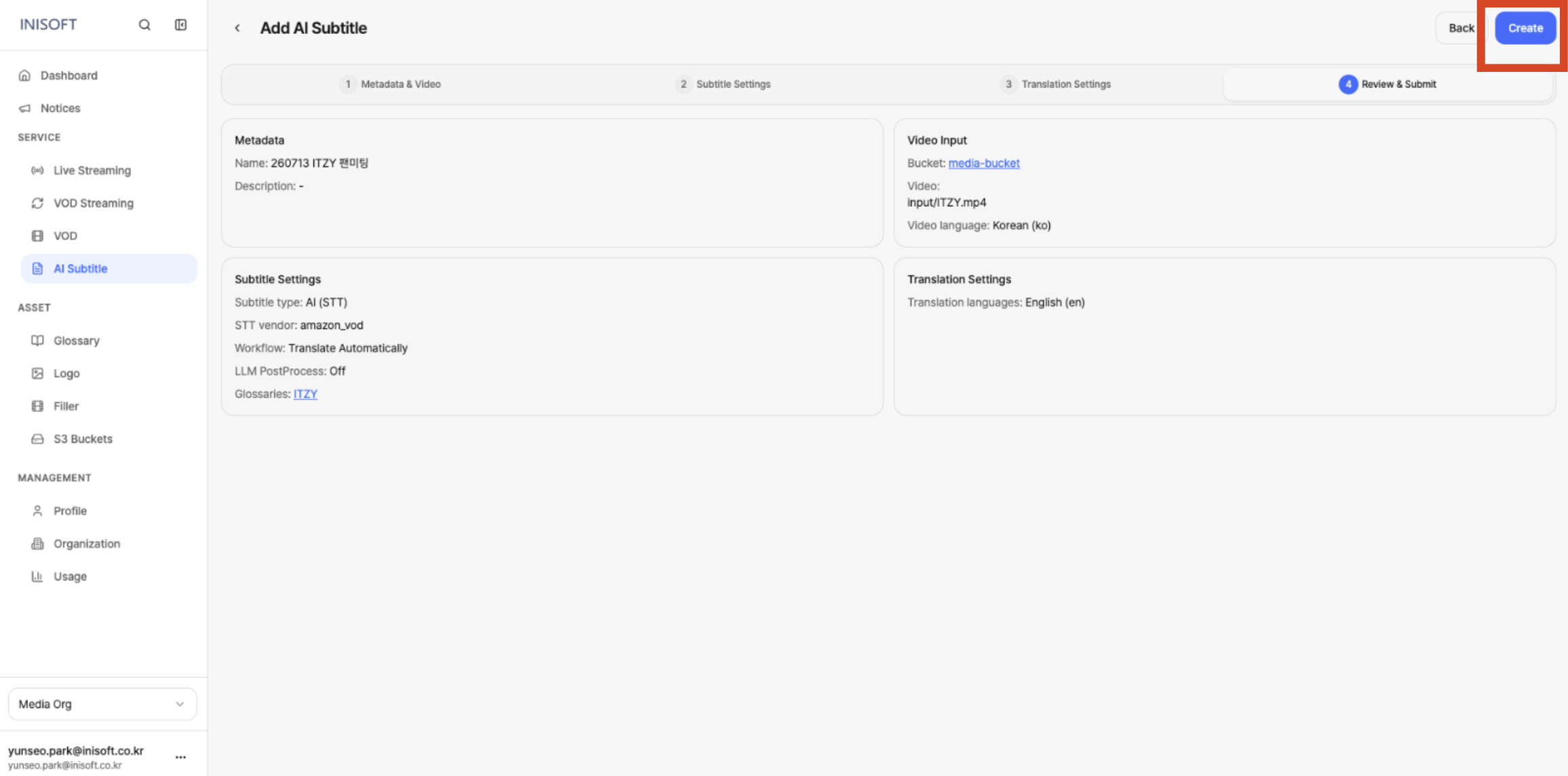
Fig. Add AI Subtitle - Step 4 Review & Submit
Confirming the Settings
- Do a final check that the settings shown on the Review & Submit screen match the original video you want subtitles for and the purpose of the job.
- If everything looks correct, click the Create button at the top right to create the Subtitle Job.
Before clicking Create, review the values entered in the previous steps.
- Metadata: Confirm that Name, Description, and the selected original video are set correctly.
- Video Input: Confirm that Input S3 Bucket, Video, and Video Language are set correctly.
- Subtitle Settings: Confirm that Subtitle Type, STT Vendor, Workflow, whether LLM PostProcess is applied, and Glossaries are set correctly.
- Translations: Confirm that the Subtitle Languages to translate into are selected correctly.
If you need to change a setting, click the Back button at the top right to return to a previous step. After making the needed changes, return to the Review & Submit step to confirm the updated values.
Clicking Create submits the subtitle generation job, and the resulting Subtitle Job can be found on the AI Subtitle list screen.