AI Subtitle Job Detail Page
Clicking Detail takes you to the full-screen detail page for the Subtitle Job.
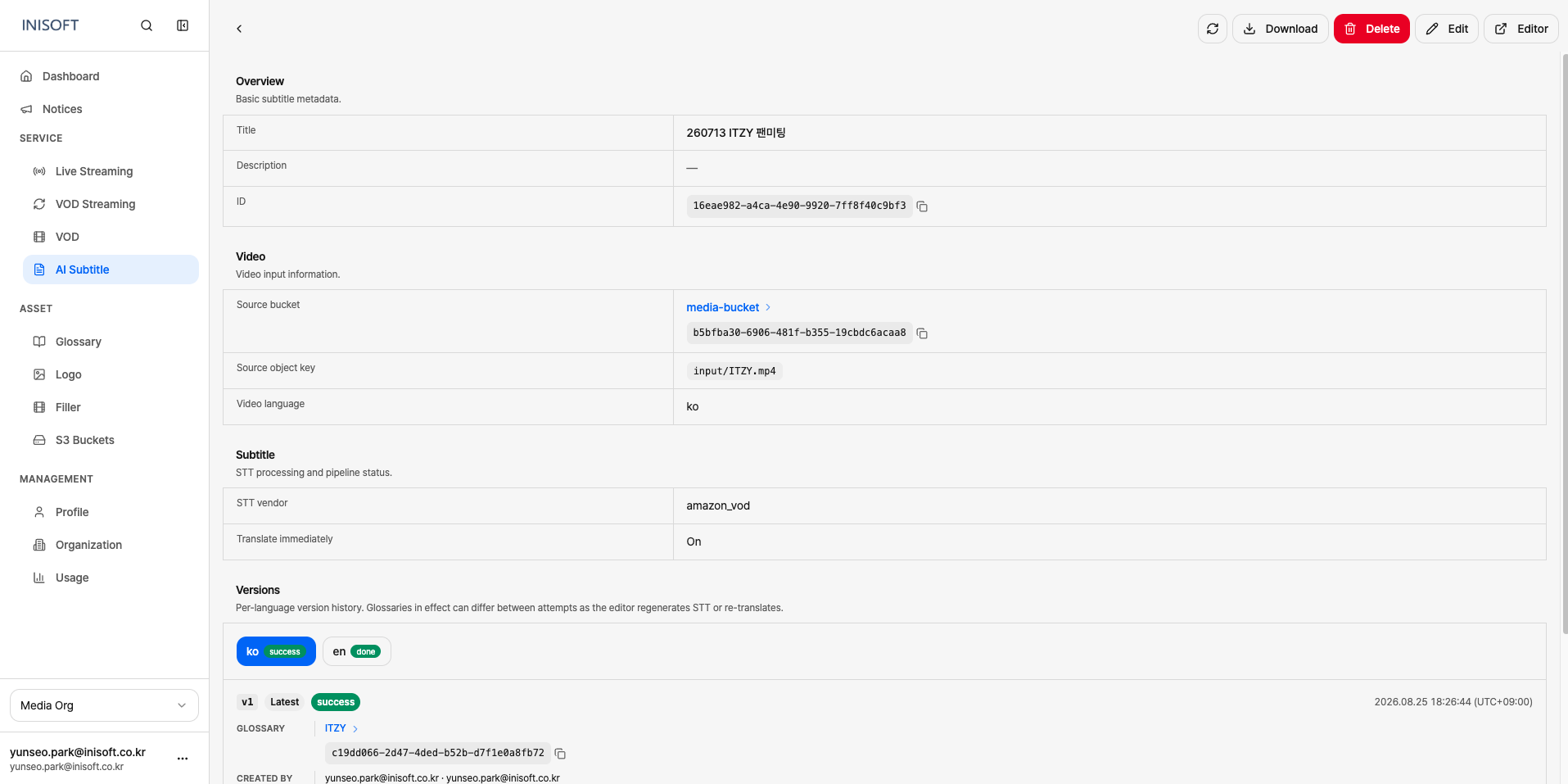
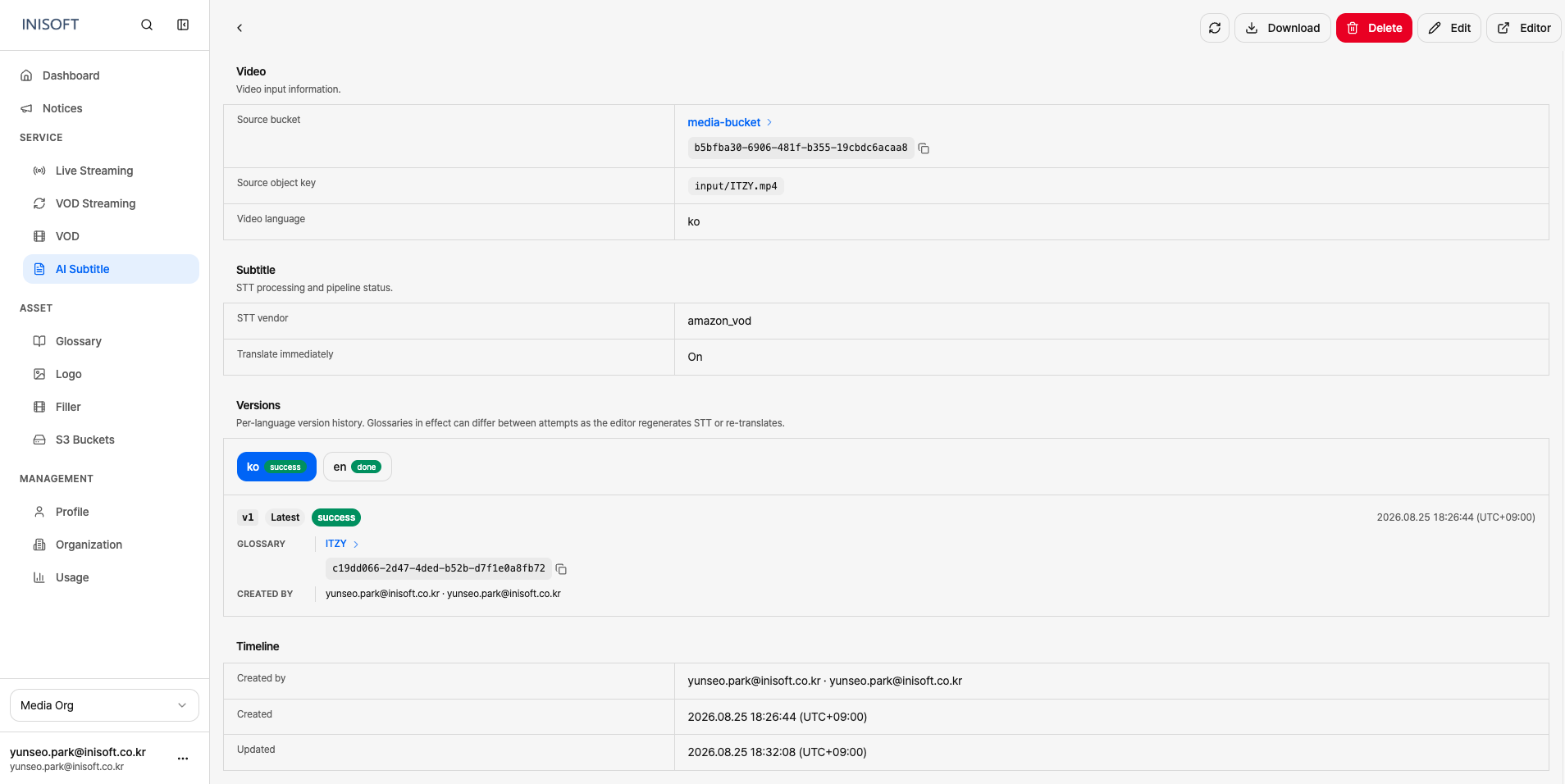
Fig. Subtitle Job detail page
The detail page shows the following information.
| Section | Item | Description |
|---|---|---|
| Overview | Title | The name of the Subtitle Job. |
| Description | The description entered for the Subtitle Job. | |
| ID | A unique ID used to identify the Subtitle Job. | |
| Video | Source bucket | The S3 Bucket where the original video is stored. Clicking the bucket name takes you to the detail screen for that linked S3 Bucket. |
| Source object key | The path and filename of the original video within the S3 Bucket. | |
| Video language | The language spoken in the original video. | |
| Subtitle | STT vendor | The STT engine used to convert the video's audio into text subtitles. |
| Translate immediately | Shows whether translation is set to start automatically once STT completes. On means automatic translation is enabled. | |
| Versions | Language | Shows the generation status of the subtitles for the source language and each translation language. For example, ko success means the Korean original-language subtitles finished generating, and en done means the English translation is complete. |
| Version | Shows the subtitle version for the selected language. V1 is the first version, and the current latest version is marked Latest. | |
| Status | Shows the status of that subtitle version. | |
| Glossary | The Glossary applied when generating that subtitle version. Clicking the linked Glossary name takes you to that Glossary's detail screen. | |
| Created by | The user who created that subtitle version. | |
| Timeline | Created by | The user who created the Subtitle Job. |
| Created | The date and time the Subtitle Job was created. | |
| Updated | The date and time the Subtitle Job's information was last changed. |
Versions
Versions lets you check the generation status and version information of the subtitles for the source language and each translation language.
Selecting a language tab at the top shows that language's subtitle version, status, applied Glossary, and who created it and when. The current latest version in use is marked Latest.
What the Detail Page Offers
The following actions are available at the top right of the detail page.
| No | Action | Description |
|---|---|---|
| 1 | Refresh | Reloads the Subtitle Job's information and processing status. |
| 2 | Download | Downloads the generated original-language and translated subtitles as files. |
| 3 | Delete | Deletes the current Subtitle Job. |
| 4 | Edit | Takes you to the screen for editing the Subtitle Job's settings. |
| 5 | Editor | Takes you to the Subtitle Editor to view or edit the generated subtitles. |