AI Subtitle Job Detail Panel
Clicking a row for a Subtitle Job in the list opens the Overview (detail) panel.
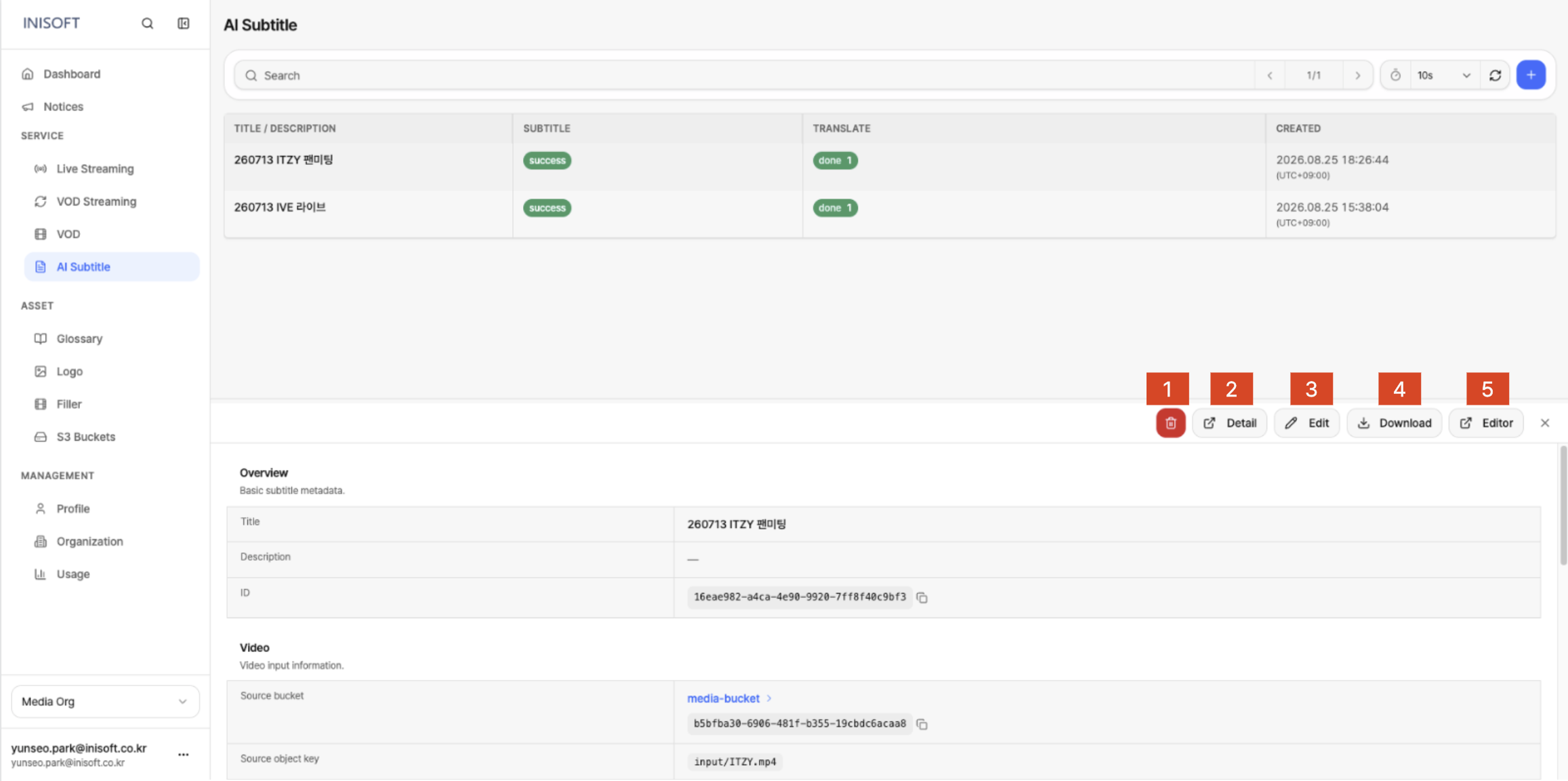
Fig. Detail panel — Overview · Video · Subtitle · Translate · Timeline
What the Detail Panel Offers
The detail panel lets you check the Subtitle Job's basic information and source video information, or navigate to the full-screen detail page and the Subtitle Editor. It also lets you download the generated subtitles, and edit or delete the job's settings.
| No | Action | Description |
|---|---|---|
| 1 | Delete | Deletes the selected Subtitle Job. |
| 2 | Detail | Takes you to the full-screen detail page for the Subtitle Job. |
| 3 | Edit | Takes you to the screen for editing the Subtitle Job's settings. |
| 4 | Download | Downloads the generated original-language and translated subtitles as files. |
| 5 | Editor | Takes you to the Subtitle Editor to view or edit the generated subtitles. |