Downloading Subtitles
Once subtitle generation or translation is complete, you can download the original-language and translated subtitles as files from the Subtitle Job's detail panel.
Opening the Download Dialog
- In the AI Subtitle list, click the row for the Subtitle Job whose subtitles you want to download.
- Confirm that the detail panel for the selected job opens at the bottom of the screen.
- Click the Download button at the top right of the detail panel.
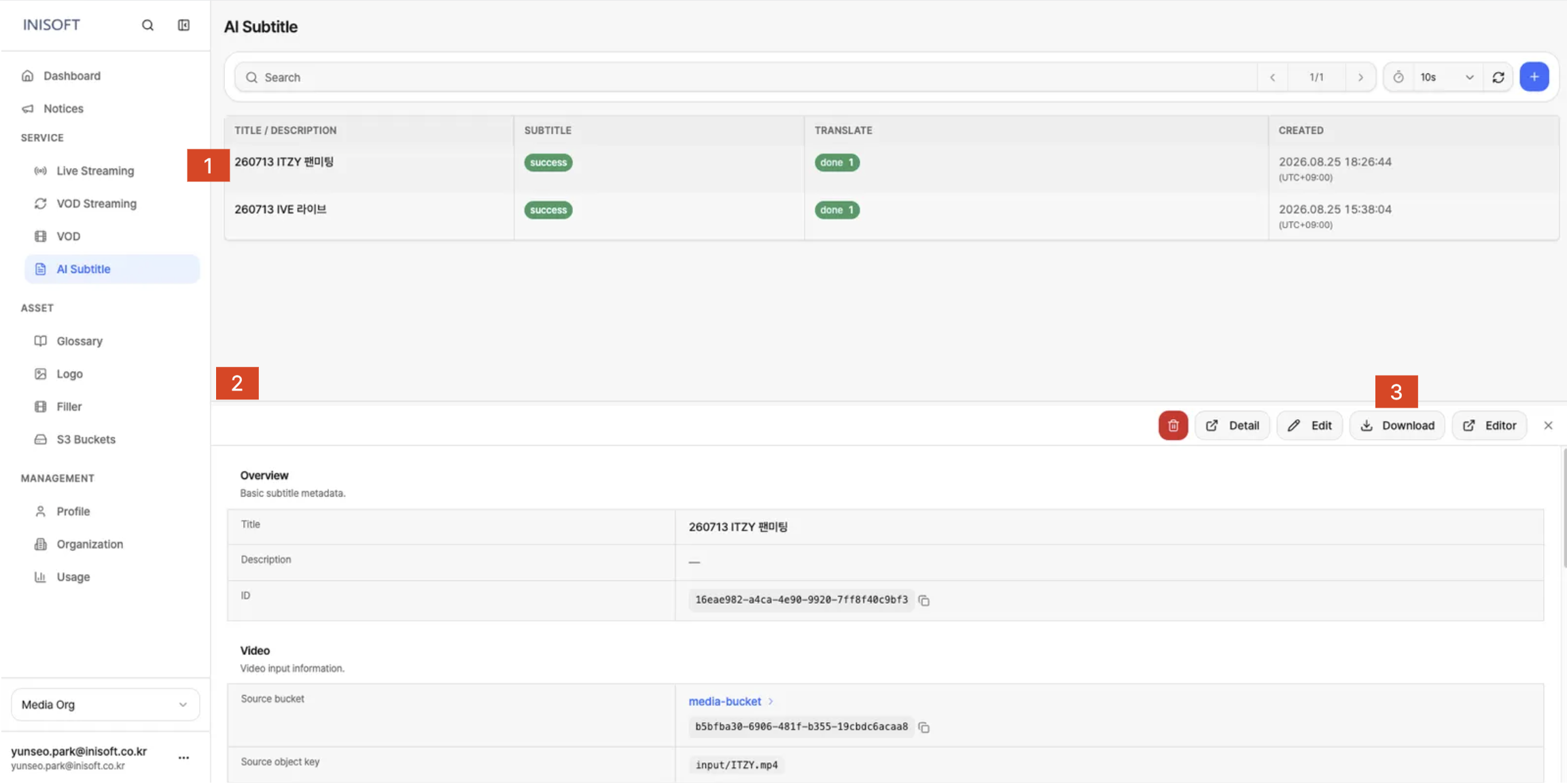
Fig. Download subtitle - STT original language, VTT/SRT/CAP per translation language
When Download Is Available
The original-language subtitles can be downloaded once the Subtitle status is success.
The translated subtitles can be downloaded once the Translate status is done. The number shown after done is how many languages have finished translation.
Downloading a Subtitle File
Clicking the Download button opens the Download subtitle dialog.
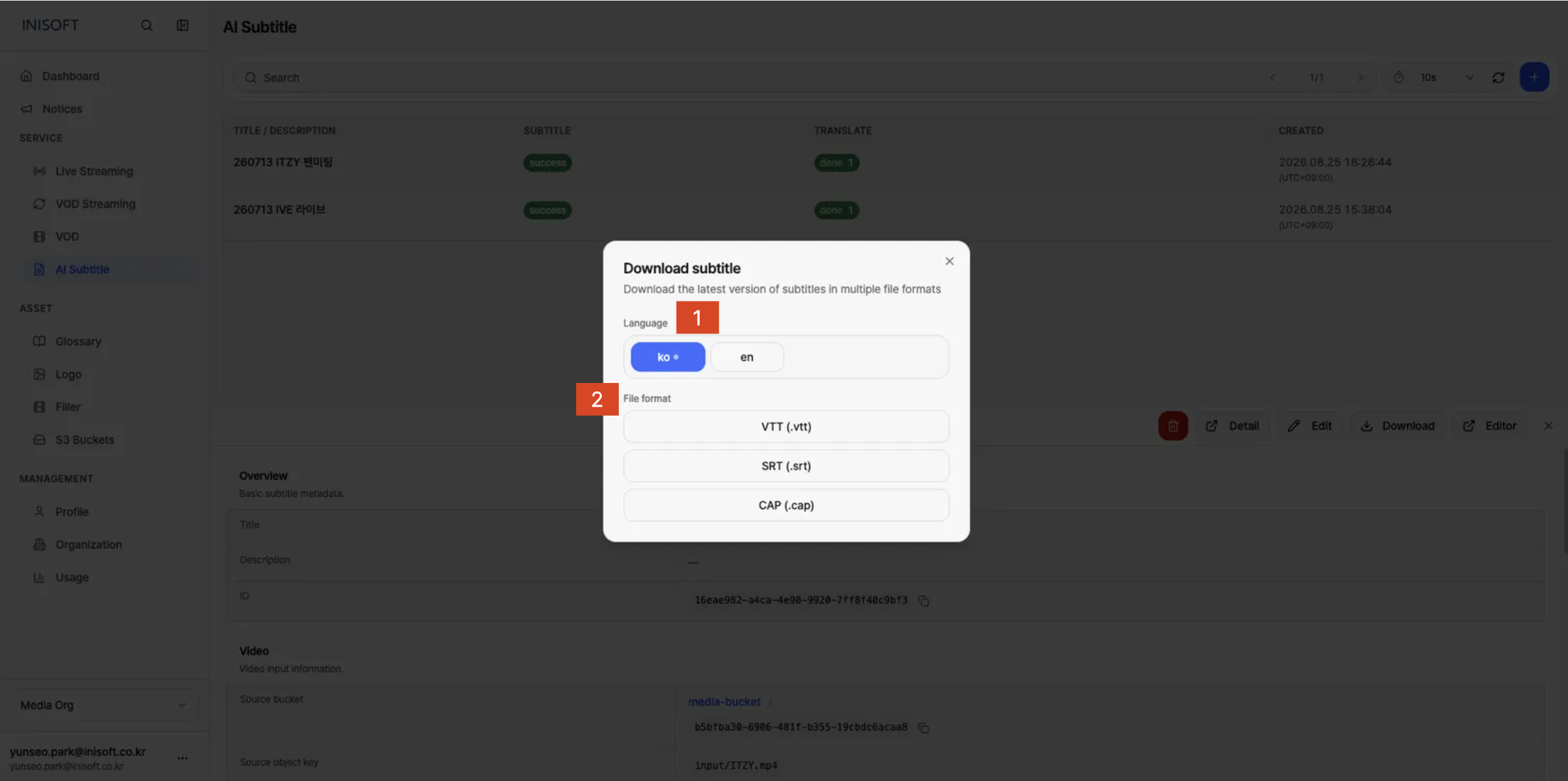
Fig. Download subtitle — selecting subtitle language and file format
In the Download subtitle dialog, you can choose the Language and File format for the subtitle you want to download.
- In Language, select the subtitle language to download.
- In File format, click the subtitle file format you want.
- The latest subtitle version for the selected language is downloaded in that format.
| Item | Description |
|---|---|
| Language | Select the language of the subtitle to download. Both the STT-generated source language and any completed translation languages are listed. |
| File format | Select the file format to download the selected language's subtitle in. VTT (.vtt), SRT (.srt), and CAP (.cap) formats are supported. |