Subtitle Editor
The Subtitle Editor is an editing feature for viewing and modifying the content and display timing of subtitles generated through STT and translation.
You can directly edit subtitle text or add new subtitles, and adjust a subtitle segment's start/end time, split it, merge it, or delete it. You can view the original-language and translated subtitles by language and version.
Opening the Subtitle Editor
- In the AI Subtitle list, click the row for the Subtitle Job you want to edit.
- Use either of the following two methods to open the Subtitle Editor.
- From the detail panel: Click Editor at the top right of the detail panel that opens at the bottom of the screen.
- From the detail page: Click Detail on the detail panel to go to the full-screen detail page, then click Editor at the top right of that page.
- Clicking Editor takes you to the Subtitle Editor page for the selected Subtitle Job.
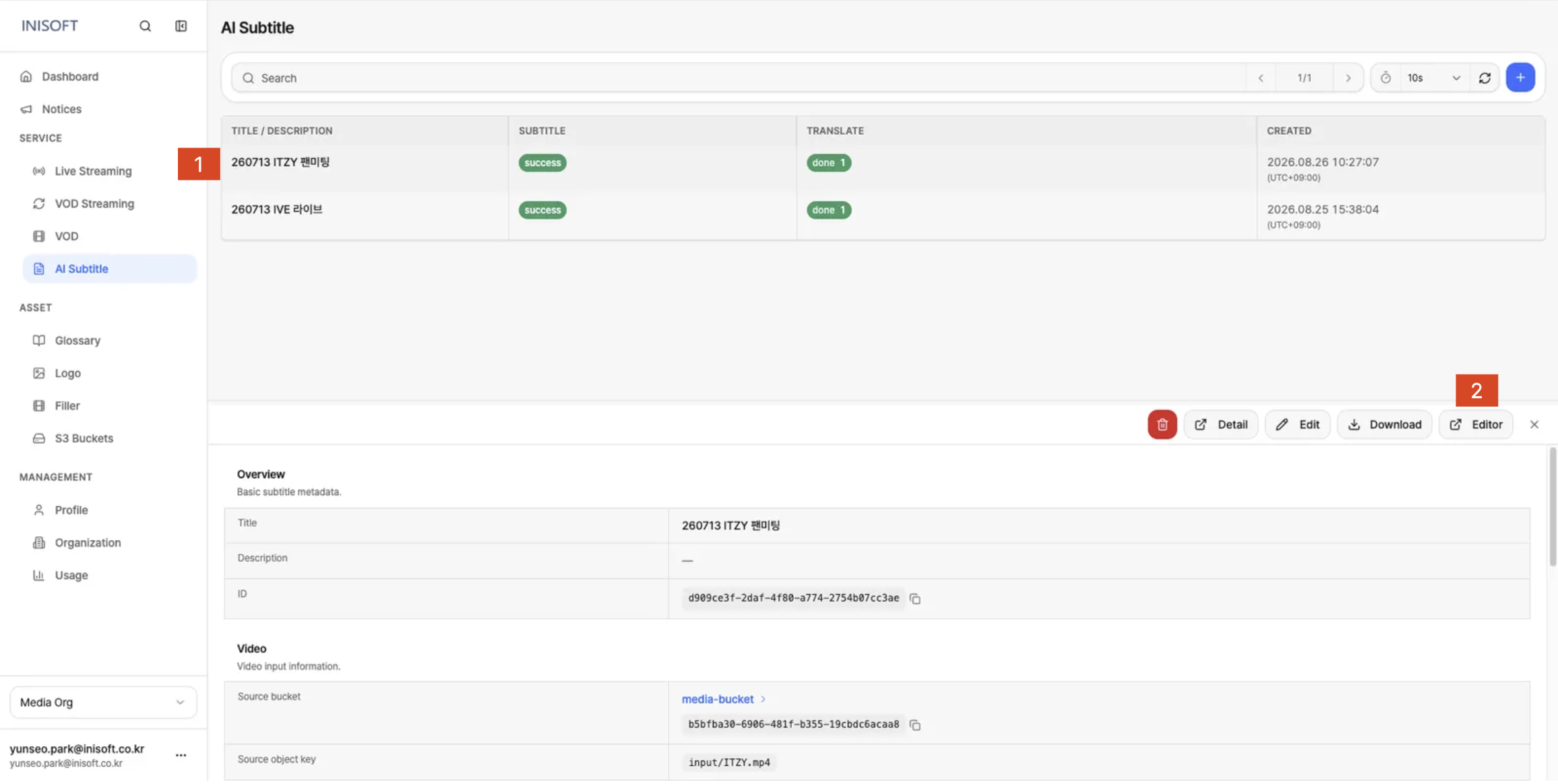
Fig. AI Subtitle detail page - clicking the Editor button at the top right opens the Subtitle Editor page
Subtitle Editor - When the Source Language Is Selected
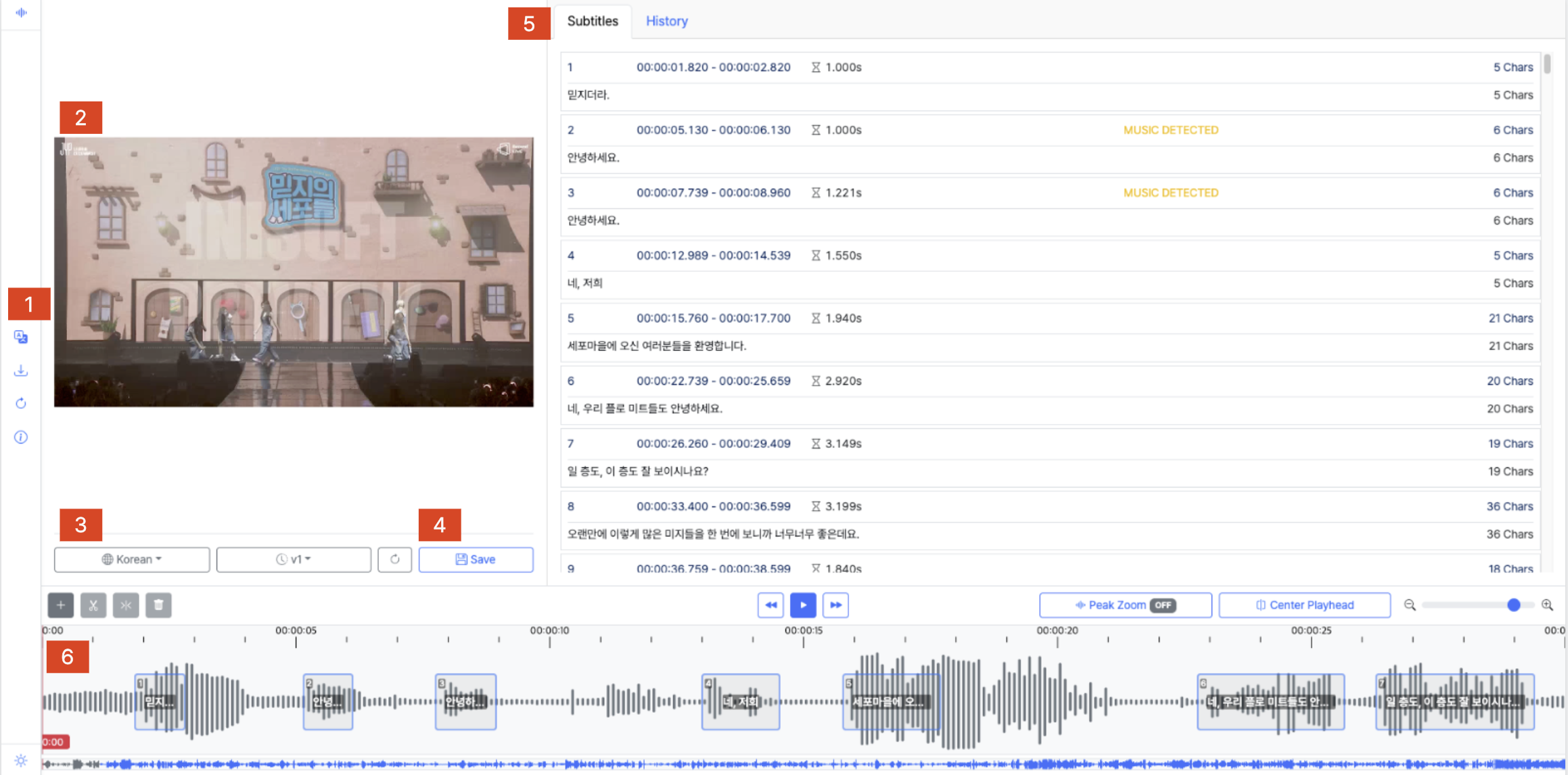
Fig. Subtitle Editor full screen - left sidebar (Translate/Download/Regenerate/Guide), center video preview, right subtitle list, bottom audio waveform
| No | Area | Main Functions |
|---|---|---|
| 1 | Function menu | Provides post-processing and guide features such as Translate, Download, and Regenerate Source. |
| 2 | Video preview | Play the video to check how the currently selected subtitles are displayed. |
| 3 | Language and version selection | Select the Language and Version of the subtitle you want to edit. |
| 4 | Save | Saves your current edits to the subtitles. |
| 5 | Subtitles / History | The Subtitles tab shows and lets you edit the subtitle list; the History tab shows saved subtitle versions and the edit history. |
| 6 | Waveform | View the audio waveform and subtitle segments aligned on a timeline, and adjust each subtitle's start/end time. |
Subtitle Editor - When a Translation Language Is Selected
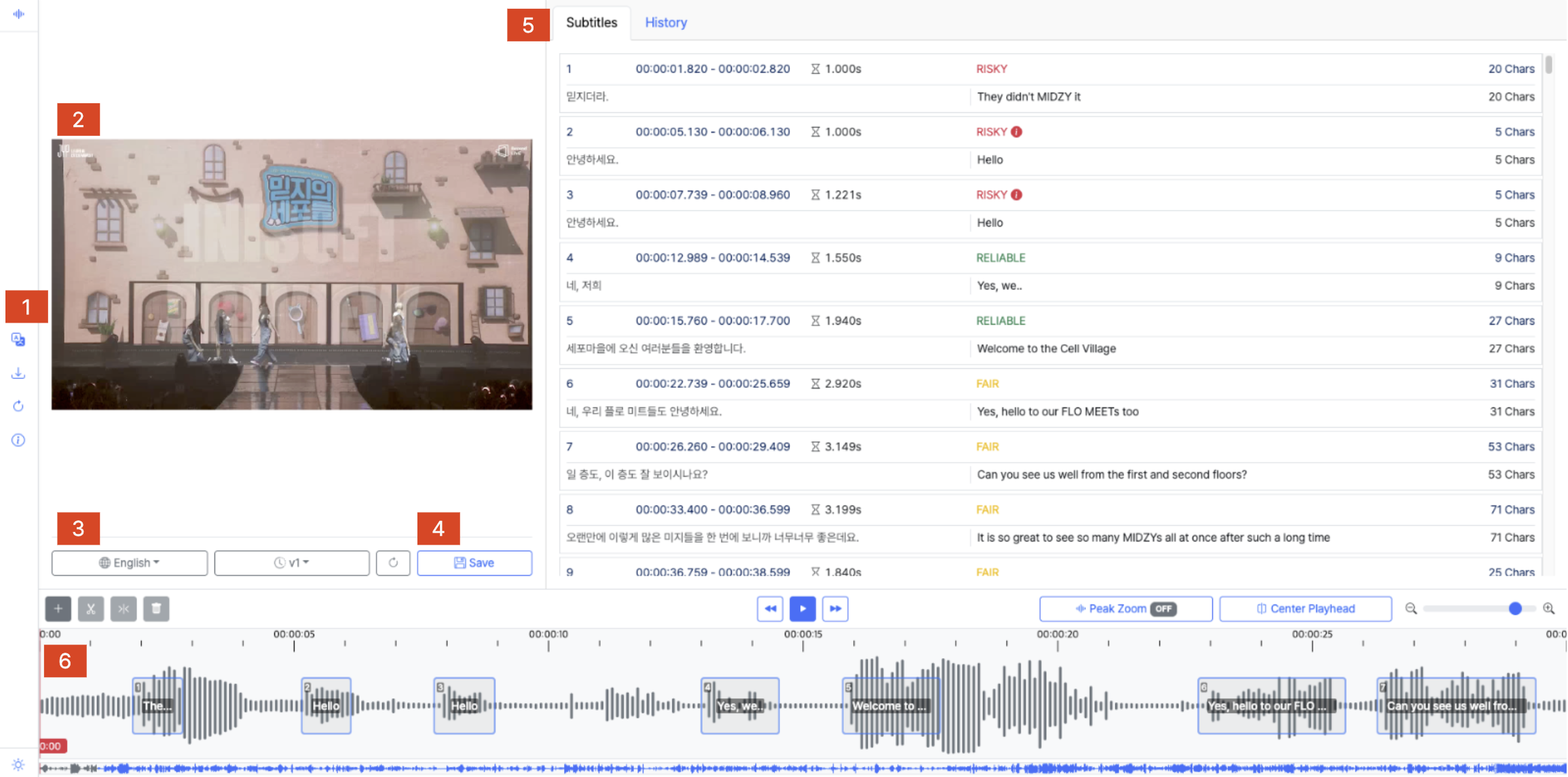
Fig. Subtitle Editor full screen - left sidebar (Translate/Download/Regenerate/Guide), center video preview, right subtitle list, bottom audio waveform
| No | Area | Main Functions |
|---|---|---|
| 1 | Function menu | Provides post-processing and guide features such as Translate, Download, Regenerate Source, and Guide. |
| 2 | Video preview | Play the video to check how the currently selected subtitles are displayed. |
| 3 | Language and version selection | Select the Language and Version of the translated subtitle you want to edit. The subtitle list shows the subtitles for the selected translation language. |
| 4 | Save | Saves your current edits to the subtitles. |
| 5 | Subtitles / History | The Subtitles tab shows the source subtitles alongside the selected translation language's subtitles for editing, and lets you check the translation score of each translated line. The History tab shows saved subtitle versions and the edit history. |
| 6 | Waveform | View the audio waveform and subtitle segments aligned on a timeline, and adjust each subtitle's start/end time. |
Subtitle Editor Section - When the Source Language Is Selected
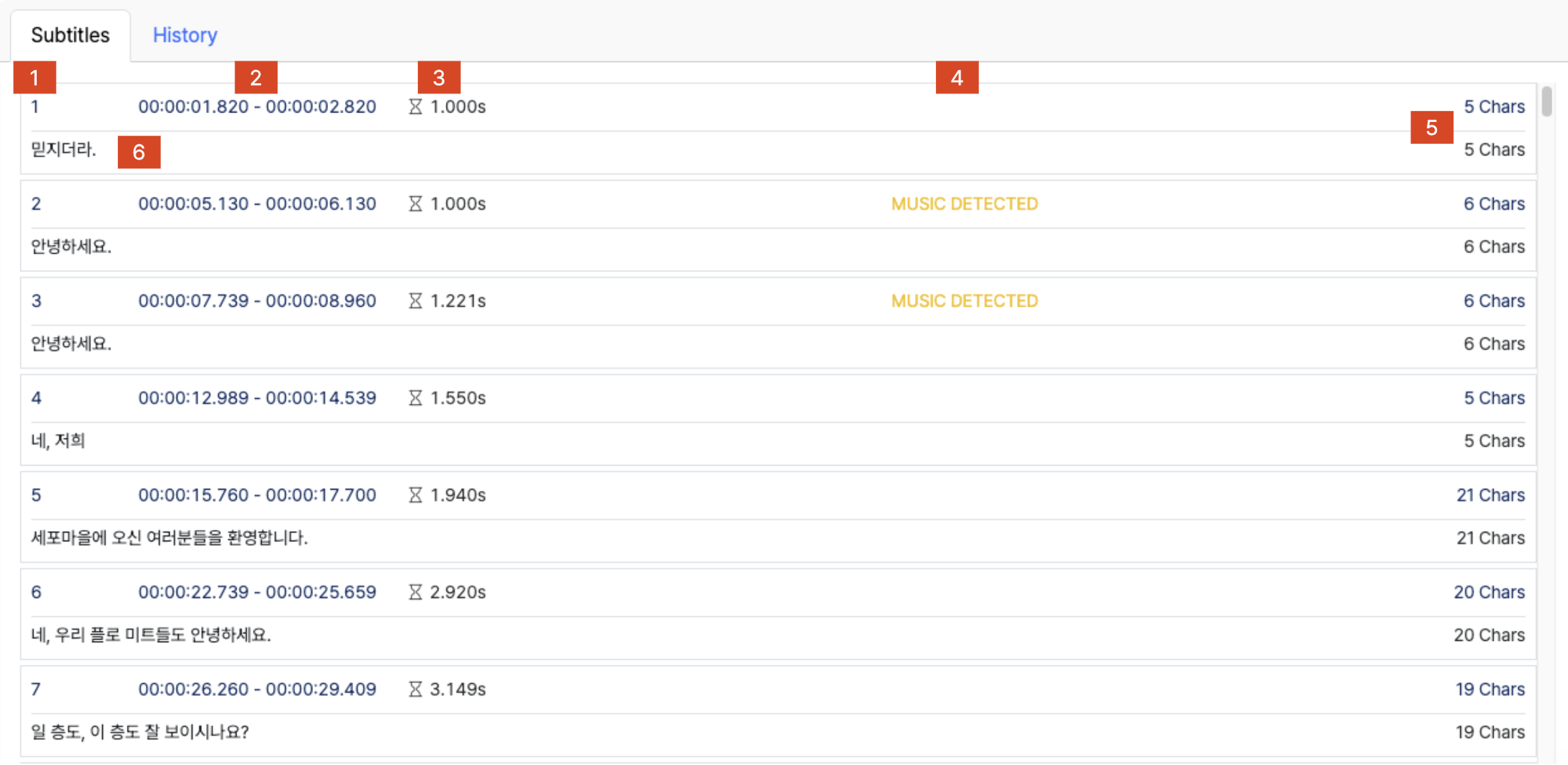
Fig. Subtitle Editor - Subtitles area when Origin Language is selected
| No. | Item | Main Functions |
|---|---|---|
| 1 | Subtitle index | Shows the sequence number of each subtitle entry. |
| 2 | Start Time & End Time | Shows the start and end time each subtitle is displayed. |
| 3 | Duration | Shows the display duration of the subtitle, calculated as End Time - Start Time. |
| 4 | Speech / Music classifier | Classifies the audio in a subtitle segment as Speech or Music. Segments classified as Music are shown in a different color so they're easy to distinguish. |
| 5 | Character count | Shows the total character count of the subtitle and the character count per line. |
| 6 | Subtitle content and edit area | View and directly edit the subtitle content. Clicking a subtitle, or pressing Enter while it's selected, switches it into text-editing mode. Press Enter after editing to apply the change, or Esc to cancel it. Use the ↑ / ↓ arrow keys to move between subtitle entries. |
Subtitle Editor Section - When a Translation Language Is Selected
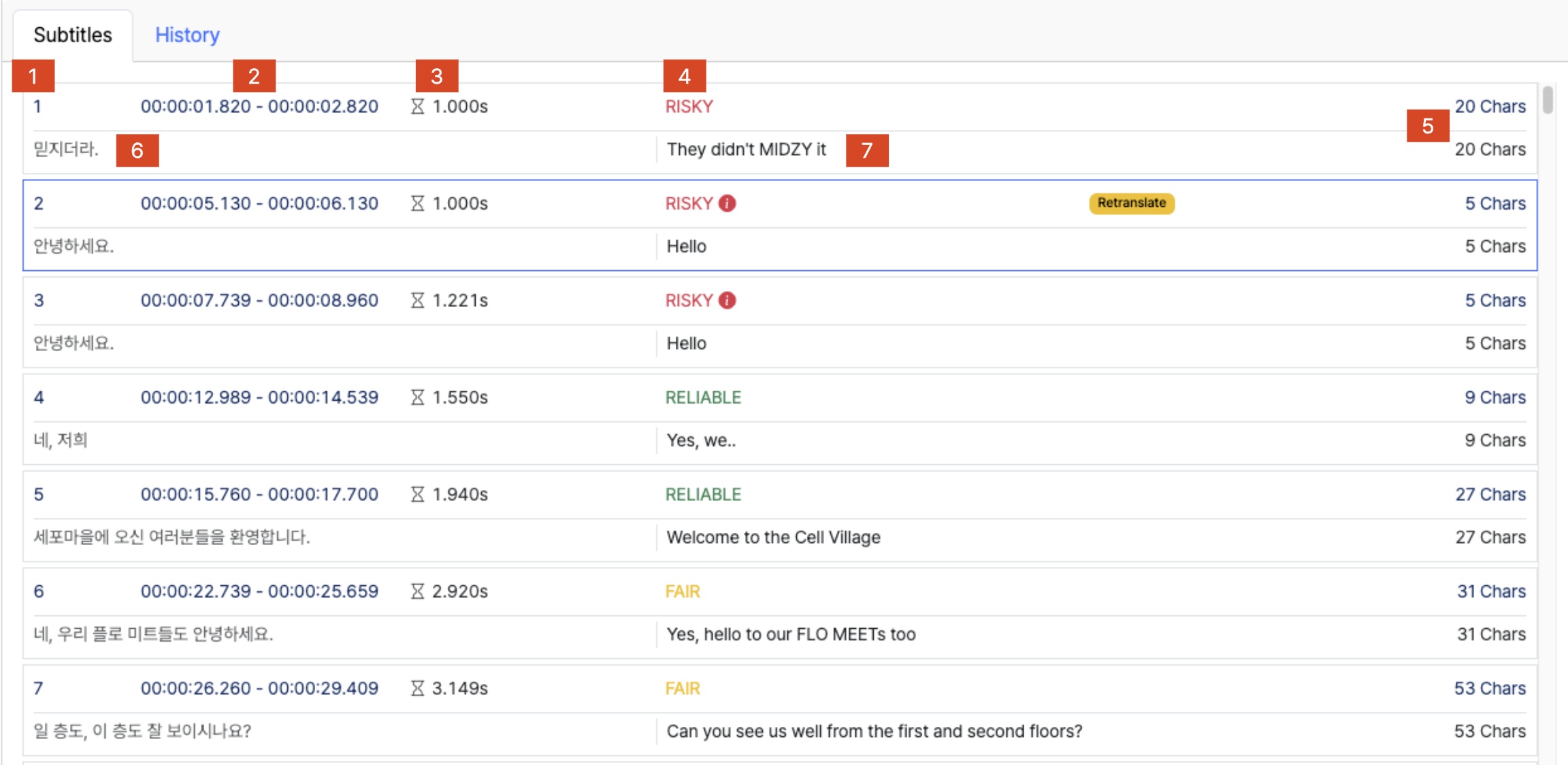
Fig. Subtitle Editor - Subtitles area when Translate Language is selected
| No. | Item | Main Functions |
|---|---|---|
| 1 | Subtitle index | Shows the sequence number of each subtitle entry. |
| 2 | Start Time & End Time | Shows the start and end time each subtitle is displayed. |
| 3 | Duration | Shows the display duration of the subtitle, calculated as End Time - Start Time. |
| 4 | Translation score | Shows a score for the translation result, as a rating such as RISKY, FAIR, or RELIABLE. |
| 5 | Character count | Shows the total character count of the subtitle and the character count per line. |
| 6 | Source subtitle | Shows the source-language subtitle that was translated. |
| 7 | Translated subtitle content and edit area | View and directly edit the translated subtitle content. Clicking a subtitle, or pressing Enter while it's selected, switches it into text-editing mode. Press Enter after editing to apply the change, or Esc to cancel it. Use the ↑ / ↓ arrow keys to move between subtitle entries. |
Subtitle Editor - Translation Language Modify
After selecting a subtitle in a translation language, you can use the LLM Translate feature to regenerate the translation for that subtitle.
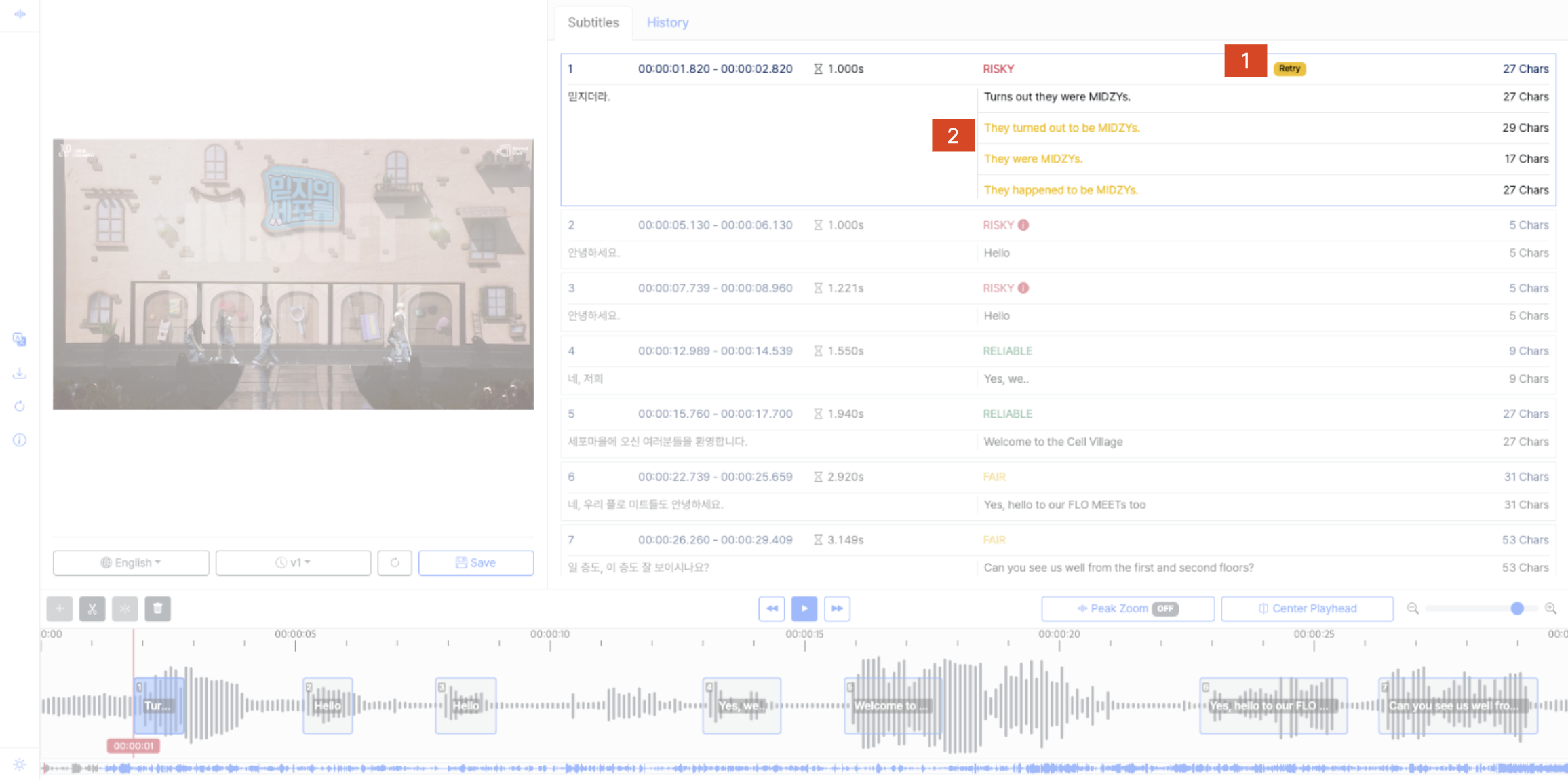
Fig. Translation Language Modify mode - viewing and applying the LLM translation result for a selected subtitle
| No. | Function | Description |
|---|---|---|
| 1 | Retranslate | Selecting a translated subtitle activates the Retranslate button for it. Clicking the button pins the selected subtitle to the top of the list and runs LLM translation. • The existing subtitle is kept, and the LLM translation result is shown below it. |
| 2 | LLM translation result | View the translation candidates generated by the LLM and choose the one you want. • On the left, the shared source subtitle is shown. • On the right, the translation candidates generated by the LLM are shown. • The character count of each candidate is shown alongside it. • Clicking a candidate applies it as the translation for the selected subtitle and exits Retranslate mode. |
| 3 | Deselecting focus | • Even after deselecting, you can select the subtitle again to run LLM translation. • The context from a previous LLM translation is not retained. |
Subtitle Editor - Waveform

Fig. Subtitle Editor - Waveform area
| No. | Item | Main Functions |
|---|---|---|
| 1 | Add subtitle | Select a subtitle, then click this button to add an empty subtitle right after it. |
| 2 | Split subtitle | Select a subtitle, then click this button to split it into a start-to-midpoint and midpoint-to-end segment. |
| 3 | Merge subtitles | Select multiple subtitles, then click this button to merge the selected subtitles into one. |
| 4 | Delete subtitle | Select a subtitle, then click this button to delete the selected subtitle. |
| 5 | Rewind / Play & Pause / Fast-forward | Adjust the playback position of the video and waveform, or control playback. |
| 6 | Peak Zoom / Center Playhead | Peak Zoom amplifies or reduces the waveform by adjusting its maximum/minimum range. Center Playhead aligns the Waveform section so the playhead (the red line showing the current playback position) stays centered. |
| 7 | Adjust the visible waveform range | Use the slider to zoom the waveform view in or out. |
| 8 | Subtitle display | Overlays each subtitle's start/end time on the waveform. • Drag and drop a subtitle to move both its start and end time together. • Drag and drop a subtitle's start edge to change just the start time. • Drag and drop a subtitle's end edge to change just the end time. |
| 9 | Zoomed waveform / full waveform | The top shows the currently zoomed-in waveform section, and the bottom shows the full waveform along with the current playback position. |
Subtitle Editor - Edit History
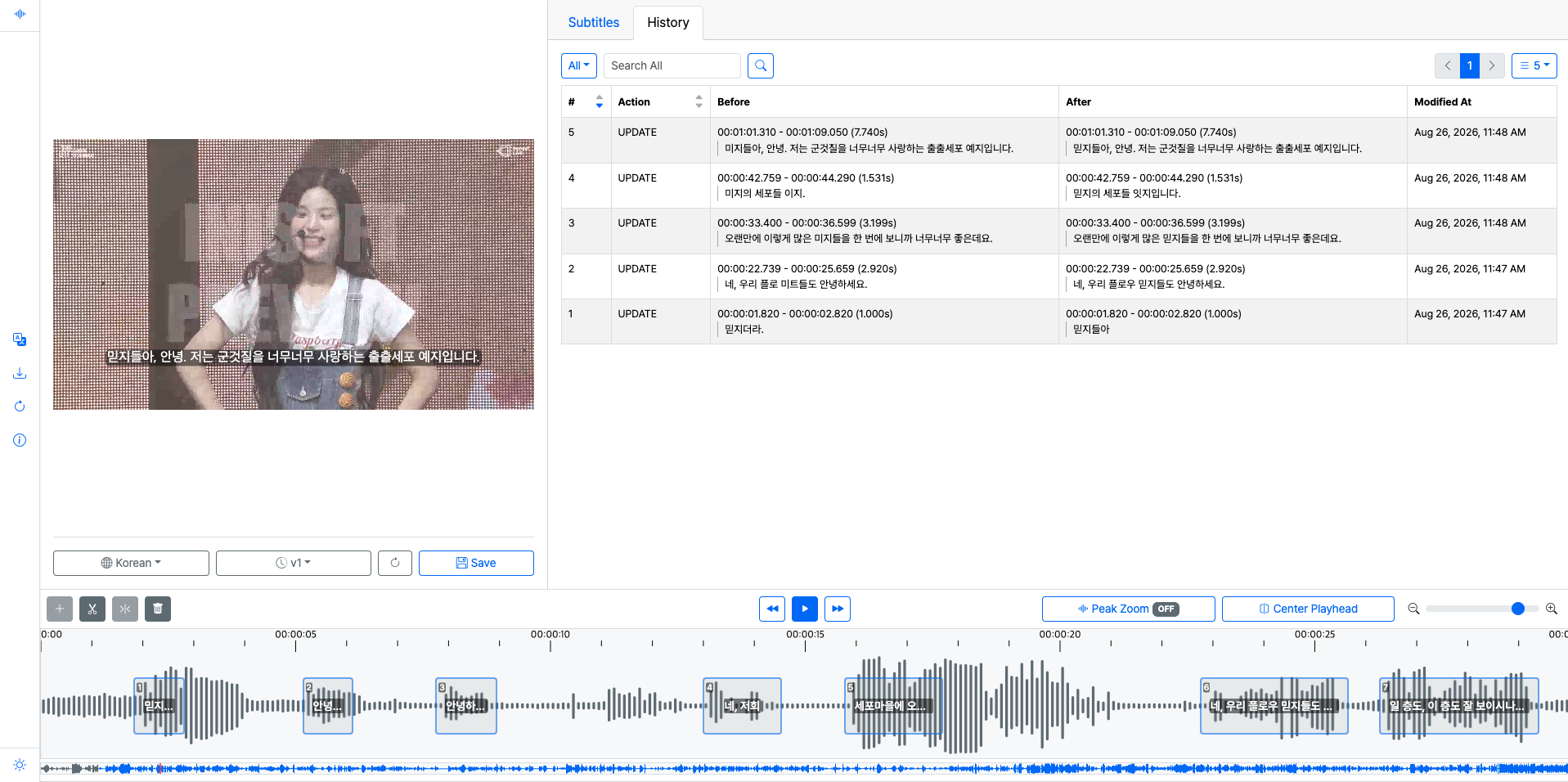
Fig. Subtitle Editor - History tab area
| No. | Item | Main Functions |
|---|---|---|
| 1 | Filter / search | Use the All/Action/Before/After dropdowns to filter the history by type. |
| 2 | # / Action | Shows the sequence number of each history entry and the type of action performed (UPDATE, TIME UPDATE, SPLIT, MERGE, ADD, DELETE, etc.). |
| 3 | Before / After | Compares and shows the subtitle's start/end time and content before and after the change. |
| 4 | Modified At | Shows when the action was performed. |
| 5 | Pagination / rows per page | Move between pages of the history list, or adjust how many entries are shown per page. |
History - Action Types
| Action | Description |
|---|---|
| Update | Shown when a subtitle's content is edited. • When the user edits the subtitle content directly • When the subtitle is edited via LLM Translation |
| Time Update | Shown when a subtitle's Start Time or End Time is changed. • When only the Start Time is changed • When only the End Time is changed • When both Start Time and End Time are changed at once (dragging the subtitle) |
| Split | Shown when the Split feature is used to divide one subtitle into two. • The End Time of the first subtitle and the Start Time of the second are set based on the playhead position. • Both subtitles are copied with the same content. |
| Merge | Shown when the Merge feature is used to combine multiple subtitles. • Two or more subtitles are selected and merged. |
| Add | Shown when an empty subtitle is added. • Only the After side shows a Start Time ~ End Time. |
| Delete | Shown when a subtitle is deleted. |
Subtitle Editor - Translate Panel
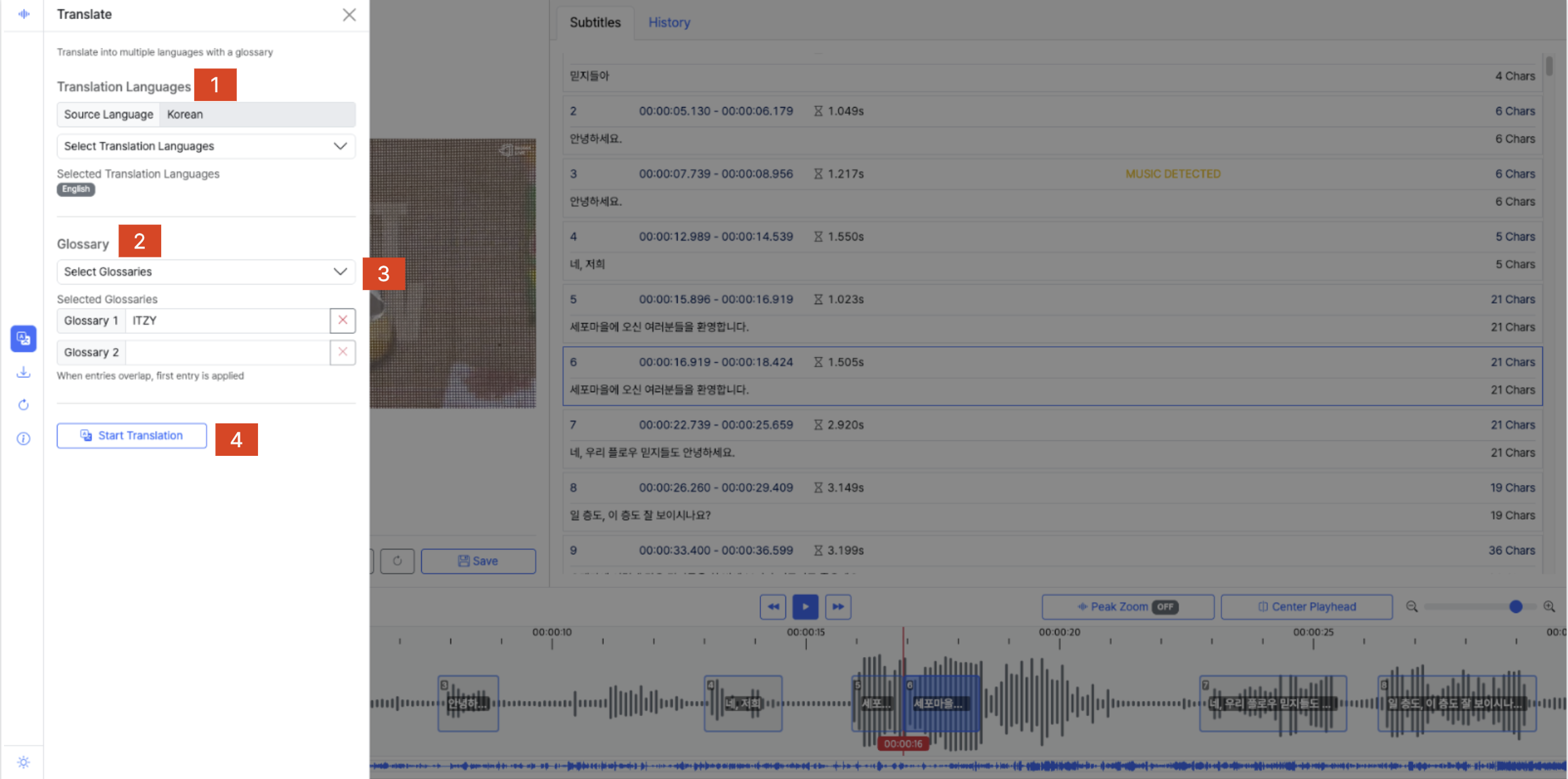
Fig. Subtitle Editor - Translate panel area
| No. | Item | Main Functions |
|---|---|---|
| 1 | Translation language selection | Shows the values selected when the VOD Subtitle Asset was created in the LivePlatform Console. • The Source Language cannot be changed. • Translation Languages can be added or removed. |
| 2 | Glossary selection | Shows the values selected when the VOD Subtitle Asset was created in the LivePlatform Console. • You can open the Glossary console in a new window to create and apply a new Glossary. • Use the refresh button to reload the list. • The Glossary selection list provides a shortcut to view each Glossary's details. |
| 3 | Glossary selection dropdown | You can select up to two Glossaries. • A shortcut for each Glossary opens it in a new window, where you can edit and apply changes. |
| 4 | Translation start button | Clicking Start Translation runs translation based on the selected language(s) and Glossary(ies). |
Subtitle Editor - Download Panel
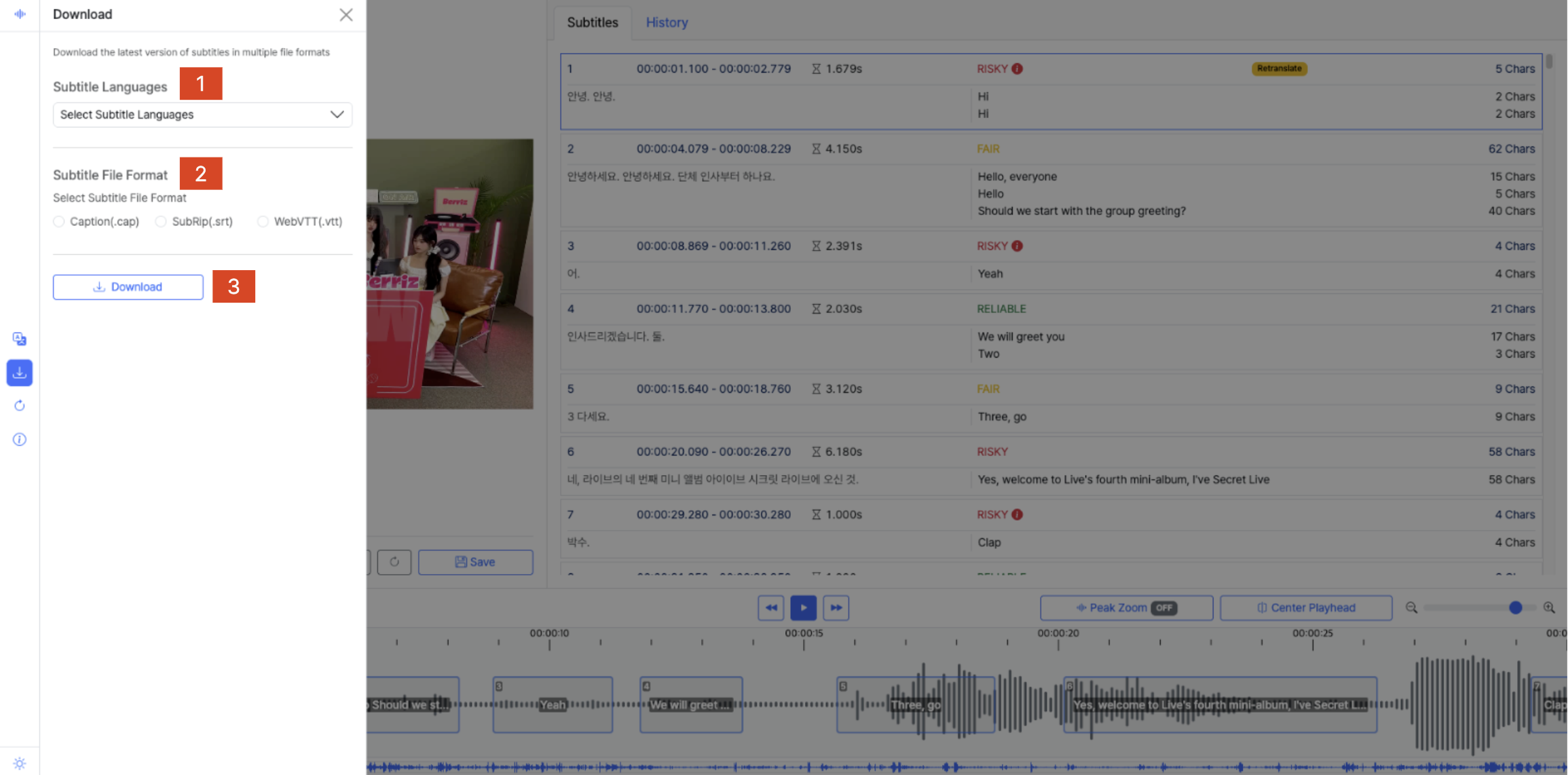
Fig. Subtitle Editor - Download panel area
| No. | Item | Main Functions |
|---|---|---|
| 1 | Language selection for download | Select multiple languages to download. • With a single language selected, only one file is downloaded. • With multiple languages selected, the files are downloaded together as a single zip archive. |
| 2 | Subtitle file format selection | Choose one of Caption (.cap), SubRip (.srt), or WebVTT (.vtt). |
| 3 | Download button | Clicking Download downloads the subtitles in the selected language(s) and format. |
Subtitle Editor - Regenerate Source Panel
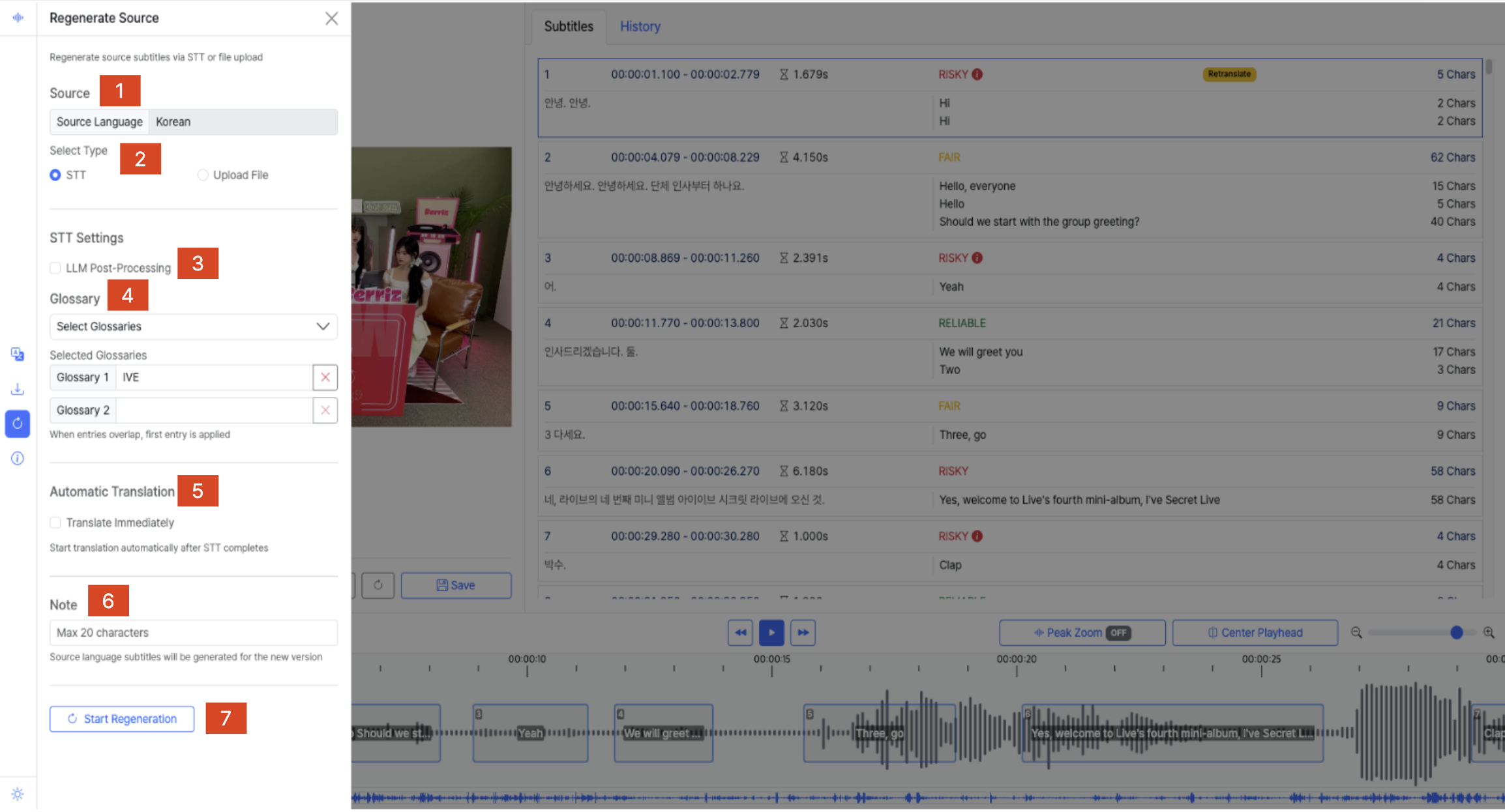
Fig. Subtitle Editor - Regenerate Source panel area
| No. | Item | Main Functions |
|---|---|---|
| 1 | Source Language | The source language cannot be changed. |
| 2 | Subtitle Type selection | STT: Regenerates subtitles using AI STT; configure the STT-related settings below before regenerating. Upload File: Regenerates the source subtitles from an uploaded file; selecting this changes the fields below to file-upload options. |
| 3 | LLM Post-Processing | Sets whether to include LLM-based post-processing after STT. |
| 4 | Glossary settings | Select the Glossary(ies) to apply when regenerating, up to two. • A shortcut for each Glossary lets you view and edit its content in a new window. |
| 5 | Automatic Translation | If Translate Immediately is checked, translation starts automatically once STT completes. |
| 6 | Note | Enter a note of up to 20 characters for the newly regenerated version. |
| 7 | STT regeneration request button | Clicking Start Regeneration begins regenerating the source subtitles with the configured options. • You cannot request another source-language regeneration while one is already in progress. |