List Screen
Entering the AI Subtitle menu shows you the list of Subtitle Jobs created within your organization.
The list shows each Subtitle Job's speech recognition (STT) status, translation status, and creation date/time, and you can use the search and refresh features at the top to find a specific job or check its latest status.
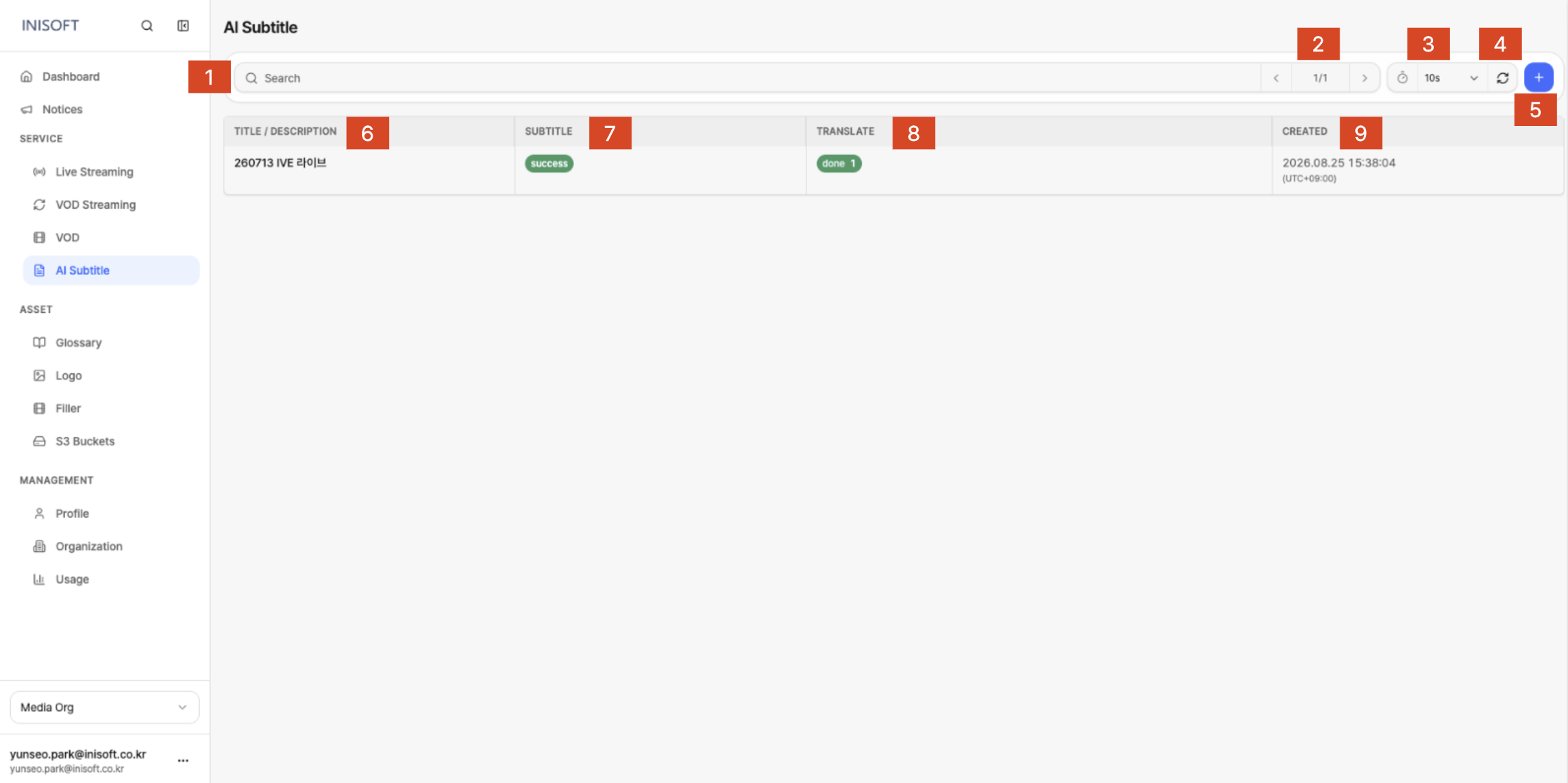
Fig. AI Subtitle list - Search, Auto refresh, Add AI Subtitle(+)
Screen Layout
| NO | Item | Description |
|---|---|---|
| 1 | Search | Search by job name or description to quickly find the Subtitle Job you're looking for. |
| 2 | Page navigation | When the list spans multiple pages, click the left/right arrows to move between pages. The current page and total page count are shown together. |
| 3 | Auto Refresh | Automatically refreshes the list at a set interval so you can check the latest status of Subtitle Jobs. |
| 4 | Refresh | Click the button to refresh the list immediately. |
| 5 | Add AI Subtitle (+) | Creates a new Subtitle Job. Clicking the button takes you to the AI Subtitle creation screen. |
| 6 | Title / Description | Shows the title and description of the Subtitle Job. |
| 7 | Subtitle | Shows the status of the STT task that converts the original video's audio into text. |
| 8 | Translate | Shows the status of the multilingual translation task for the generated subtitles. |
| 9 | Created | Shows the date and time the Subtitle Job was created. Times are shown in UTC+09:00 (Korea Standard Time). |