Generate with AI (Beta)
Currently provided as a Beta feature.
Instead of entering terms one by one, the Generate with AI Beta feature lets AI find terms related to a specific subject (a person, group, work, etc.) and automatically fill them into the Words table.
1. Opening the Generate with AI Modal
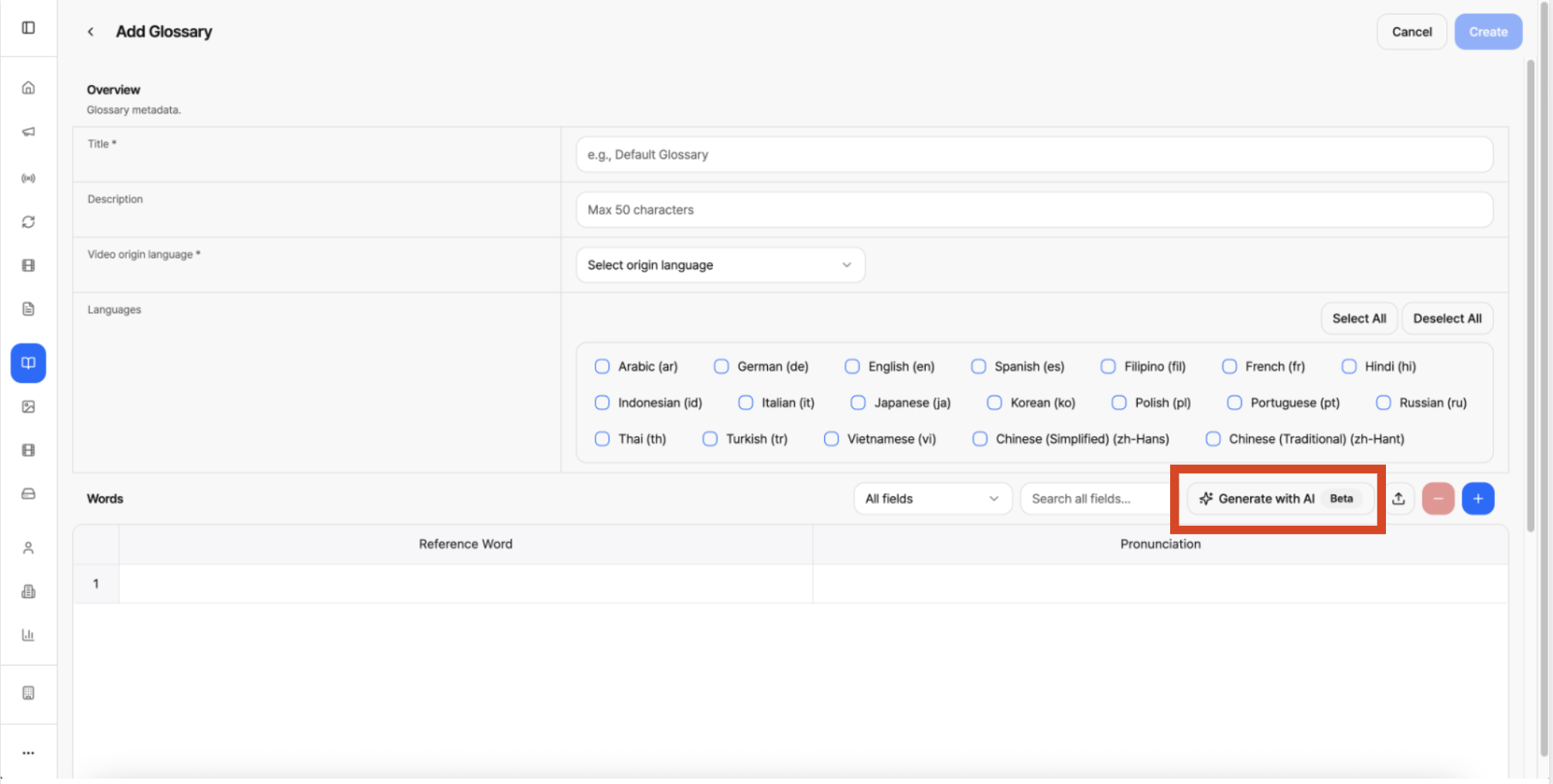
Fig. Glossary - generate with ai
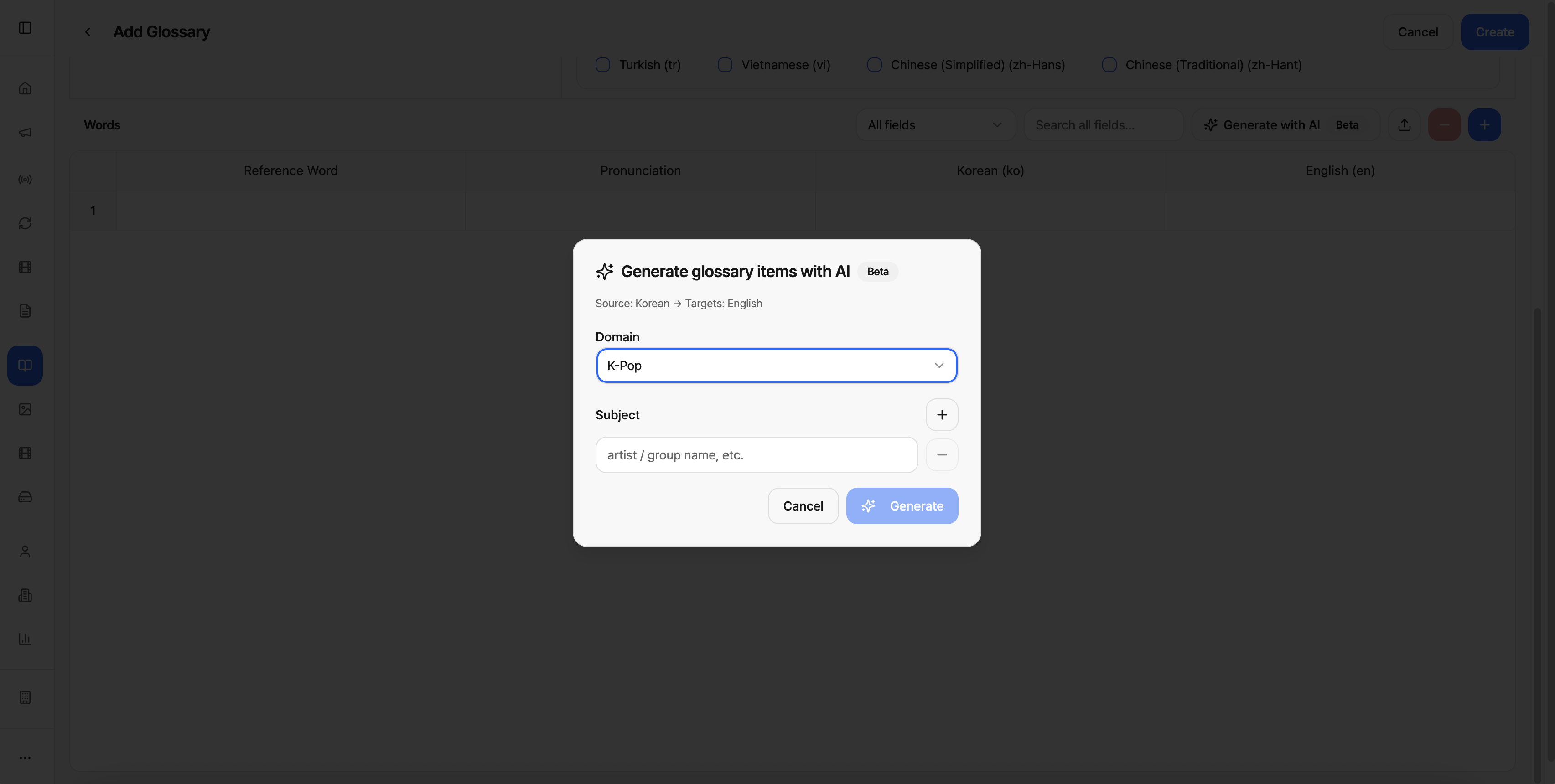
Fig. Glossary - generate with ai
Clicking the Generate with AI button at the top right of the Words area opens a modal.
At the top of the modal, the Source (original language) → Targets (translation target languages) combination set in Overview is shown as-is. This is simply carried over from the values you already selected on the Add Glossary screen, so there's no need to set it again in this modal.
2. Entering Domain and Subject
| Field | Required | Description |
|---|---|---|
| Domain | Yes | Select the field the generated terms belong to from the dropdown. |
| Subject | Yes | Enter the name of the specific subject to generate terms for. |
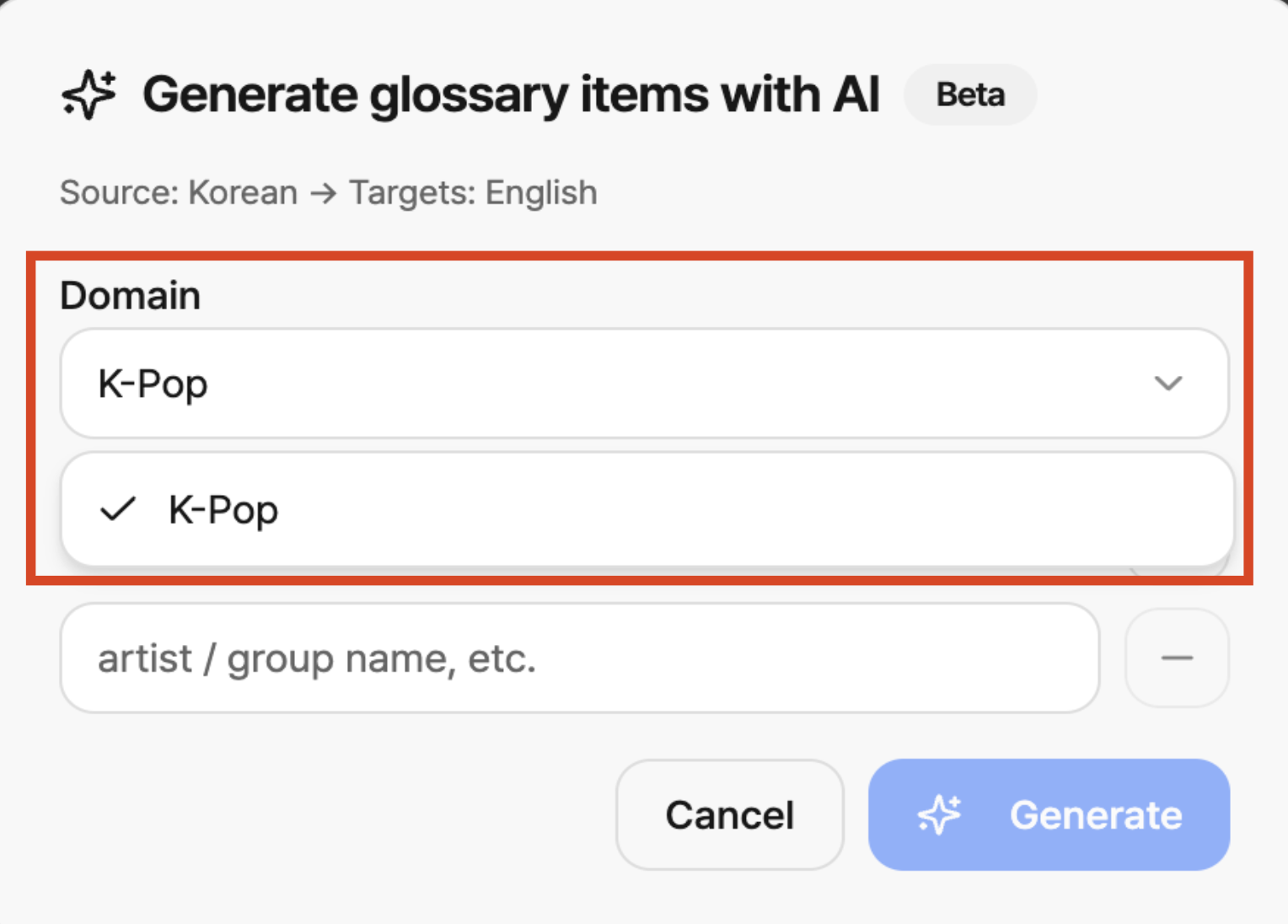
Fig. Domain dropdown — list of available domains
Domain specifies which field the generated terms belong to. The AI uses this value to judge what context to search in when generating terms.
-
Clicking the dropdown shows the list of available domains. Choose the field that matches your subject.
-
Choosing a domain that doesn't match your actual subject can cause the AI to search in the wrong context, reducing accuracy, so it's important to choose a domain that fits.
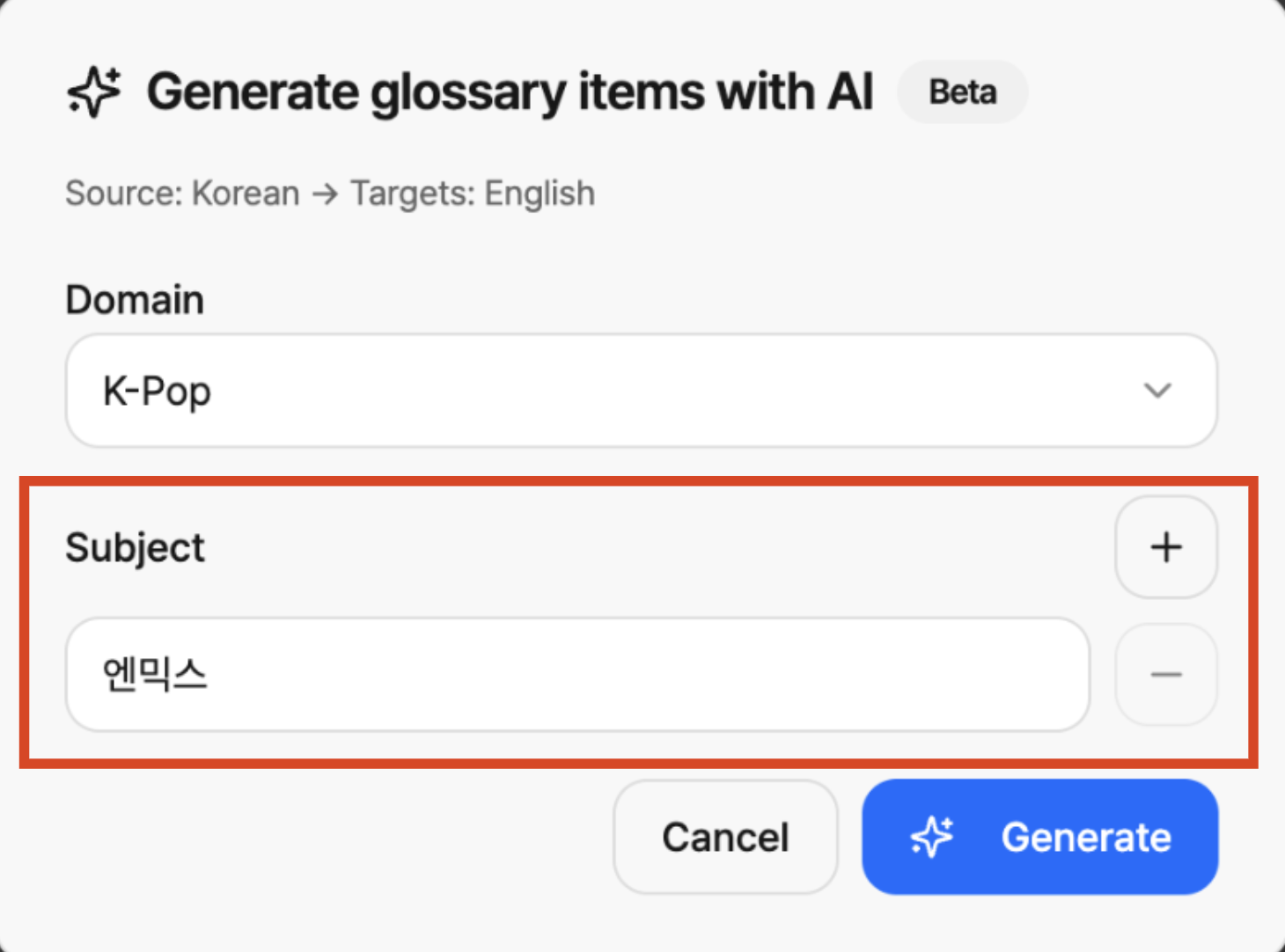
Fig. Subject input — enter the subject's name based on the source language
Subject is where you enter the name of the specific subject to generate terms for. Think of it as specifying who (or what), within the Domain selected above, the terms should actually be generated for.
-
Enter an artist name, group name, etc. in the input field.
-
You can register multiple Subjects at once. Clicking the + button to the right of the input field adds another Subject input field, letting you request terms for several subjects at once (e.g. a group name and each member's name separately). If an added input field is no longer needed, click the - button next to it to remove it.
Once you've entered Domain and Subject, click the Generate button. To cancel the request instead, click Cancel to close the modal.
3. Reviewing the Generated Results
Once generation is complete, the new rows are added to the Words table, highlighted in purple.
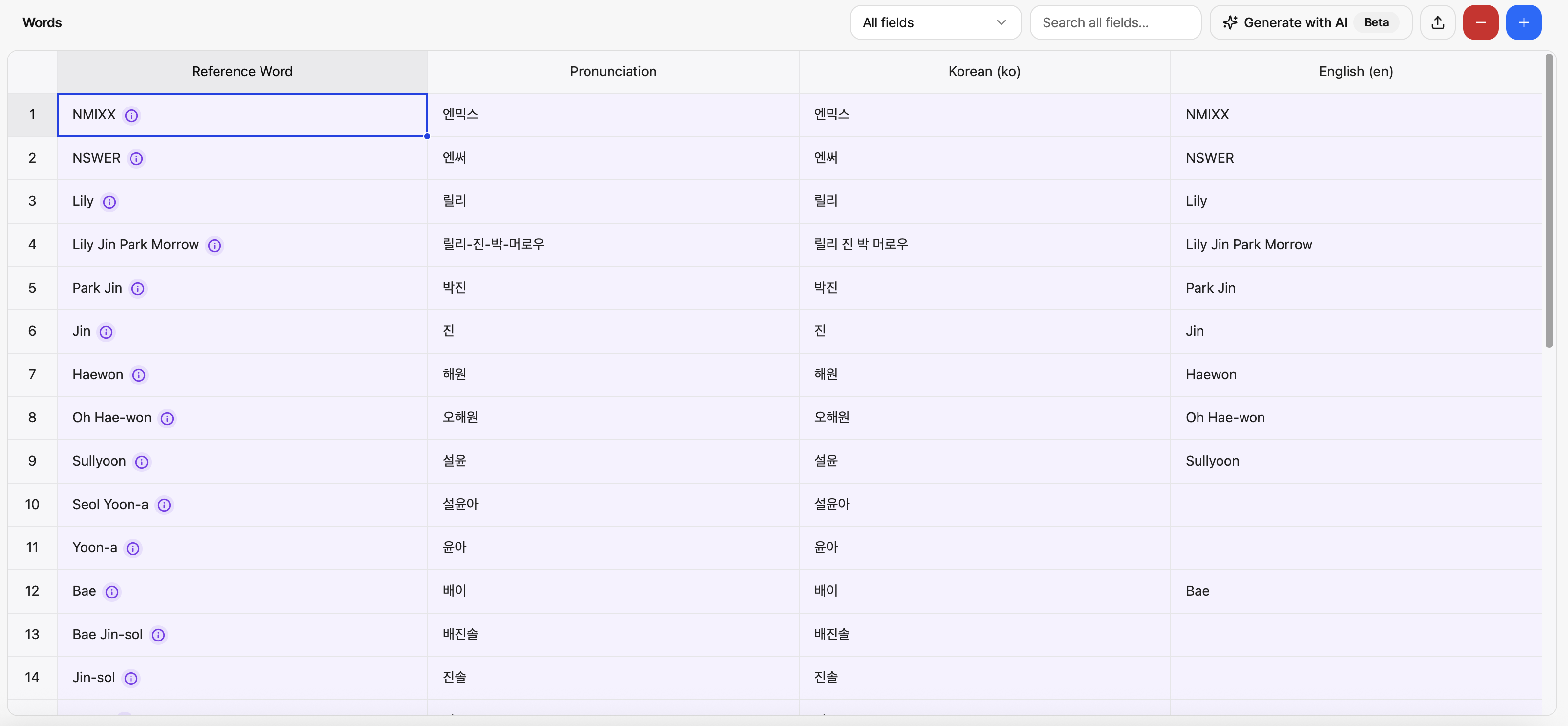
Fig. Generate with ai results
- The group name and the names of each individual member are generated together.
- Stage names, full names, surname+given name combinations, nicknames, and so on are each generated as separate rows.
- An ⓘ info icon is shown next to the Reference Word and English (en) values in each row. Hovering over or clicking the icon shows the source link that the value is based on.
- Depending on the Domain, related terms such as song titles may also be generated.
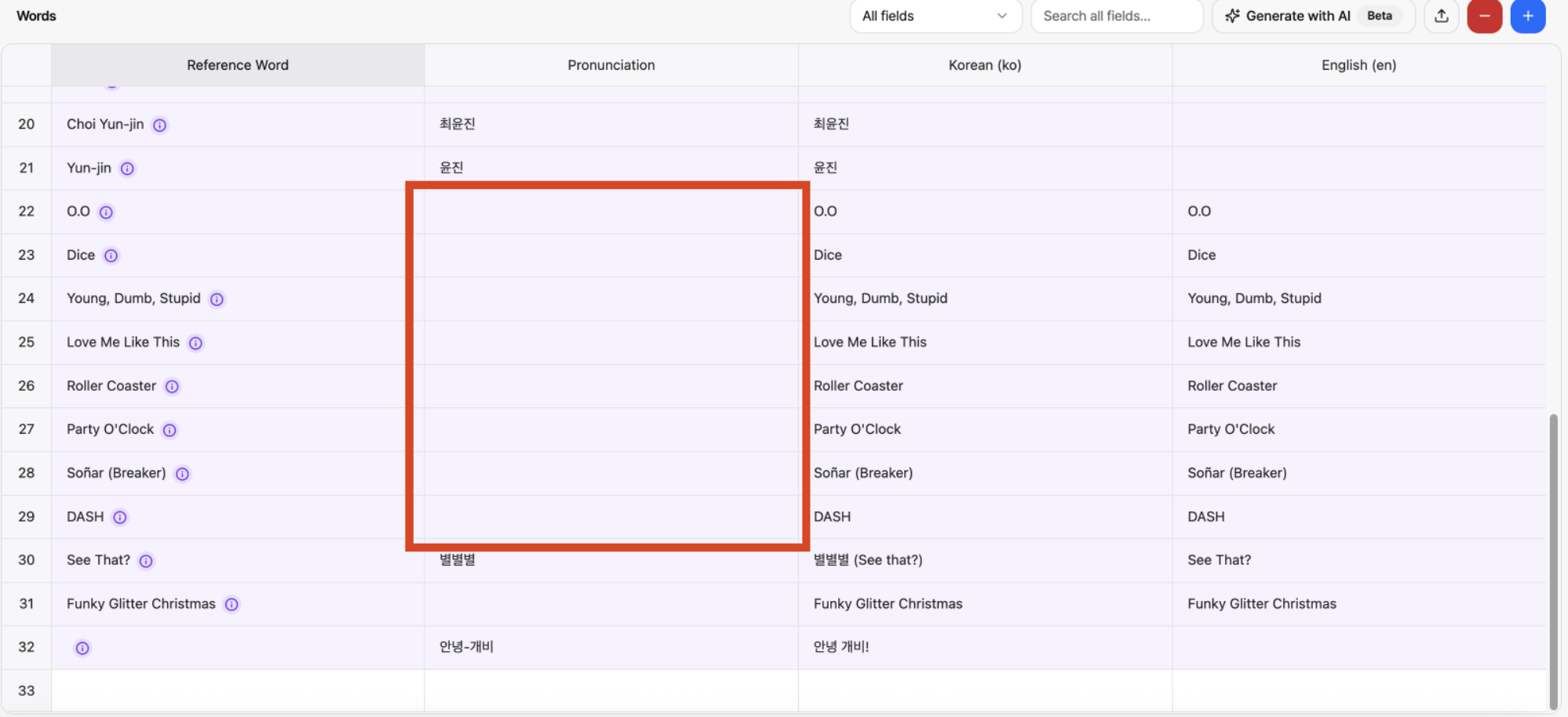
Fig. Generate with ai results
- The generated results can sometimes include rows where the Reference Word or a specific language column is left blank. This can happen when the AI couldn't find a matching spelling for the target language, so before saving, be sure to check these rows and fill in the value yourself.
The generated spellings and pronunciations aren't guaranteed to always be accurate, so review each row before clicking Create, and edit or delete rows as needed.