Creating a Glossary
1. Filling In Overview
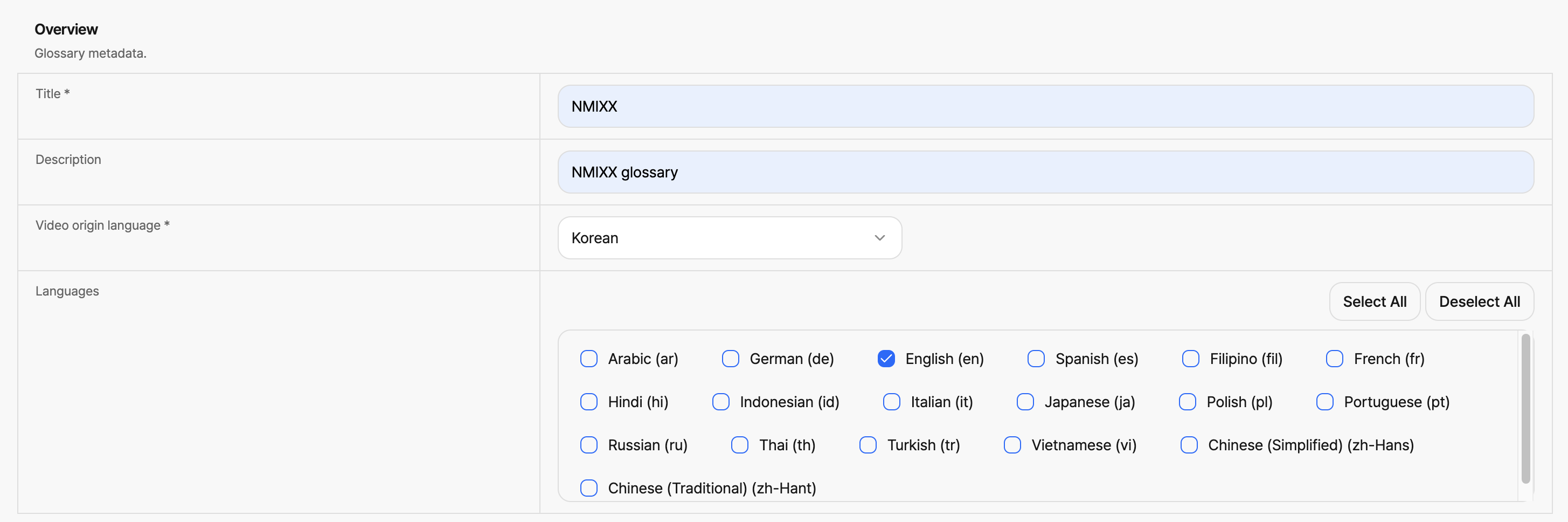
Fig. Create Glossary - Overview
| Field | Required | Description |
|---|---|---|
| Title | Yes | Enter a name for the Glossary you're creating. |
| Description | No | Enter a description of the Glossary. |
| Video origin language | Yes | Select the language of the original video this Glossary is for. |
| Languages | No | Select the target languages to translate the terms into. You can select multiple languages, and use the Select All / Deselect All buttons to select or deselect them all at once. |
Languages Excluded from the List
The Languages checkbox list does not show the language selected as Video origin language.
2. Filling In Words
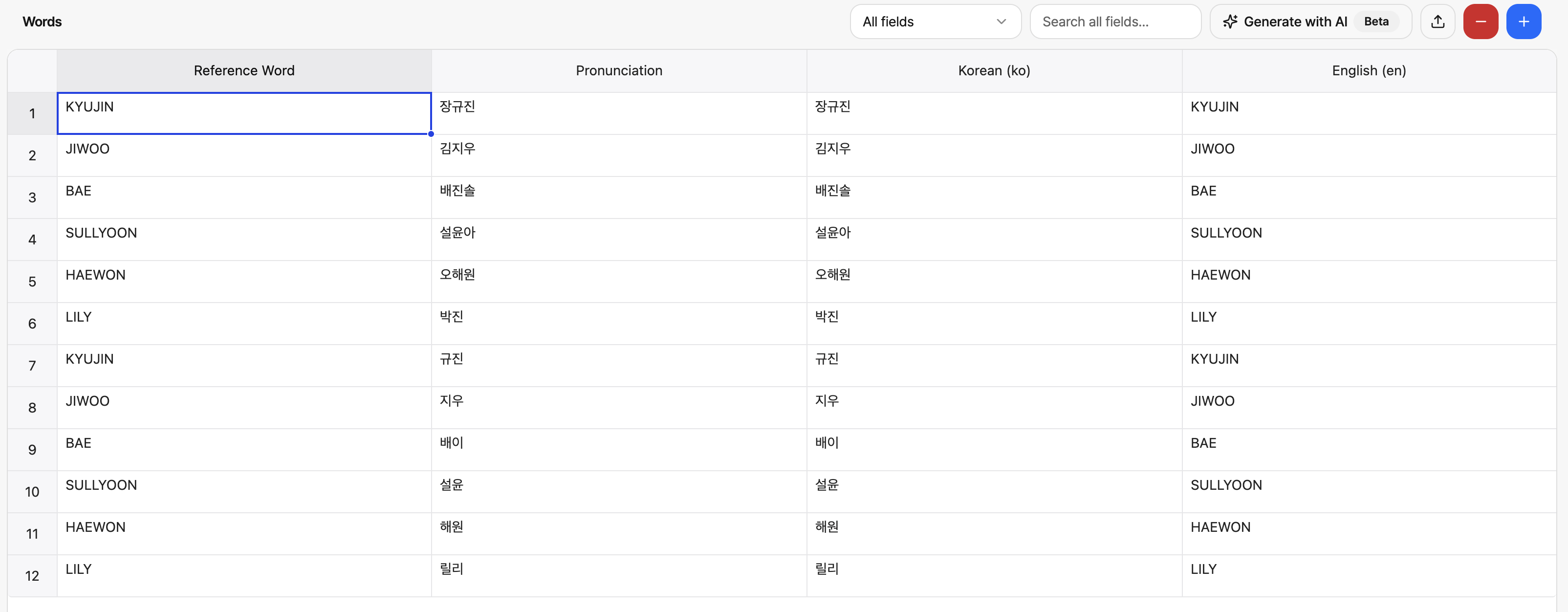
Fig. Create Glossary - Words
The Words table lists, one row at a time, the terms registered to this Glossary.
| Item | Description |
|---|---|
| Reference Word | The reference spelling used to identify a term. The same subject can be referred to in multiple ways, so you can register multiple rows under the same Reference Word. |
| Pronunciation | The actual pronunciation, written based on the original language (Video origin language). |
| Source language column | Shows how this term should be spelled in subtitles, based on the source language. |
| Target language column | For each target language selected in Overview, shows how this term should be spelled in translated subtitles. If you haven't selected any Languages yet, only the source language column is shown. |
| Control | Description |
|---|---|
| All fields (dropdown) | Sets the search scope. The default is All fields, which searches every column, but you can narrow the scope to a specific column (e.g. Reference Word only). |
| Search all fields (search box) | Finds rows containing the text you enter. |
| Generate with AI (Beta) | Currently provided as a Beta feature. Uses AI to automatically generate the Words list. |
| Upload icon | Upload a file to register multiple terms at once. |
| - (minus button) | Deletes the selected row. |
| + (plus button) | Adds a new row. |