Detail Information
Clicking the detail button on the detail panel takes you to that Glossary's detail page.
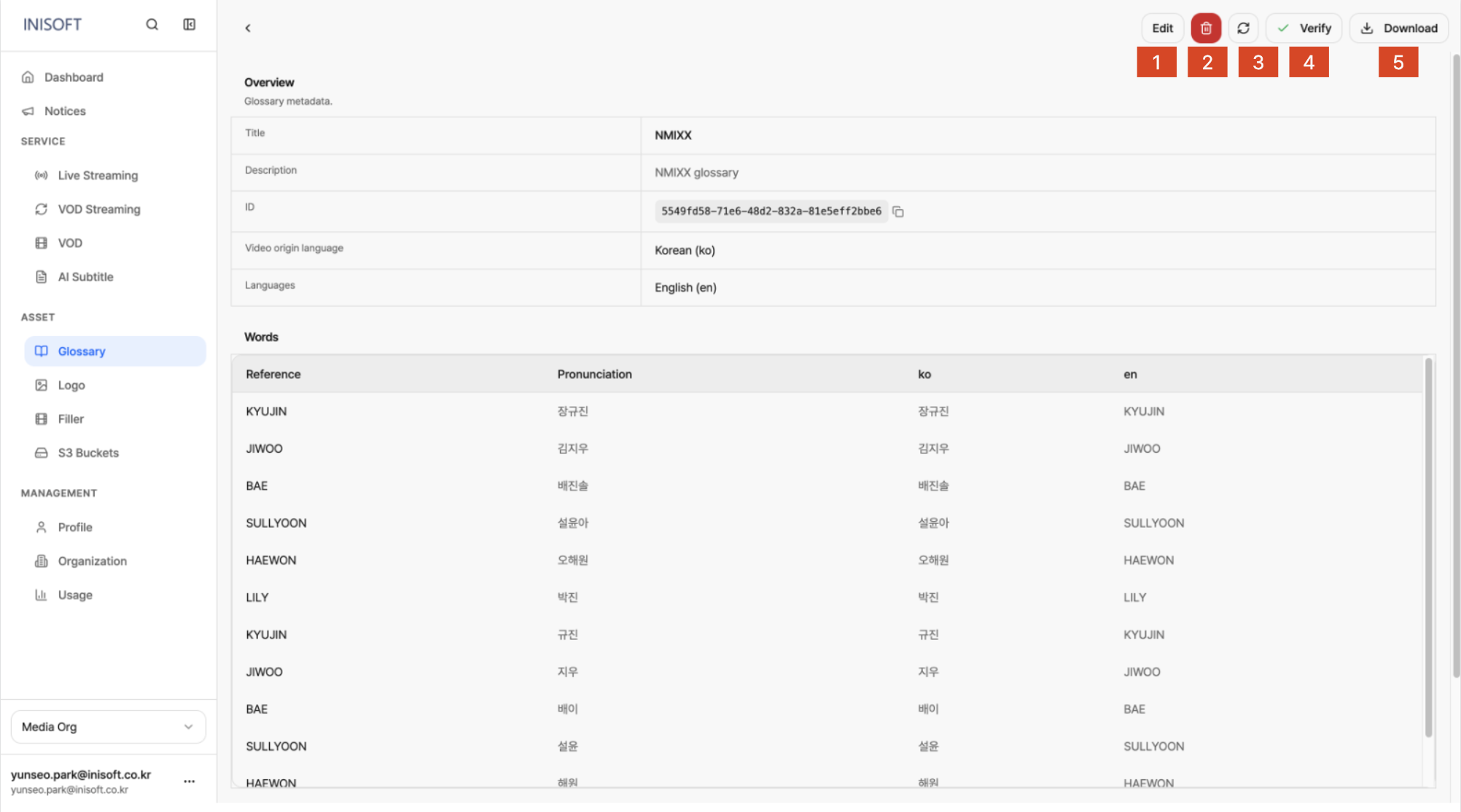
Fig. Glossary Detail page
You can also reach the full-screen detail page for a Glossary from the list's detail panel, via the Detail button.
The following actions are available in order at the top right of the detail page.
| No | Action | Description |
|---|---|---|
| 1 | Edit | Takes you to the screen for editing the Glossary's content. |
| 2 | Delete | Deletes the current Glossary. |
| 3 | Refresh | Reloads the Glossary's information. |
| 4 | Verify | Verifies the Glossary and switches it to Verified status. |
| 5 | Download | Downloads the registered Words list as a file. |
Overview

Fig. Glossary Detail page - overview
| Item | Description |
|---|---|
| Title | The name of the Glossary. |
| Description | The description entered for the Glossary. |
| ID | A unique ID used to identify the Glossary. Click the copy icon next to it to copy the ID immediately. |
| Video origin language | The source language this Glossary is based on. |
| Languages | The list of registered target languages. |
Words
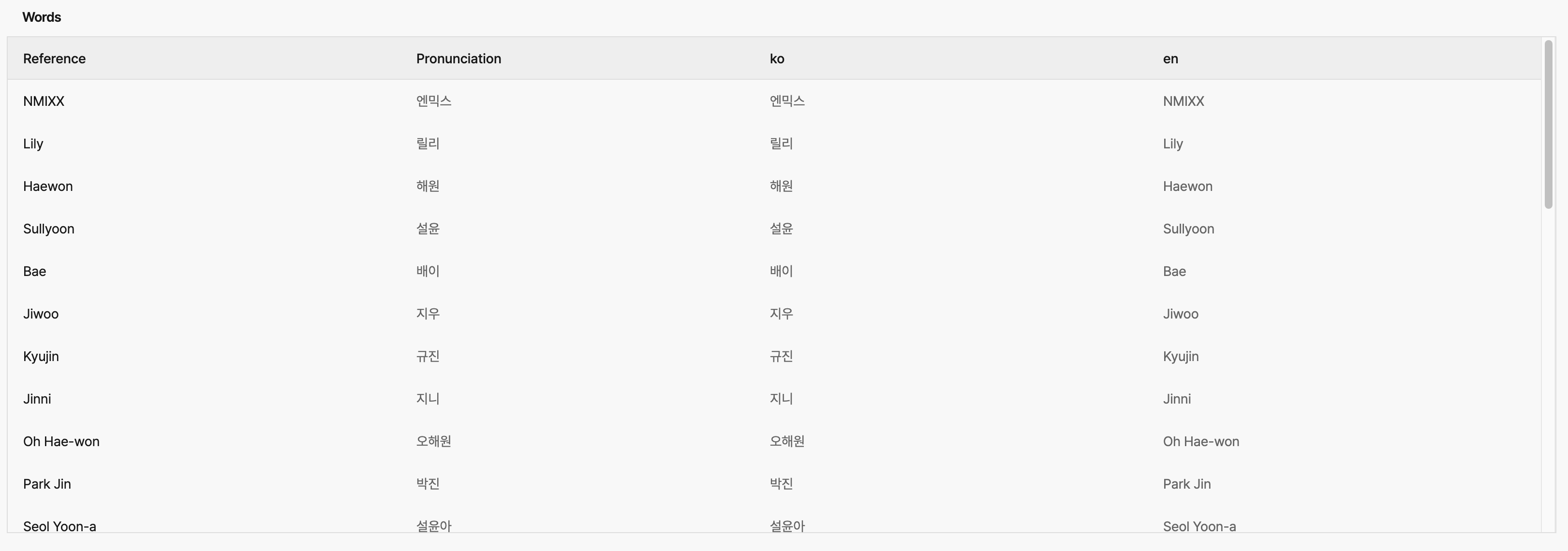
Fig. Glossary Detail page - words
Shows the registered terms in table form. The columns match those on the Add Glossary screen, but on the detail page, each column name is shown abbreviated as follows.
| Detail page column name | Corresponding Add Glossary column | Description |
|---|---|---|
| Reference | Reference Word | The reference spelling used to identify a term. |
| Pronunciation | Pronunciation | The actual pronunciation, based on the source language. |
| Source language column | Korean (ko), etc. (source language column) | The spelling based on the source language. |
| Target language column | English (en), etc. (target language column) | The spelling based on the target language. |