Creating a Live Streaming
- Click the Add Live Streaming (+) button at the top right of the list.
- Enter the required information through the 4-step creation wizard below:
Basic Settings→Stream & Assets Settings→Subtitle Settings→Review & Submit - Click the Create button to finalize and submit the event.
- Once creation is complete, check the per-region
Input,Preview, andPlayback URLin the detail panel.
- Click the Add Live Streaming (+) button at the top right of the list.
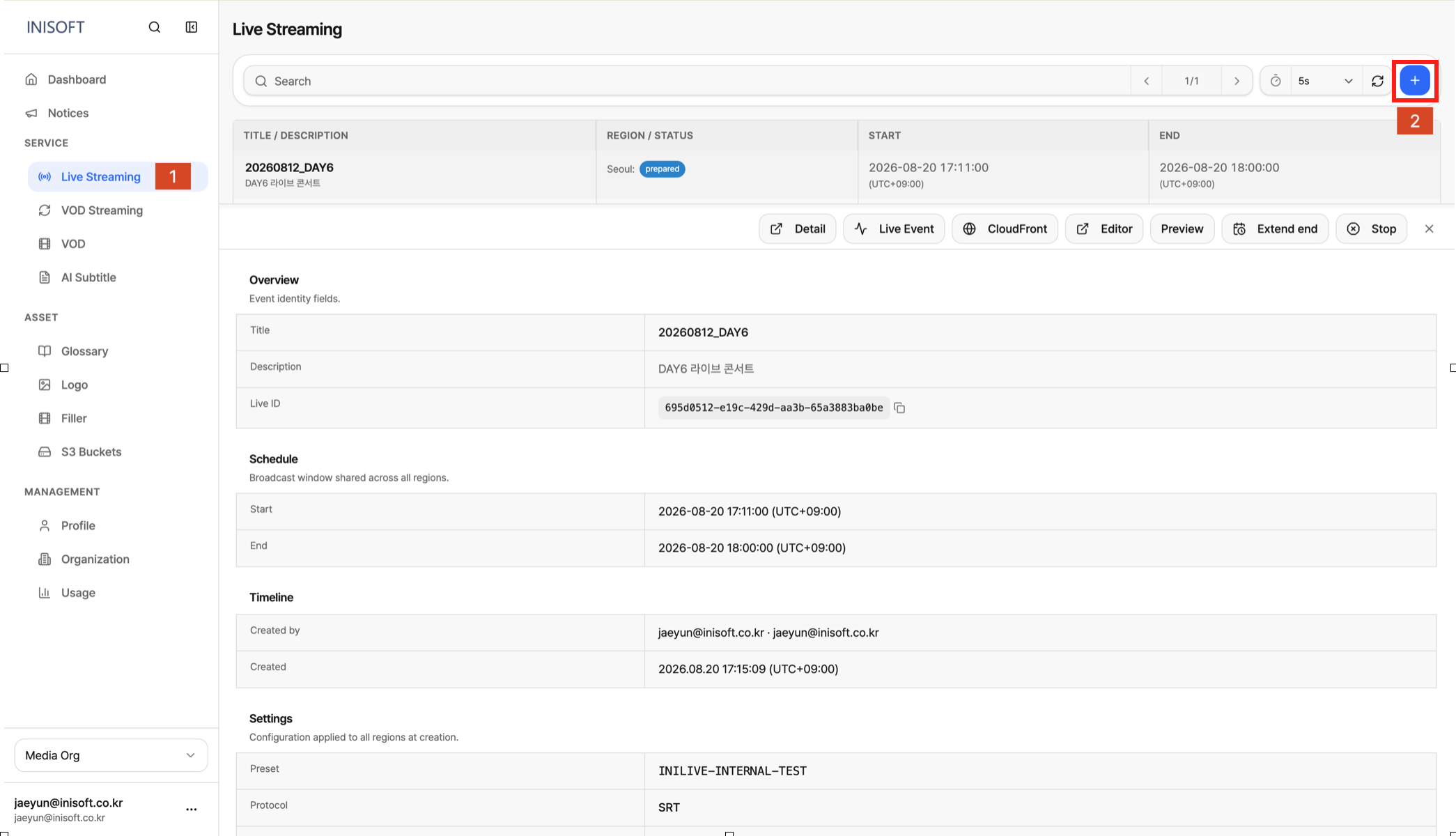
Fig. Live event create button
- Enter the required information through the 4-step creation wizard below:
Basic Settings→Stream & Assets Settings→Subtitle Settings→Review & Submit
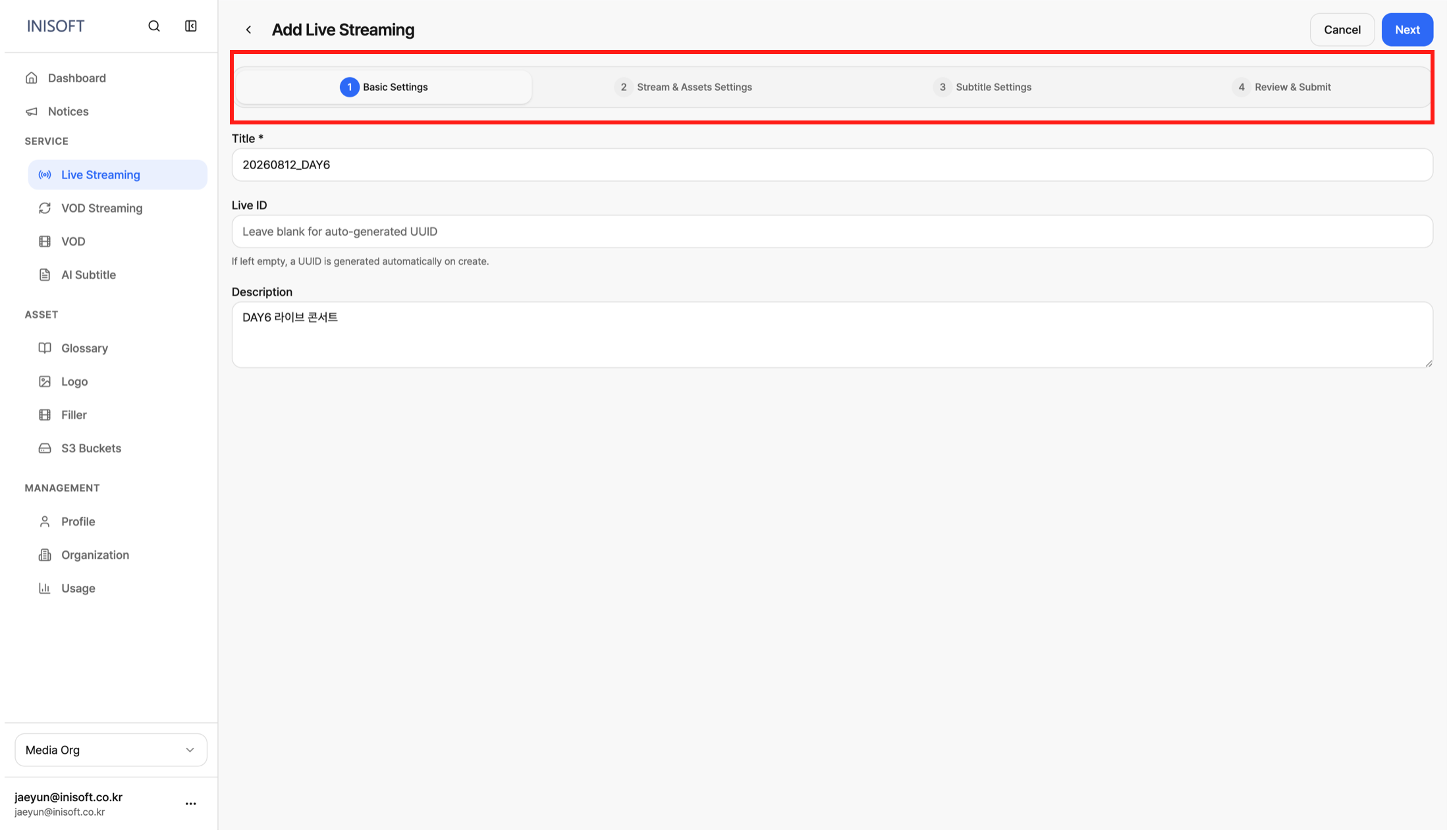
Fig. Live event input steps
- Click the Create button to finalize and submit the event.
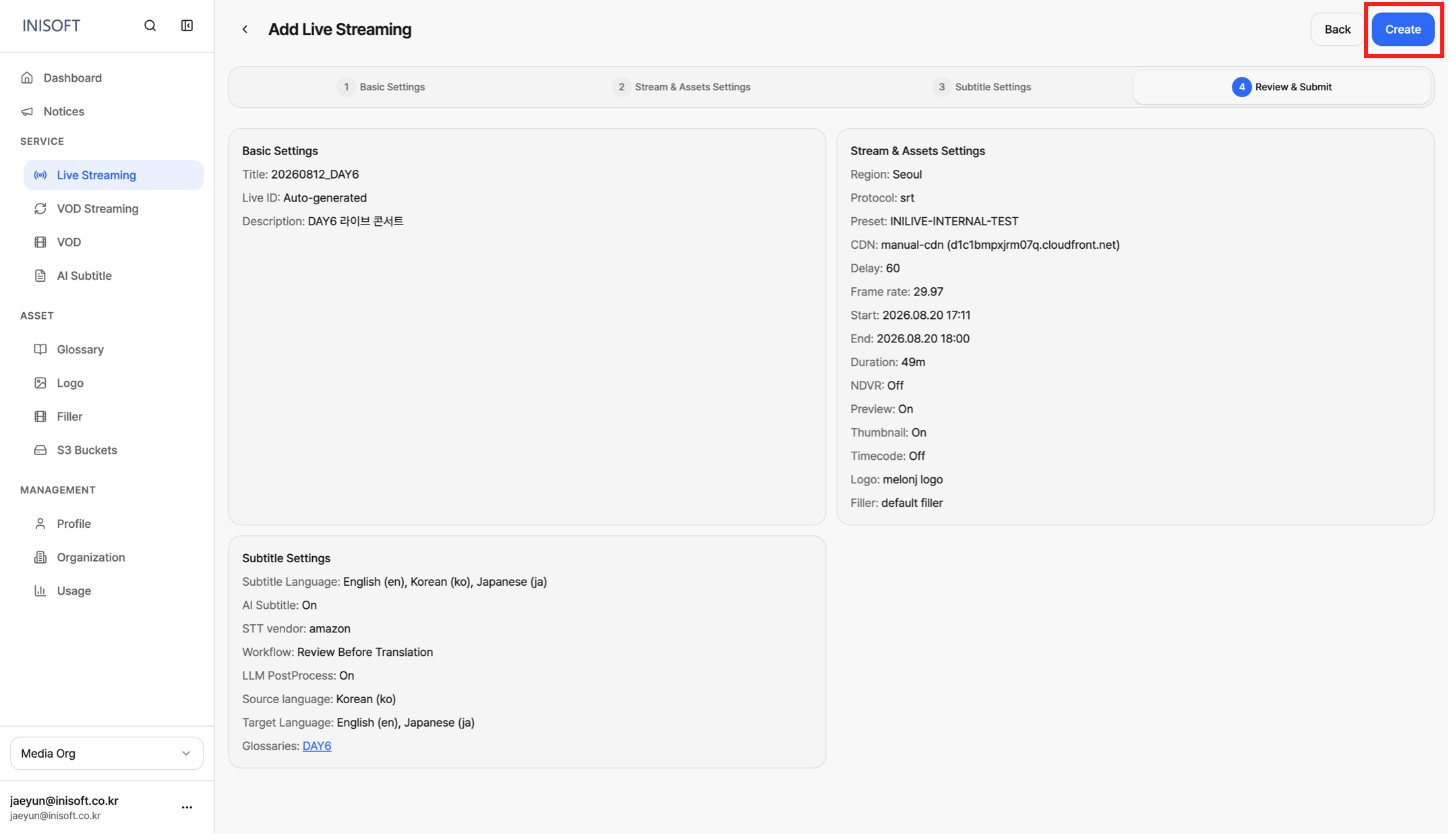
Fig. Live event creation complete button
- Once creation is complete, check the per-region
Input,Preview, andPlayback URLin the detail panel.
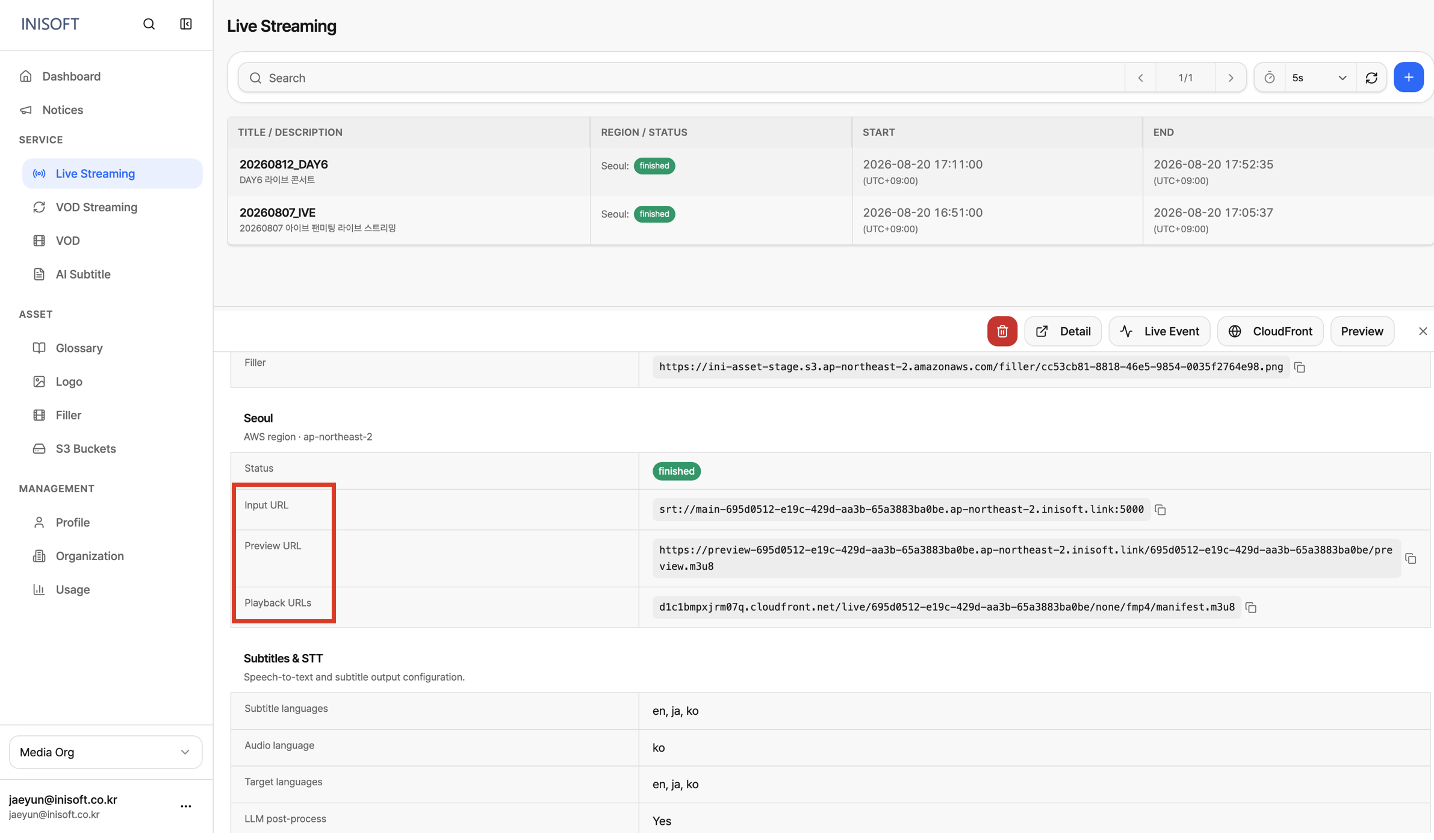
Fig. Resulting URLs from the live event
4-Step Setup Wizard Details
- Step 1 — Basic Settings
- Step 2 — Stream & Assets
- Step 3 — Subtitle Settings
- Step 4 — Review & Submit
Step 1 — Basic Settings
In this step you enter basic metadata for the event, such as its name (Title), Event ID, and Description. The Event ID is a unique value used to identify the event, separate from its name and description. If a failure occurs during broadcast or you need to monitor the event, this ID is used to look up the event's information. If you leave this field blank, an ID in UUID format is assigned automatically.
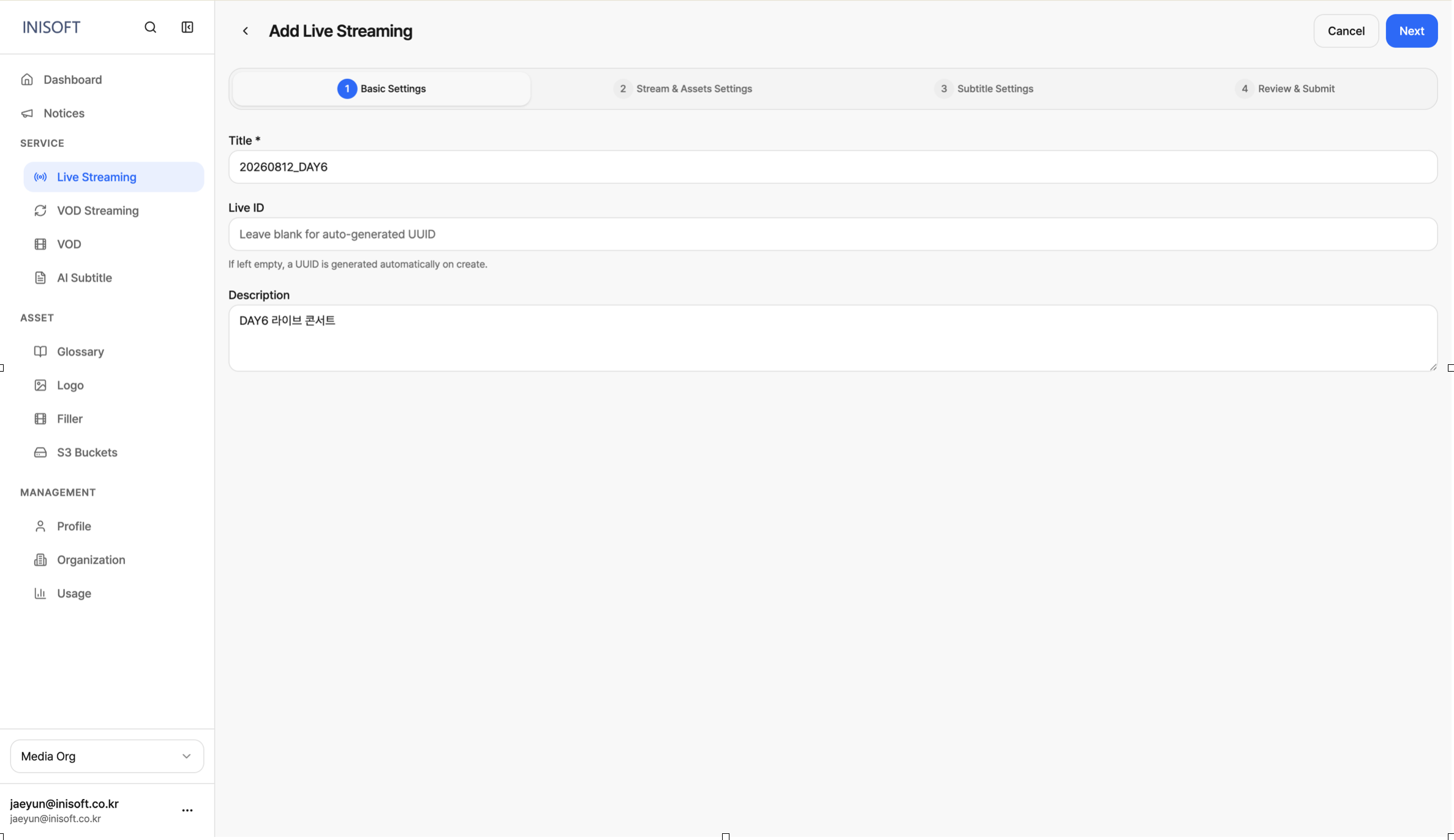
Fig. Step 1 — Basic Settings (Title · Event ID · Description)
| Field | Required | Description |
|---|---|---|
| Title | Yes | The name of the event. |
| Event ID | No | If left blank, a live ID in UUID format is generated automatically on Create. |
| Description | No | A detailed description of the event. |
Step 2 — Stream & Assets Settings
This is the core step where you configure the delivery method, regional distribution, CDN, assets, and more.
1. Streaming Setting
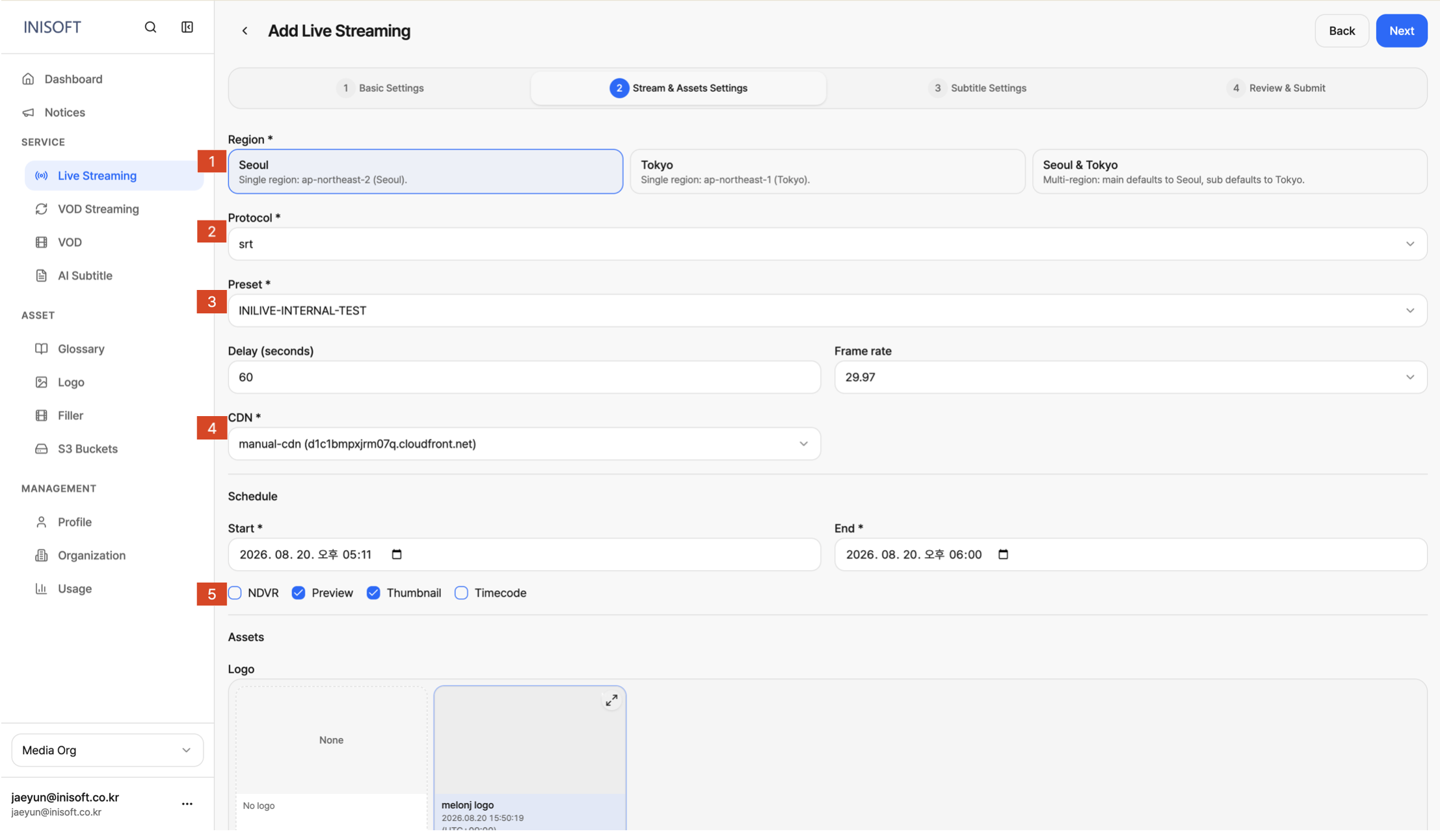
Fig. Step 2 — Stream & Region settings (Protocol · Preset · CDN · Schedule)
-
You can choose between two regions for your broadcast infrastructure: Seoul and Tokyo. If you select multi-region (Seoul/Tokyo), Seoul is designated as the main region and Tokyo as the sub-region, so that if the main region fails, delivery can switch to the sub-region without interrupting the broadcast.
-
After choosing a region, you configure the transmission protocol your broadcast equipment will use. You can choose either SRT or RTMP, and the format of the Input URL issued afterward depends on which protocol you select.
-
You can configure a preset that defines the video's resolution, bitrate, codec, whether DRM is applied, and so on.
-
The CDN is selected from a list pre-registered in the Admin Console. If no CDN has been registered or selected in advance, the event cannot be created. A CDN is a network of servers distributed across multiple regions worldwide that delivers video from a location close to each viewer, reducing latency and providing stable streaming.
-
You can also optionally enable additional features such as NDVR, Preview, Thumbnail, and Timecode as needed. For example, enable NDVR if you want viewers to be able to rewind and rewatch a portion of the live broadcast, enable Preview if an administrator needs to check the video before it's actually sent out, and enable Timecode if you need to insert timecode information by integrating with on-site equipment — you can combine only the features you actually need.
2. Asset Setting
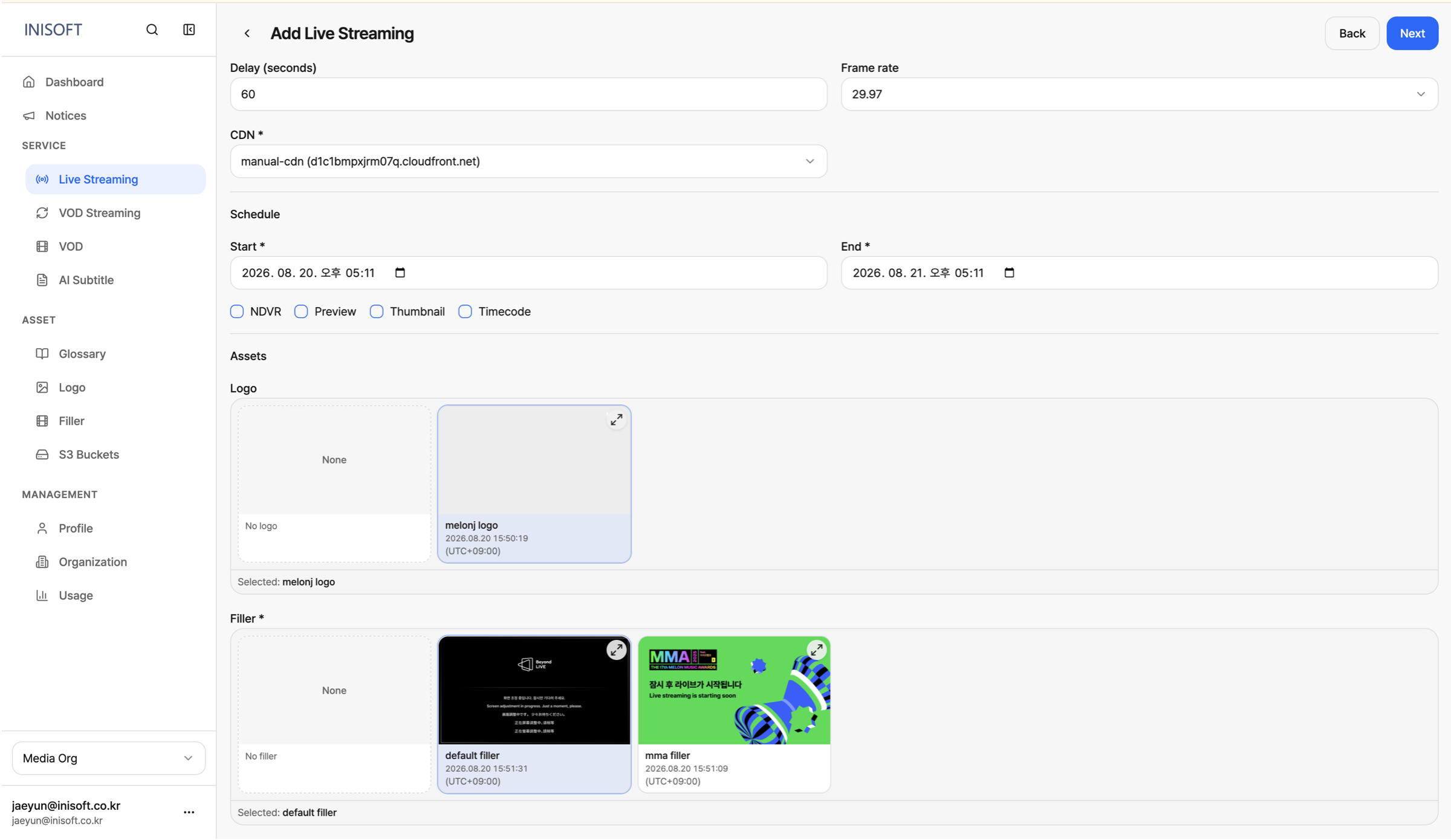
Fig. Step 2 — Asset settings (Logo · Filler)
The Asset settings let you specify a logo overlay (Logo) and a filler asset (Filler). Logo is an optional setting for choosing a logo image to display on the broadcast screen, while Filler is video or an image that plays instead when the input signal is lost or unavailable — a required setting to prevent dead air.
| Field | Description |
|---|---|
| Region | Choose from Seoul Seoul (ap-northeast-2), Tokyo Tokyo (ap-northeast-1), or both Seoul & Tokyo (multi-region). |
| Protocol | Sets the ingest protocol (SRT or RTMP). The format of the Input URL is determined by the protocol you choose. • SRT (Secure Reliable Transport): A video delivery protocol that provides low latency and loss recovery even over unstable network conditions. • RTMP (Real-Time Messaging Protocol): A streaming protocol widely used to send real-time video from an encoder to a server. |
| Preset | The encoding and DRM packaging profile. |
| Delay (seconds) | The delay between the video actually being captured and the video delivered to viewers. Used to switch regions without interruption in the event of a server failure, or to precisely align timecodes. |
| CDN | Select one of the CDNs registered in the Admin Console. (Required) |
| Schedule | Sets the live event's scheduled start time (Start) and end time (End). |
| NDVR | A feature that lets viewers rewind or rewatch a portion of the live broadcast. |
| Preview | A feature that lets an administrator preview the video before it's actually delivered to viewers. |
| Thumbnail | A feature that captures the broadcast screen to generate a thumbnail image. |
| Timecode | A feature that inserts timecode information into the video by integrating with on-site capture equipment. Only enable this when integrating with on-site equipment. |
| Logo | Select a logo overlay image registered in Asset → Logo. (Optional) |
| Filler | Select a video/image registered in Asset → Filler. It is broadcast instead when there is no input signal. (Required) |
Step 3 — Subtitle Settings
The Subtitle Language setting specifies which subtitle languages viewers can choose from in the player. Only the languages selected here can be enabled and viewed as subtitles in the player.
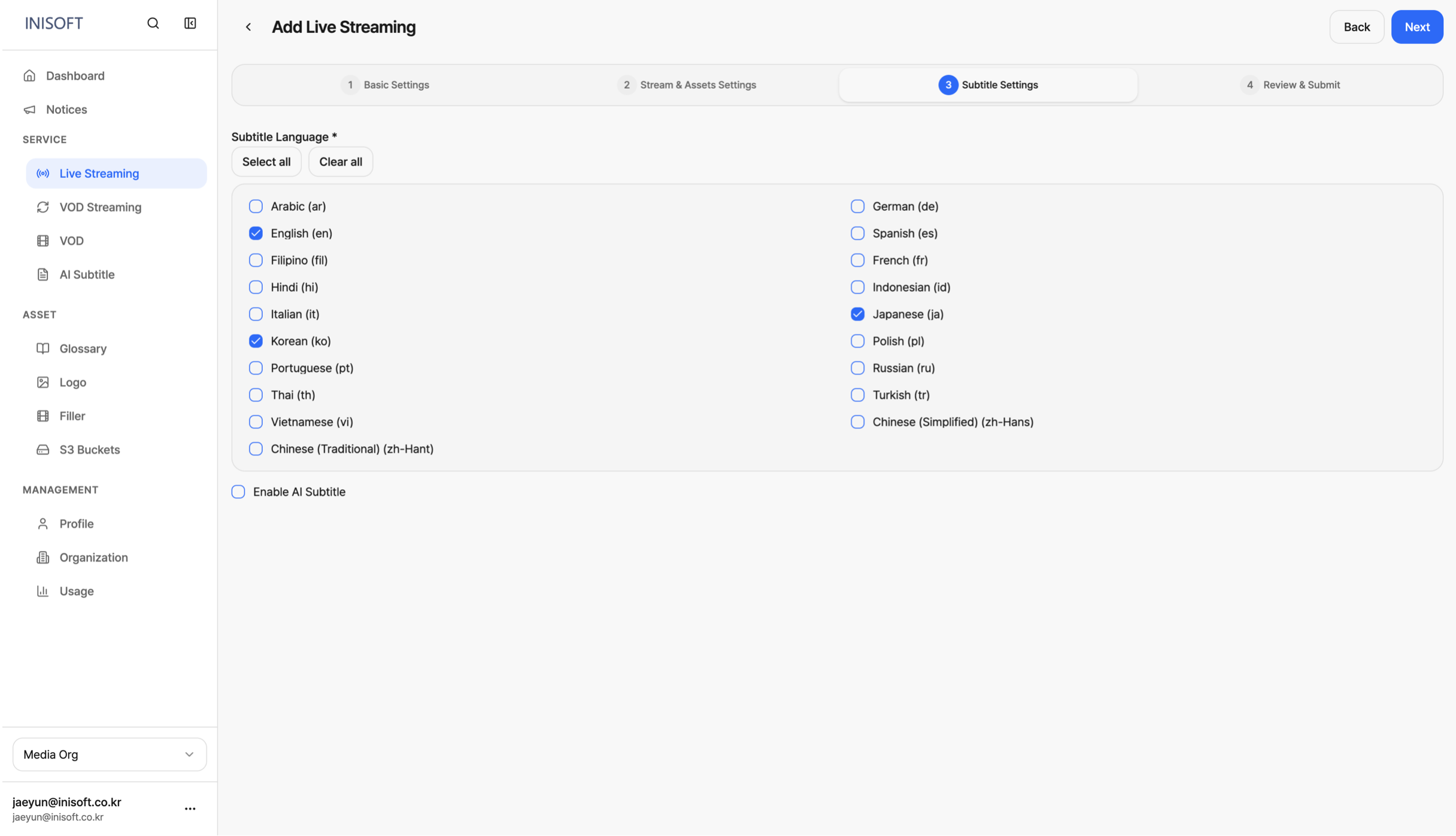
Fig. Step 3 — Player subtitle settings
| Field | Description |
|---|---|
| Subtitle Language | Sets the subtitle languages available for selection in the player. Select all / Clear all shortcuts are provided. |
Enable AI subtitle turns on AI-based STT subtitle generation and translation. Enabling it lets you use the AI-based subtitle generation service. STT (Speech-to-Text) is a voice recognition technology that analyzes speech in the video/audio and converts it into text subtitles.
-
Enabling Enable AI subtitle reveals a screen where you can configure the STT Vendor, Workflow, Glossaries, and more.
-
STT Vendor lets you choose the provider of the STT service, such as Amazon or Azure. If no human needs to review and edit the STT-generated subtitles, select Translate Automatically in the Workflow setting; if a person needs to edit the subtitles via the editor, select Review Before Translation.
-
For AI translation, you need to specify the Source Language (the audio's original language) and the Target Language (the language to translate into); the STT result is translated based on this setting.
-
If you want certain terms or proper nouns to be translated consistently, you can specify a glossary via the Glossaries setting. Only glossaries with a Verify-complete status can be selected, and you can specify up to two.
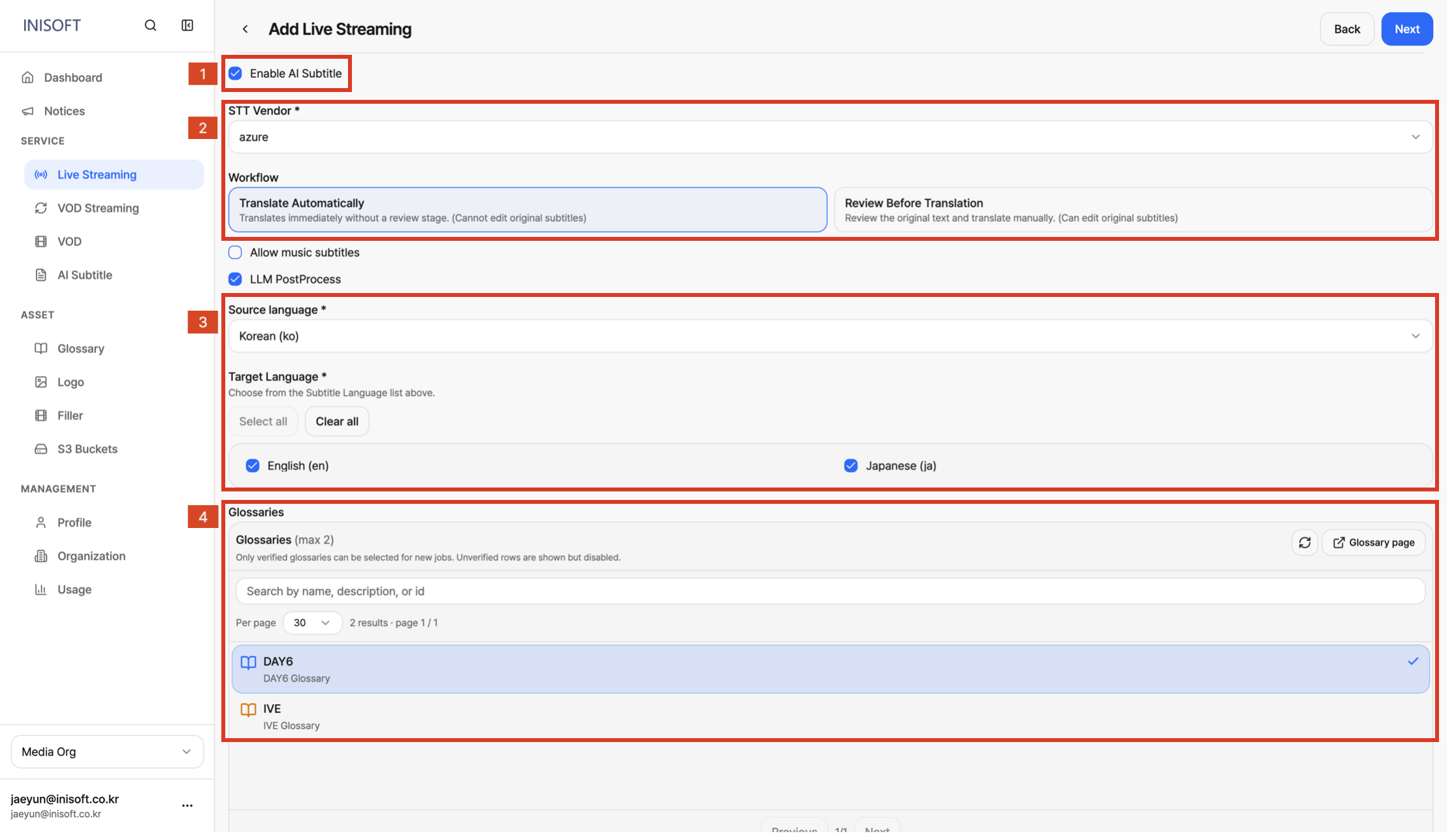
Fig. Step 3 — Enable AI Subtitle · STT Vendor · Workflow · Glossaries
| Field | Description |
|---|---|
| Enable AI Subtitle | Whether AI-based STT subtitle generation and translation is enabled. When enabled, additional configuration fields and buttons appear below. |
| STT Vendor | Sets the STT provider. |
| Workflow | • Translate Automatically — Automatically translates into the specified language(s) immediately after STT completes, with no human review step. • Review Before Translation — Once the STT transcript is extracted, the job waits until an operator reviews the transcript and manually starts translation. |
| Allow music subtitles | Whether to display subtitles for lyrics. |
| LLM PostProcess | A service that uses an LLM to refine the subtitles generated by STT. |
| Source language | Selects the audio's original language. |
| Target Language | Selects the language(s) to translate into. |
| Glossaries | Only glossaries with a Verify-complete status can be selected. (Up to 2) |
Step 4 — Review & Submit
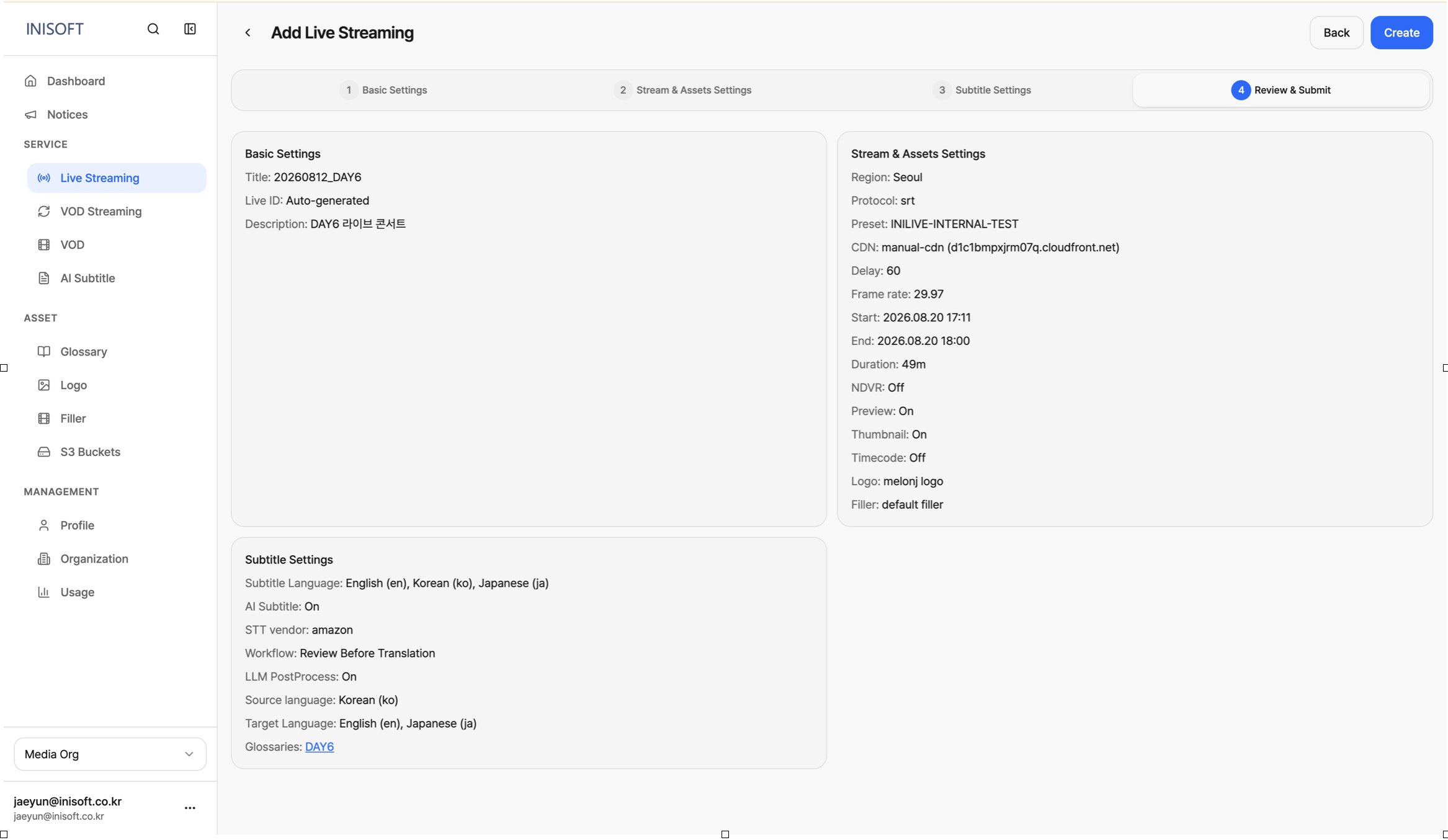
Fig. Step 4 — Review & Submit
This step lets you review and confirm the values entered in the previous steps. Doing a final check of all the settings here helps you catch any mistakes before the event is created.
- After verifying all the entered values, click the Create button at the bottom right to finalize the live event.