Live Streaming Detail Panel
Click an event in the list to view its details. As shown in the image below, the action buttons available (detail, preview, stop, etc.) also depend on the event's current status.
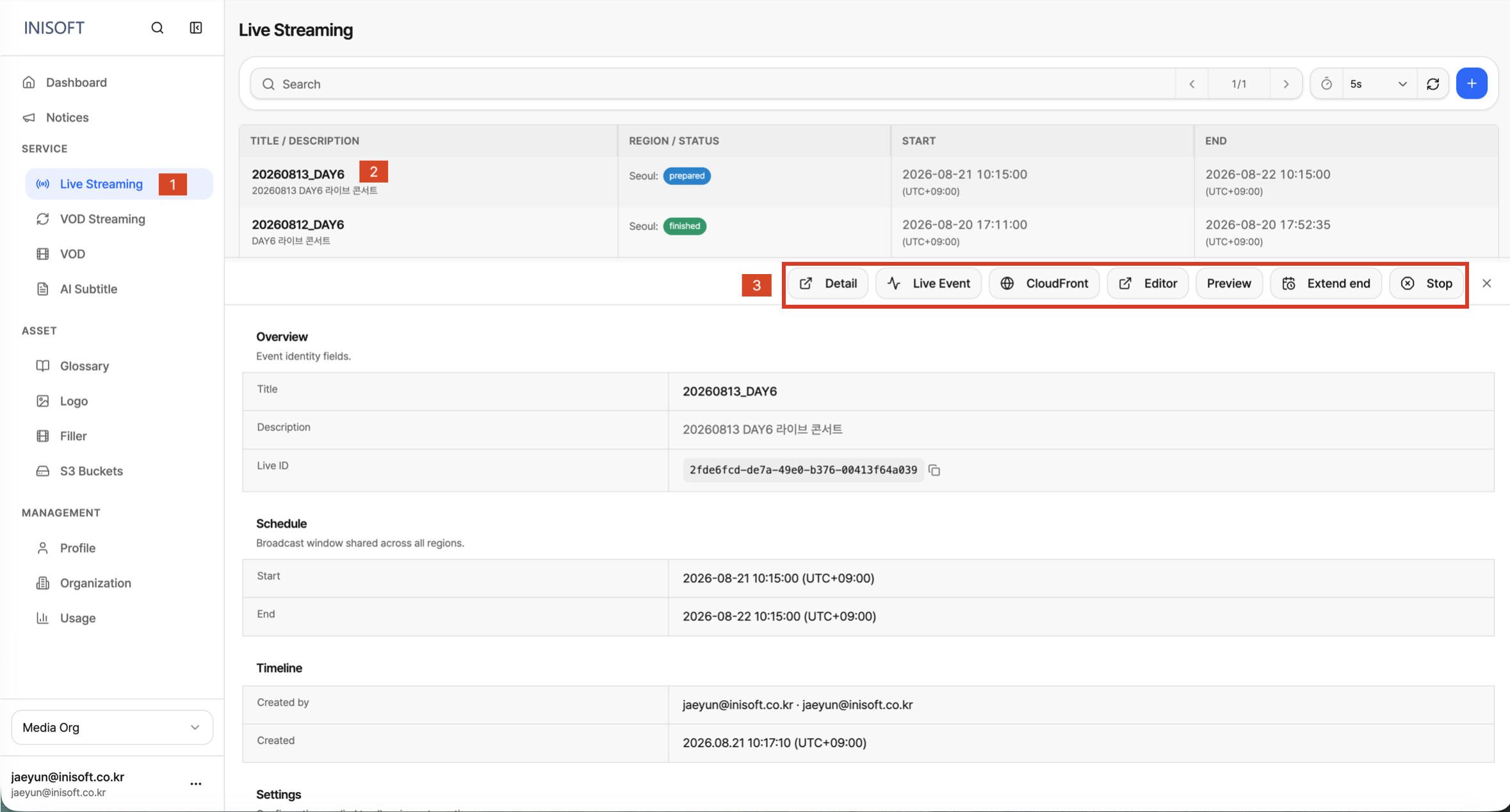
Fig. Live streaming action item buttons
| Column | Description |
|---|---|
| Detail | Takes you to a page where you can check details such as the event status, issued URLs, and configuration information. |
| Live Event | Takes you to a Grafana page where you can monitor MediaConnect connection status, packet transmission information, and more. |
| Cloudfront | Takes you to a Grafana page where you can monitor success/failure counts for manifest, segment, and subtitle requests. |
| Editor | Takes you to the editor where you can edit and refine generated subtitles. You can modify, delete, merge, and add subtitles. |
| Preview | Shows the preview video in the upper right of the detail panel. |
| Extend end | Lets you extend or shorten the event's end time. Clicking the button opens a modal where you can enter the desired end time. |
| Stop | Ends the live event. |
Detail Page
You can check details such as the event status, issued URLs, and configuration information.
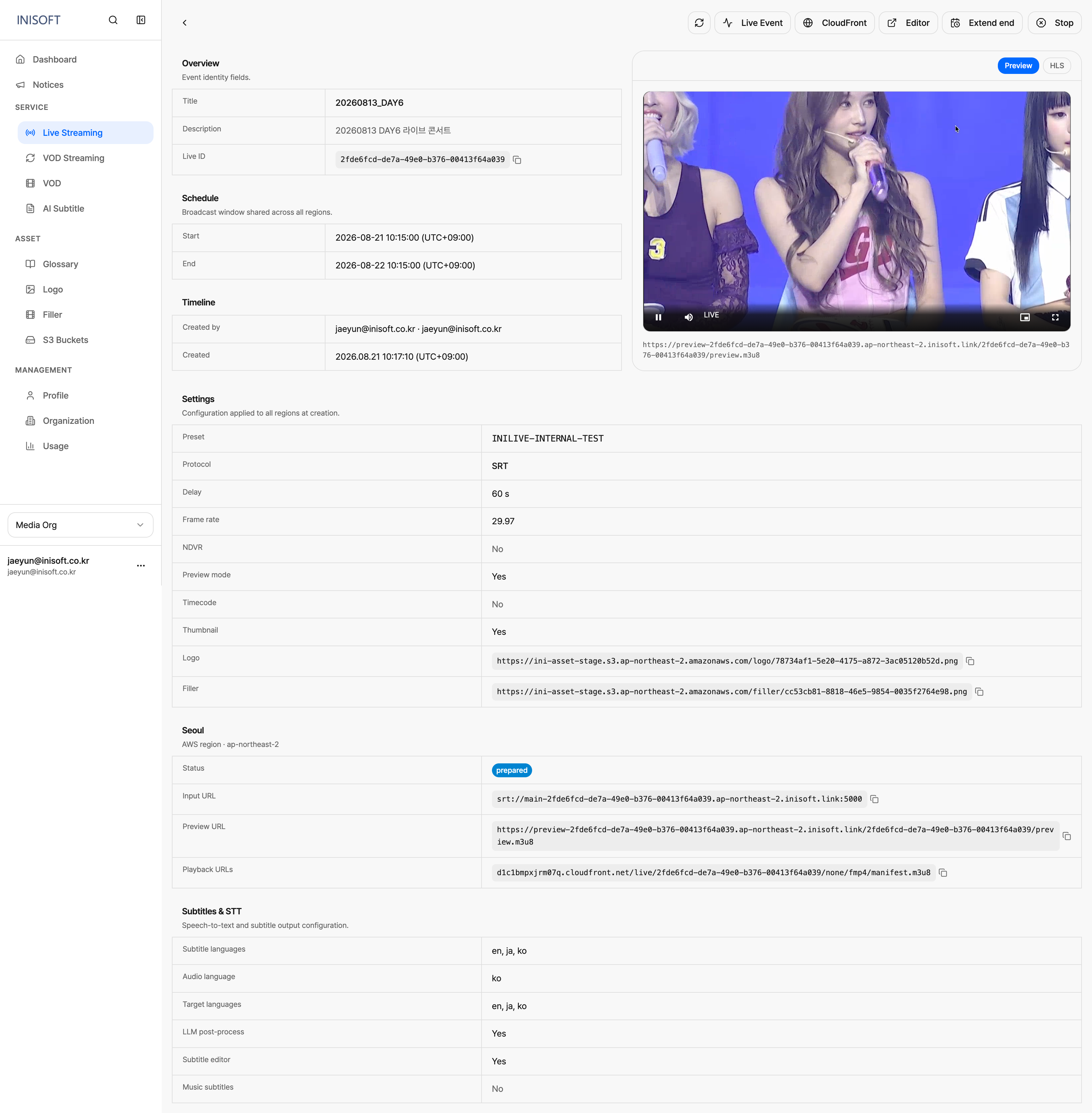
Fig. Live streaming Detail page
Live Event
Lets you monitor MediaConnect connection status, packet transmission information, and more. MediaConnect is an AWS video transport service for reliably receiving and delivering broadcast video.
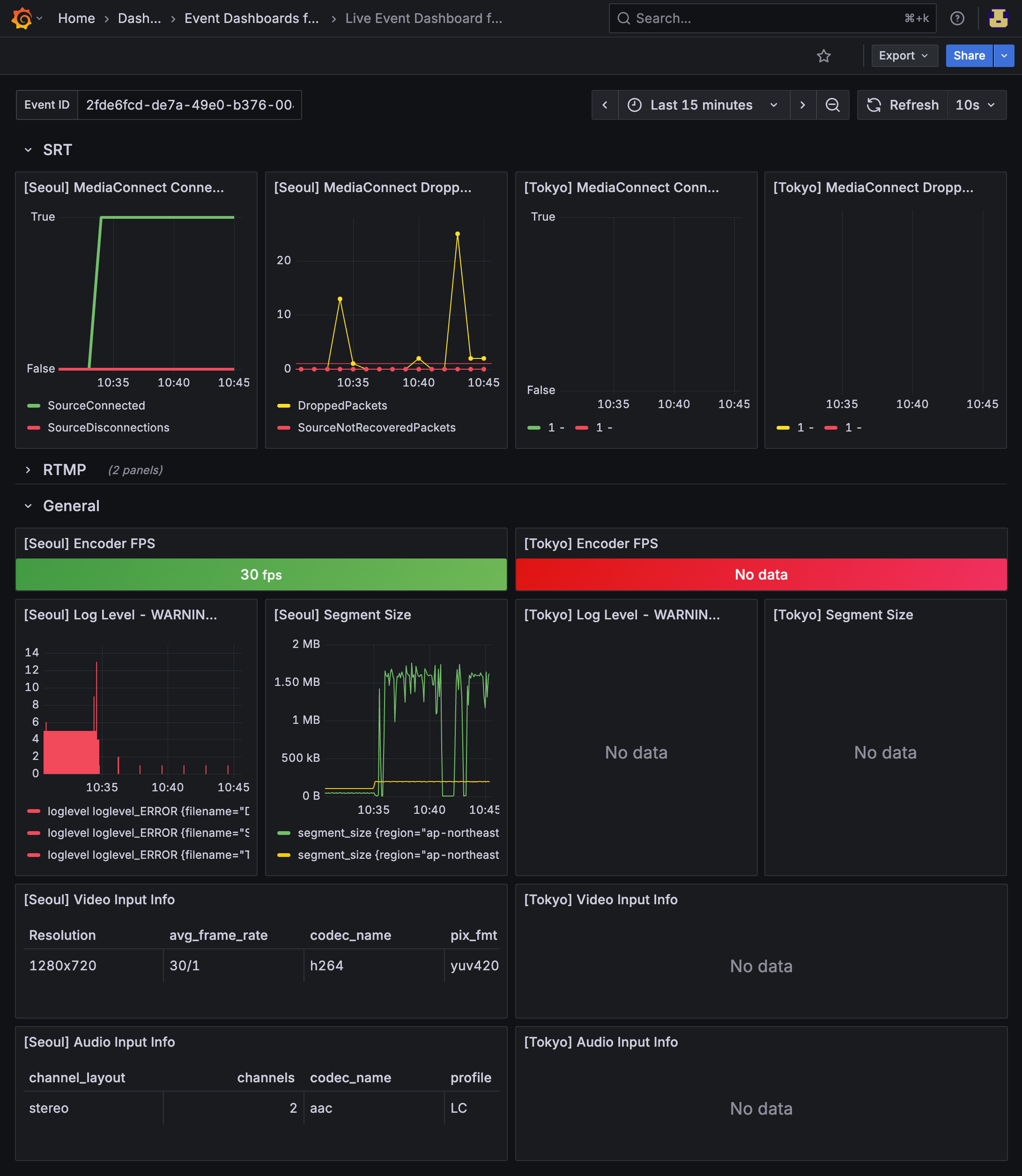
Fig. Live streaming Live event Grafana dashboard
Cloudfront
Lets you monitor success/failure counts for manifest, segment, and subtitle requests.
- Segment: A short chunk of video split up for streaming. The player references the manifest to fetch and play segments in order.
- Manifest: A file that describes the overall structure of the stream — where each segment is located, the playback order, and information for each quality level.
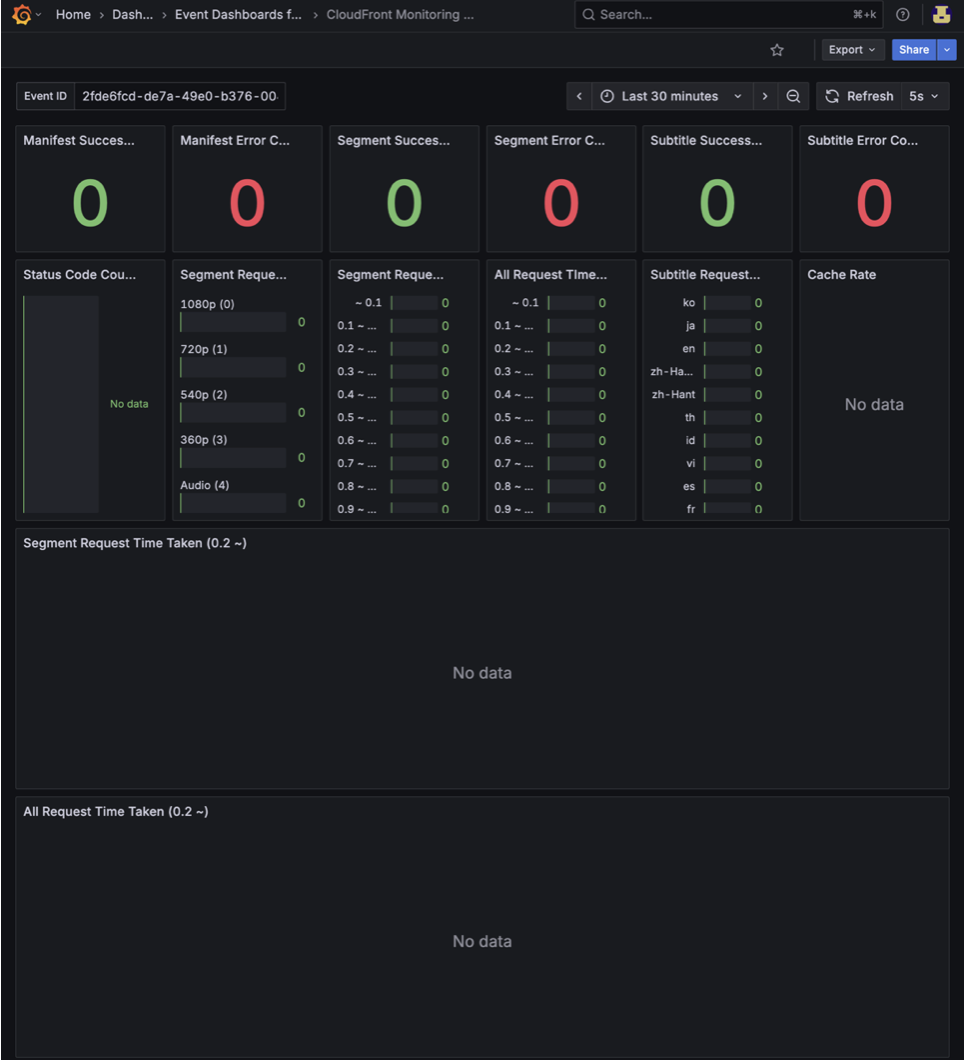
Fig. Live streaming Cloudfront Grafana dashboard
Editor
To use the Live Subtitle Editor, you must enable the Enable AI Subtitle checkbox on the Subtitle Setting tab when creating the event, and then select Review Before Translation in the Workflow setting.
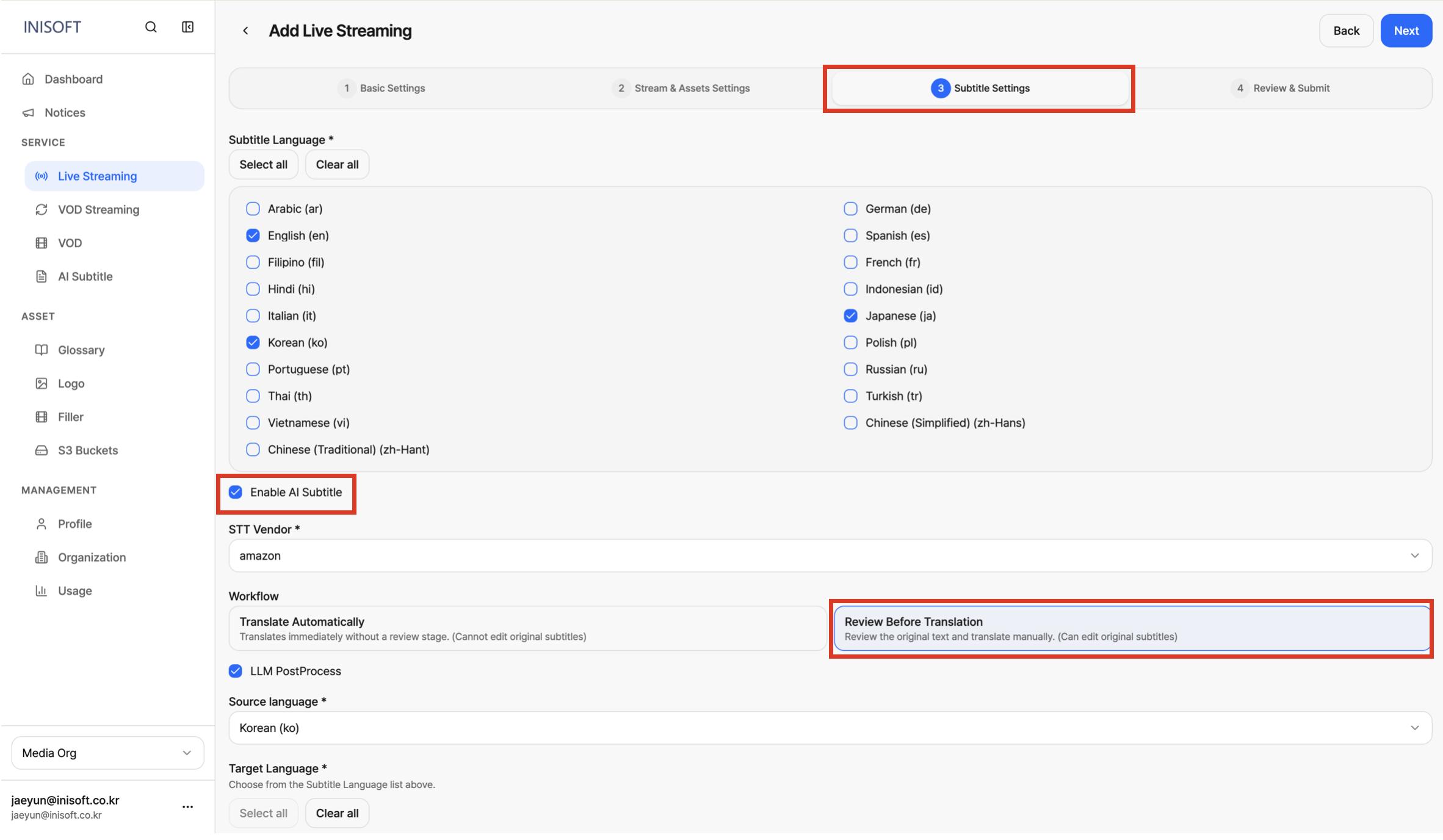
Fig. Live streaming subtitle editor setting
After clicking the Editor button, you'll be taken to the Live Subtitle Editor page, where you can edit and refine subtitles as shown below.
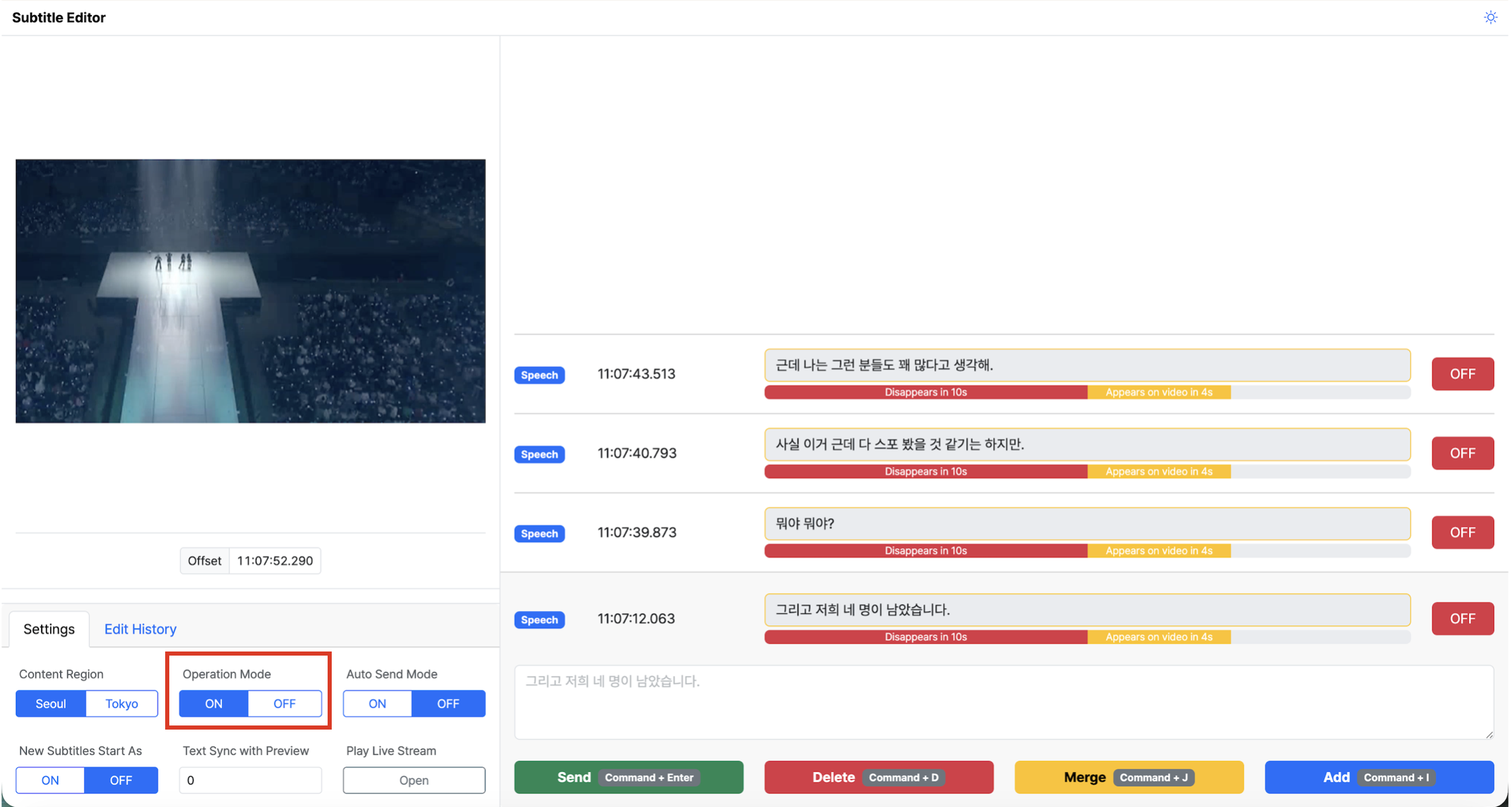
Fig. Live streaming subtitle editor
Deleting a Live Event
A live event that has ended (status: finished) can be removed from the list using the delete button.
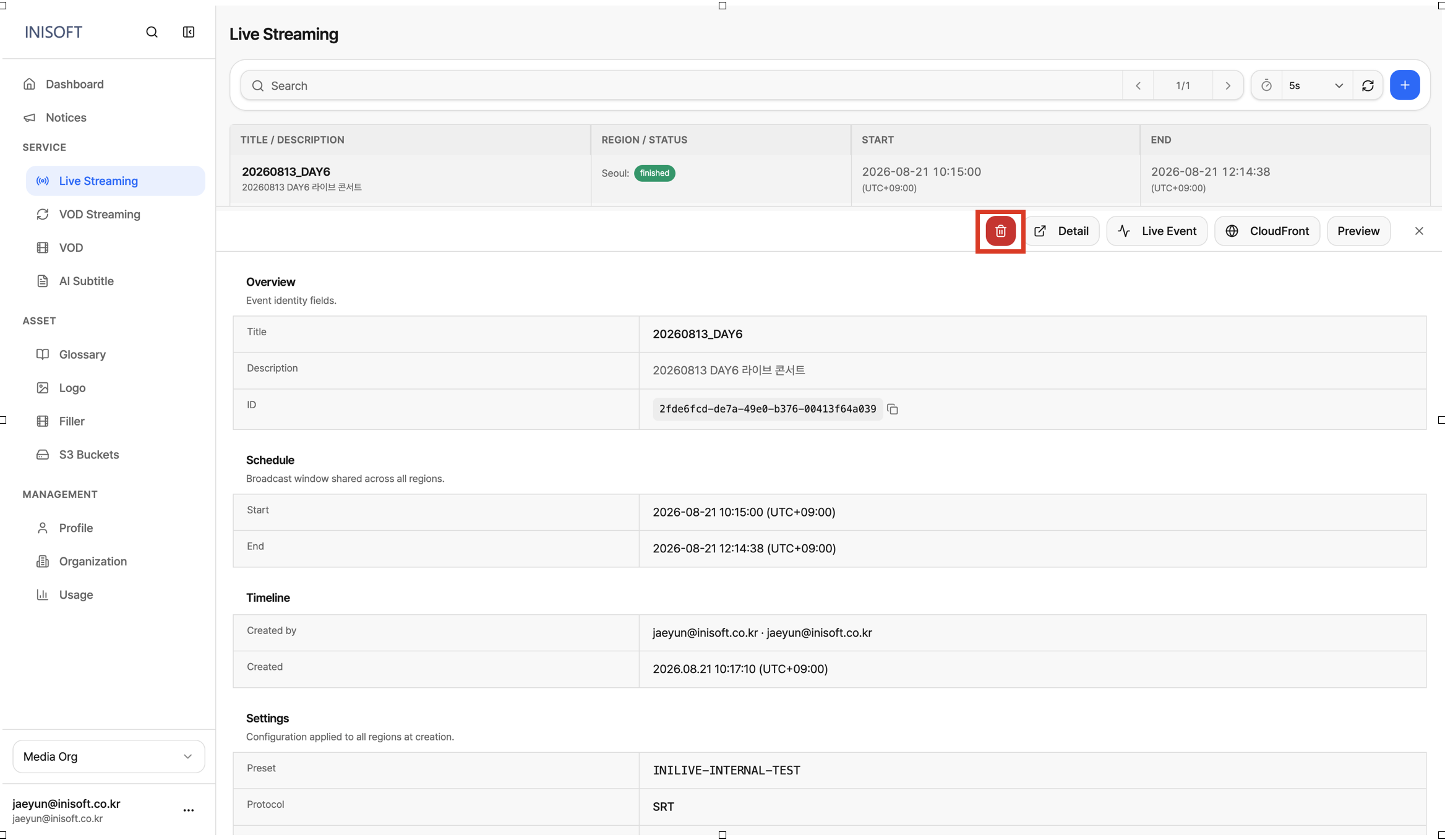
Fig. Live streaming event delete button