Live Subtitle Editor
An editor for refining STT-generated subtitles before they're shown to viewers.
Live Subtitle Editor Prerequisites
If you select the subtitle review option (Review Before Translation) when creating a live event, the Editor button appears as shown below whenever the live event's status is prepared or running.
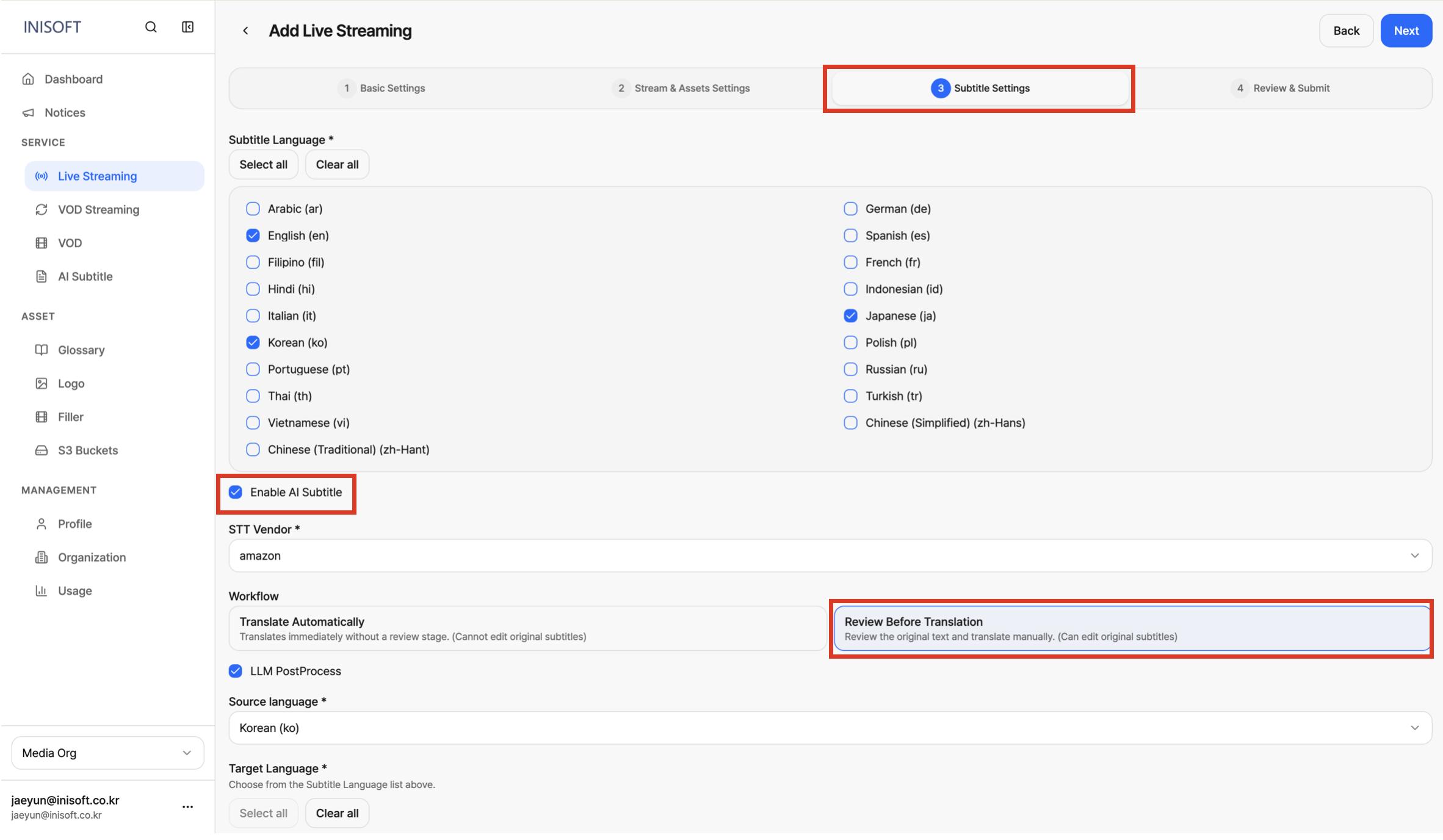
Fig. Live streaming subtitle editor setting
Clicking the Editor button takes you to the Live Subtitle Editor page.
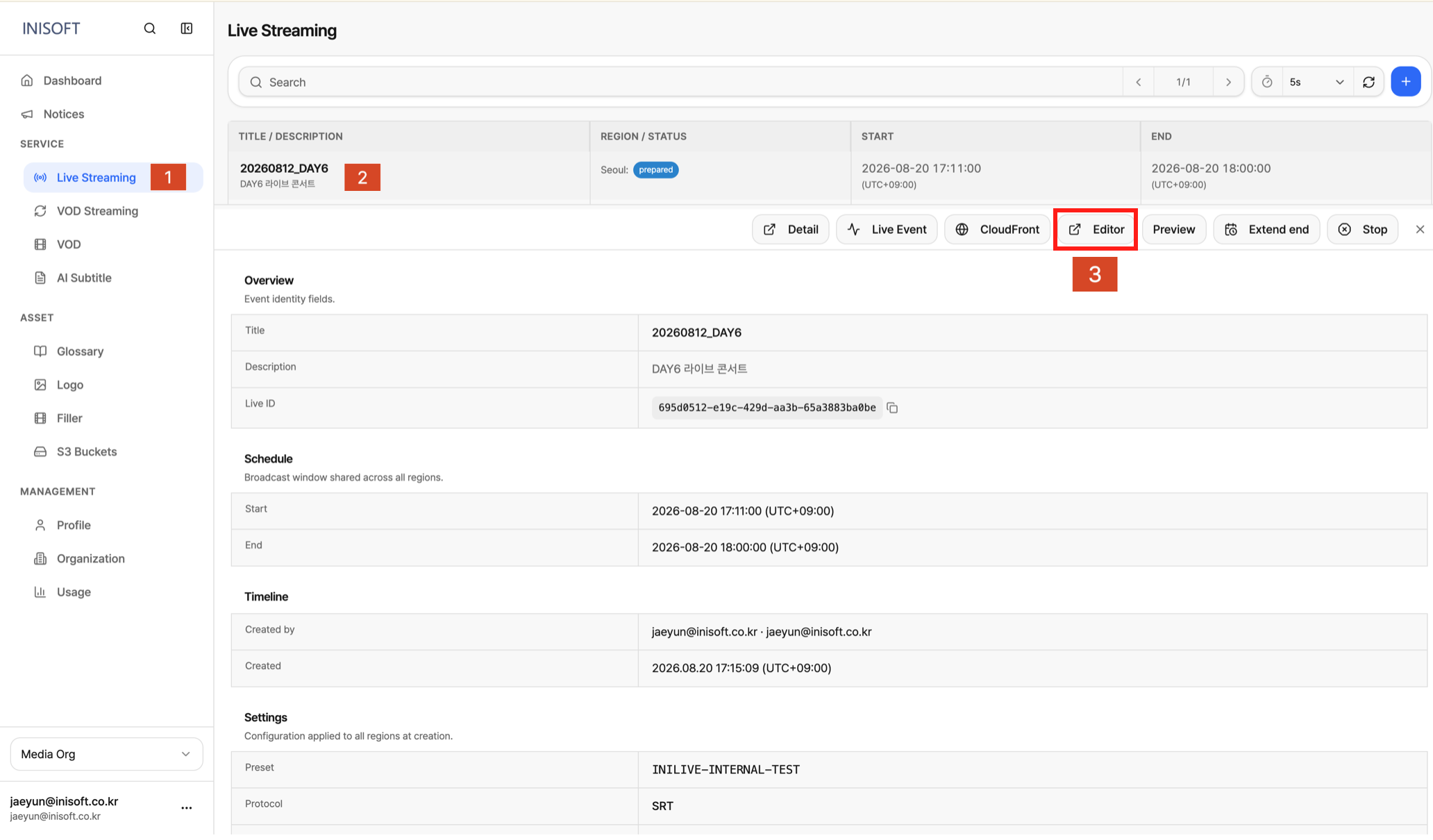
Fig. Detail panel — Live Subtitle Editor button
Supported Actions
Live Subtitle Editor Full Screen
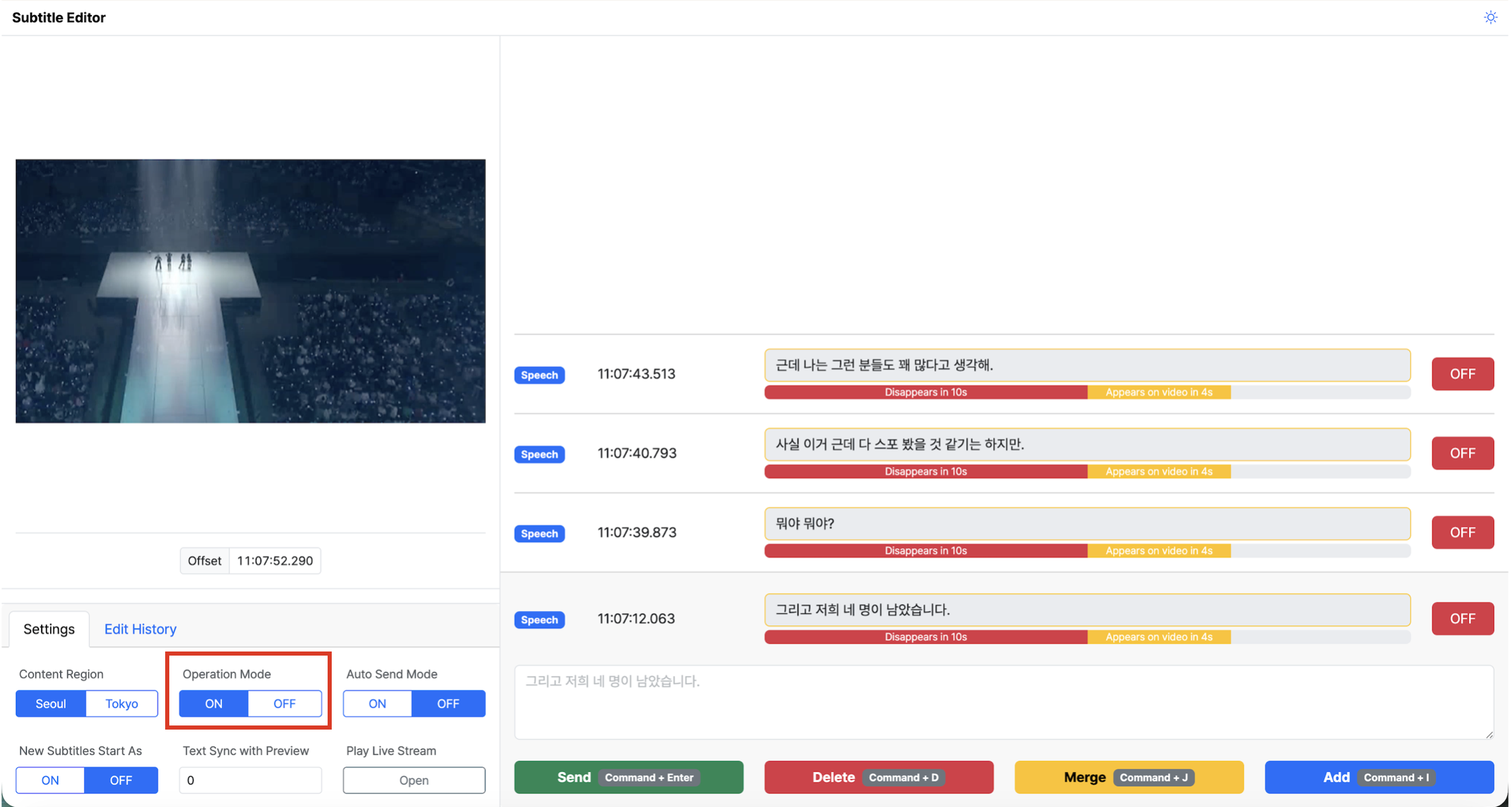
Fig. Live Subtitle Editor — Operation Mode · Settings · Subtitle list
Turning Operation Mode On activates the editor on the right.
Live Subtitle Editor Right Panel
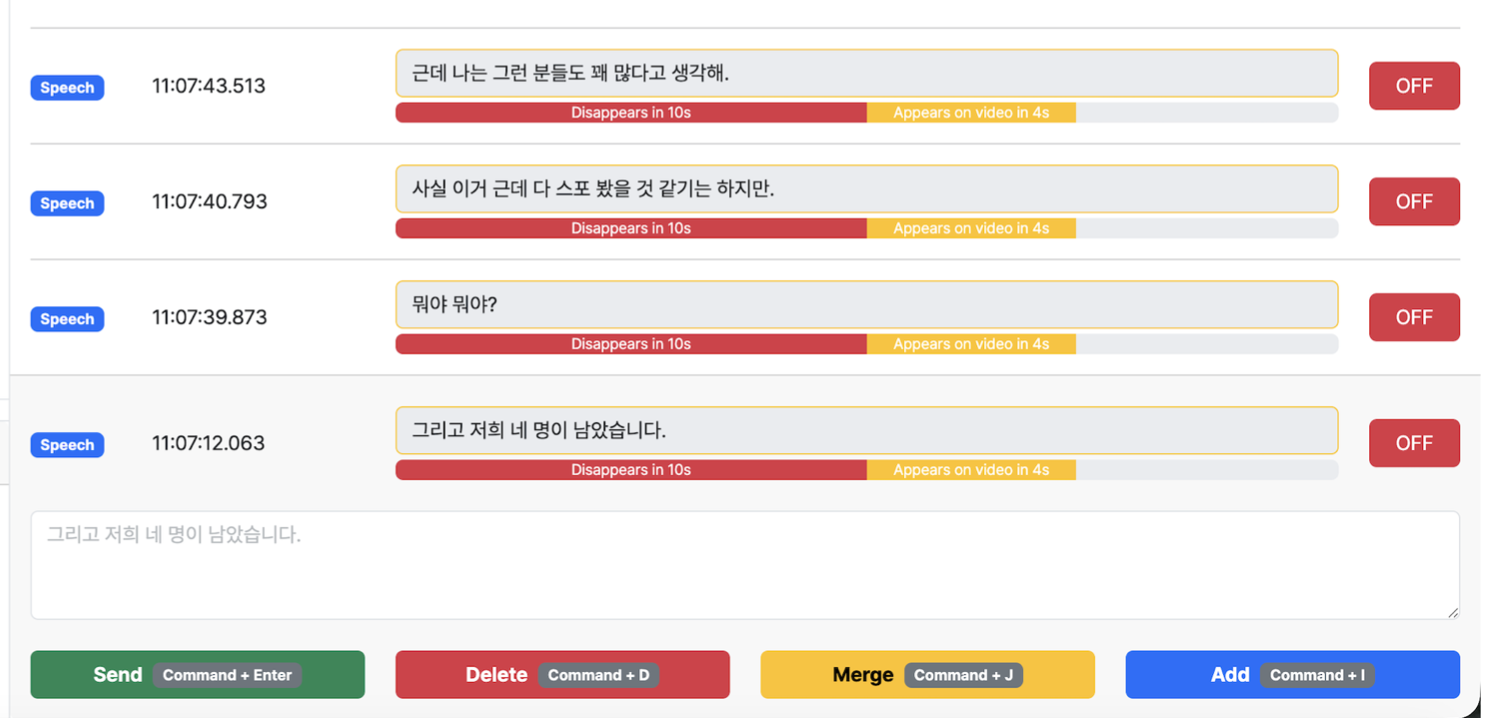
Fig. Live streaming subtitle right panel — Subtitle list · editing · action buttons
Each subtitle entry consists of a Speech badge, the timestamp it was spoken, the subtitle text, and an ON/OFF toggle on the right. Clicking the toggle turns display of that subtitle on or off.
After editing a subtitle in the text box, click the Send button (Command + Enter) to deliver the edited subtitle to viewers. You can also delete the selected subtitle (Command + D), merge it with the previous one (Command + J), or add a new subtitle (Command + I). To add a subtitle, click the add button to create a new subtitle slot in the list, write the subtitle text in the text box, and click the Send button to send it.
Live Subtitle Editor Left Panel
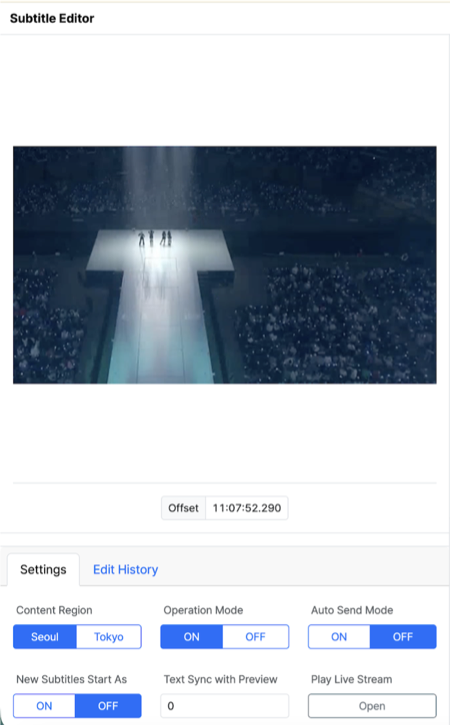
Fig. Live streaming subtitle left panel — Settings
The Settings tab on the left lets you configure the following options. The Edit History tab next to it shows the change history of subtitles edited so far.
- Content Region: Selects the server region, either Seoul or Tokyo.
- Operation Mode: Turns subtitle review/refinement via the editor ON or OFF.
- Auto Send Mode: When ON, generated subtitles are delivered to viewers automatically without clicking Send.
- New Subtitles Start As: Sets the initial display state (ON/OFF) of newly created subtitles.
- Text Sync with Preview: Adjusts the playback sync between the preview video and the subtitles.
- Play Live Stream: Clicking the Open button opens a window that plays the live stream.
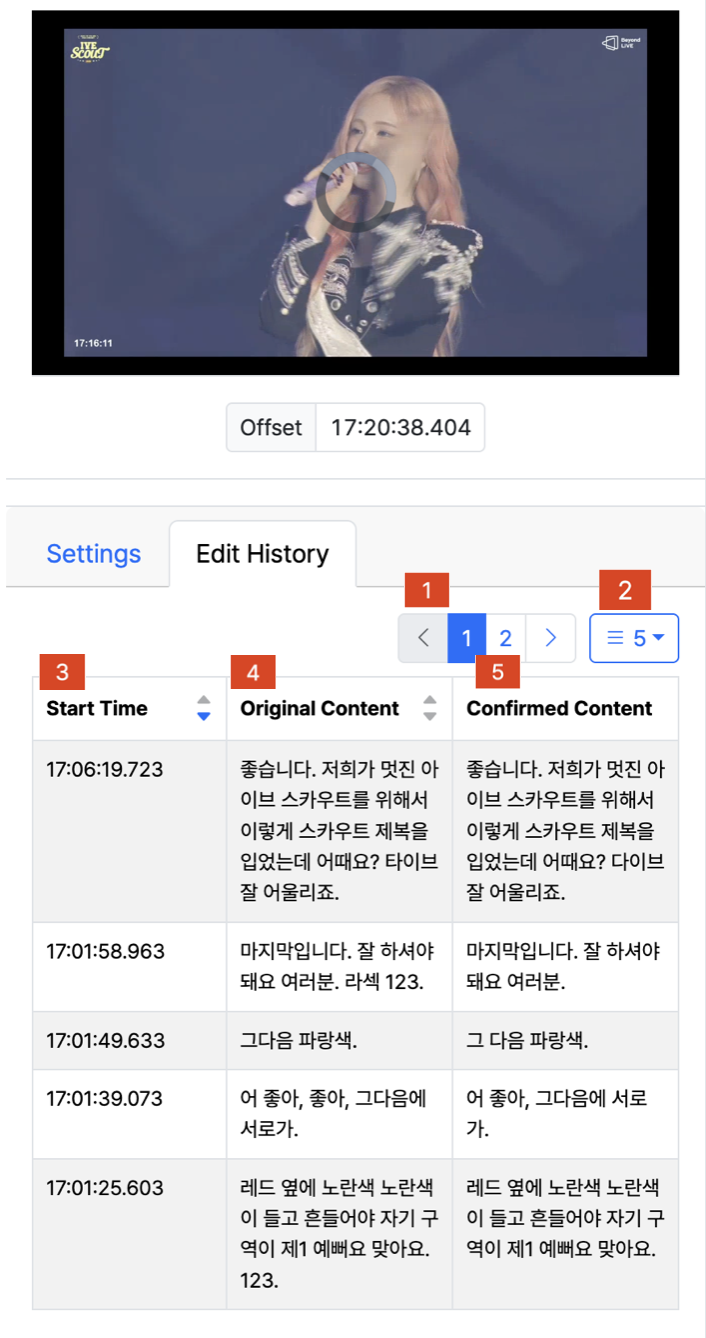
Fig. Live streaming subtitle Edit History tab
| No | Column | Description |
|---|---|---|
| 1 | Page navigation | When the history spans multiple pages, click the left/right arrows or the page numbers to move between pages. |
| 2 | Rows per page | Selects how many history entries to show per page. |
| 3 | Start Time | The start time of the edited subtitle. |
| 4 | Original Content | The original subtitle text before editing. |
| 5 | Confirmed Content | The edited subtitle text. |