Creating an Encoding Job
An Encoding Job is a task that converts an original video stored in S3 into multiple qualities and formats, according to the Encoding Preset you select.
Generating multiple quality levels in advance lets you serve the quality level best suited to each user's network conditions or playback device. This style of streaming is called ABR (Adaptive Bitrate Streaming).
4 Steps to Create an Encoding Job
-
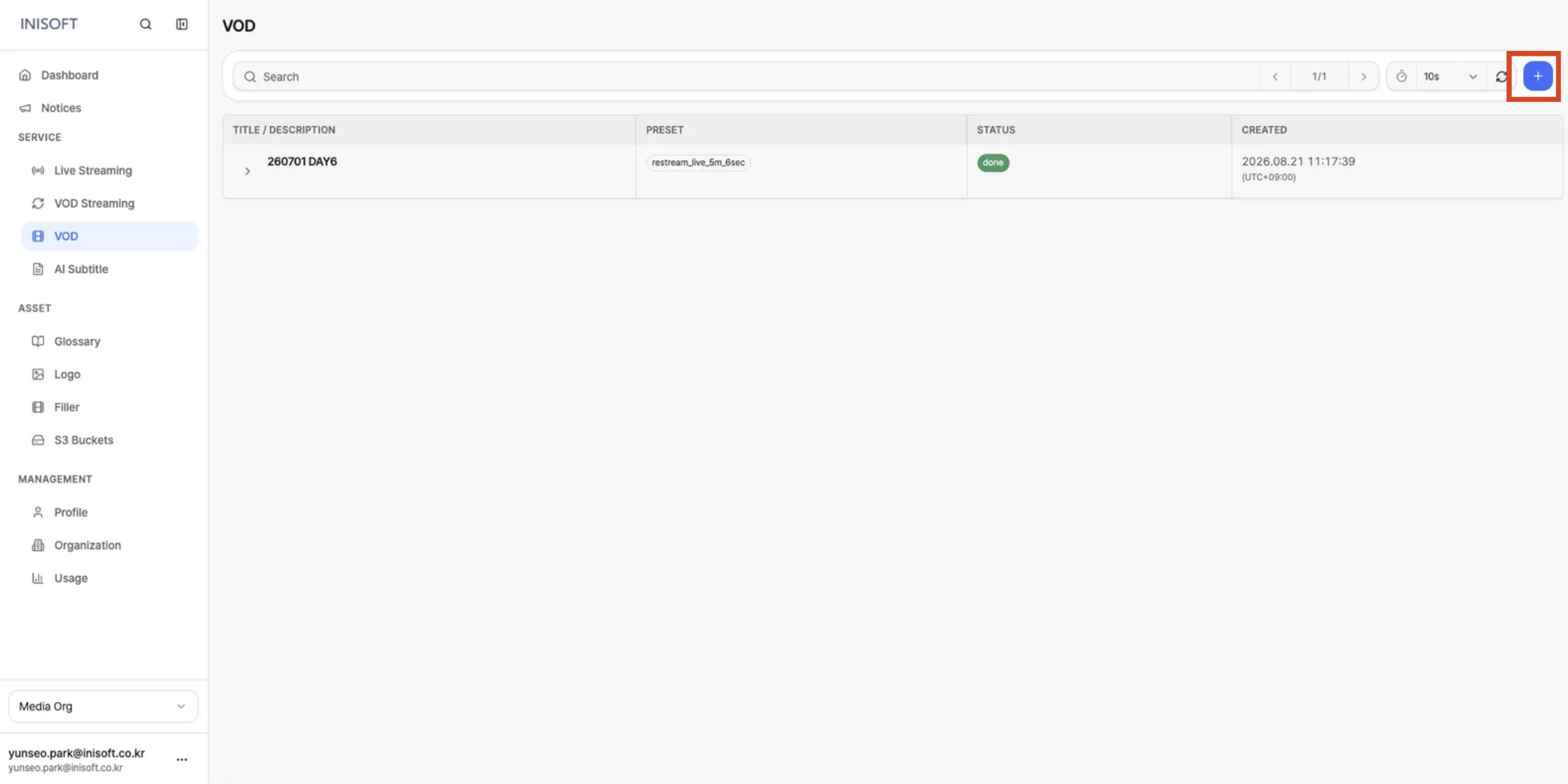
Click the Add Encoding (+) button at the top right of the list.
-
Enter information through the 4-step wizard, in order:
Basic→Media Input→Encoding Settings→Review & Submit.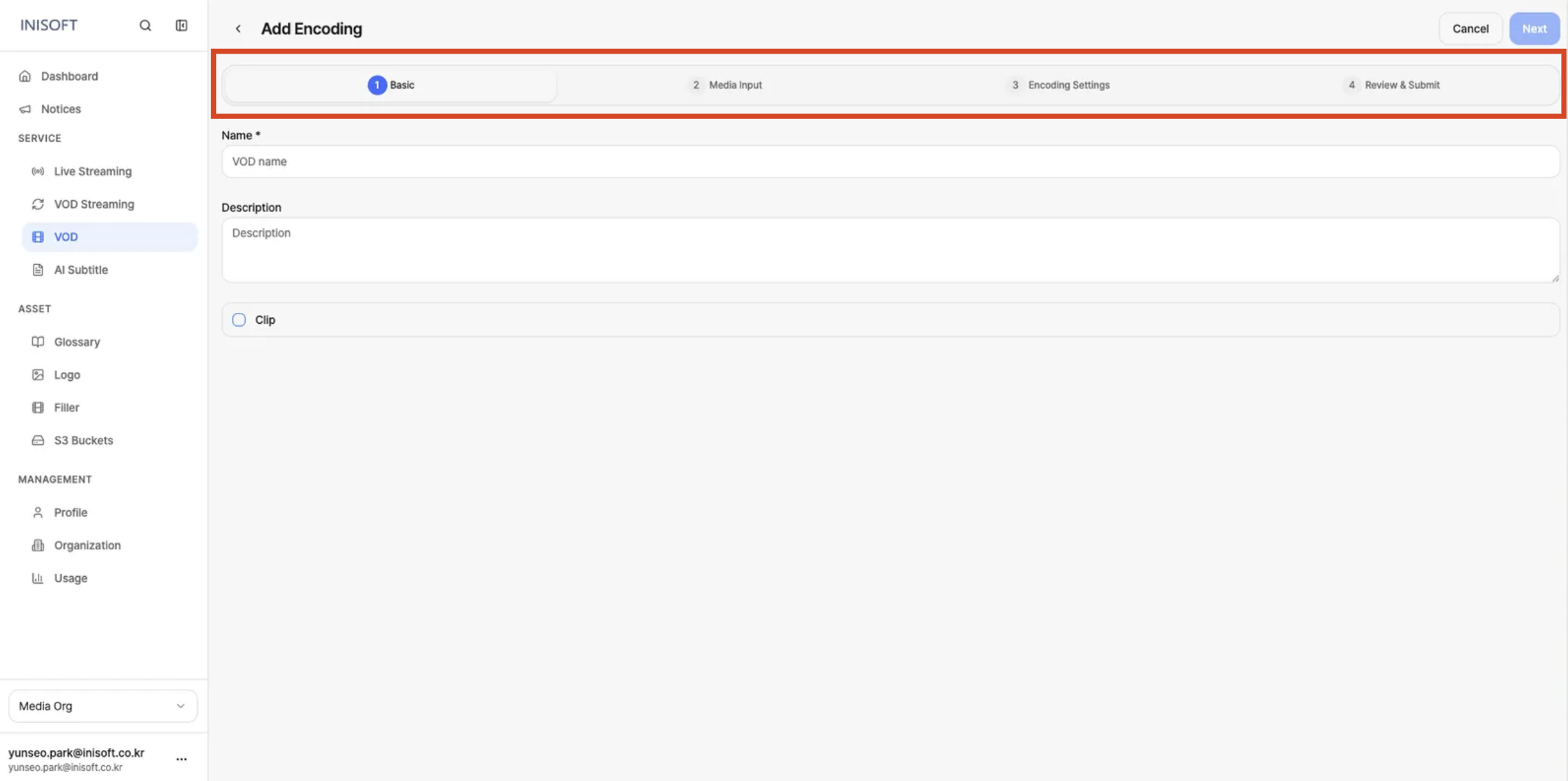
-
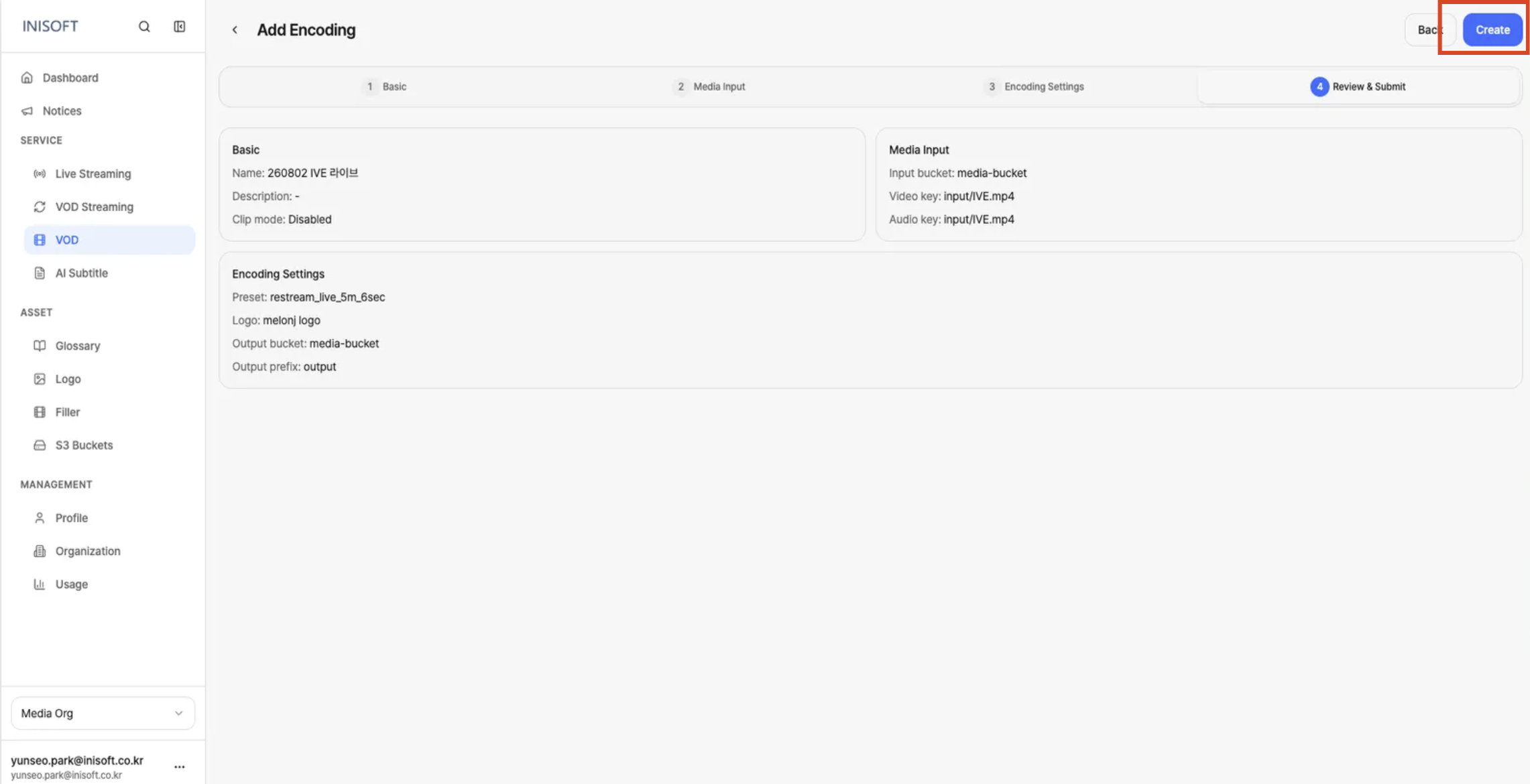
Submit the job by clicking Create (at the Review step).
-
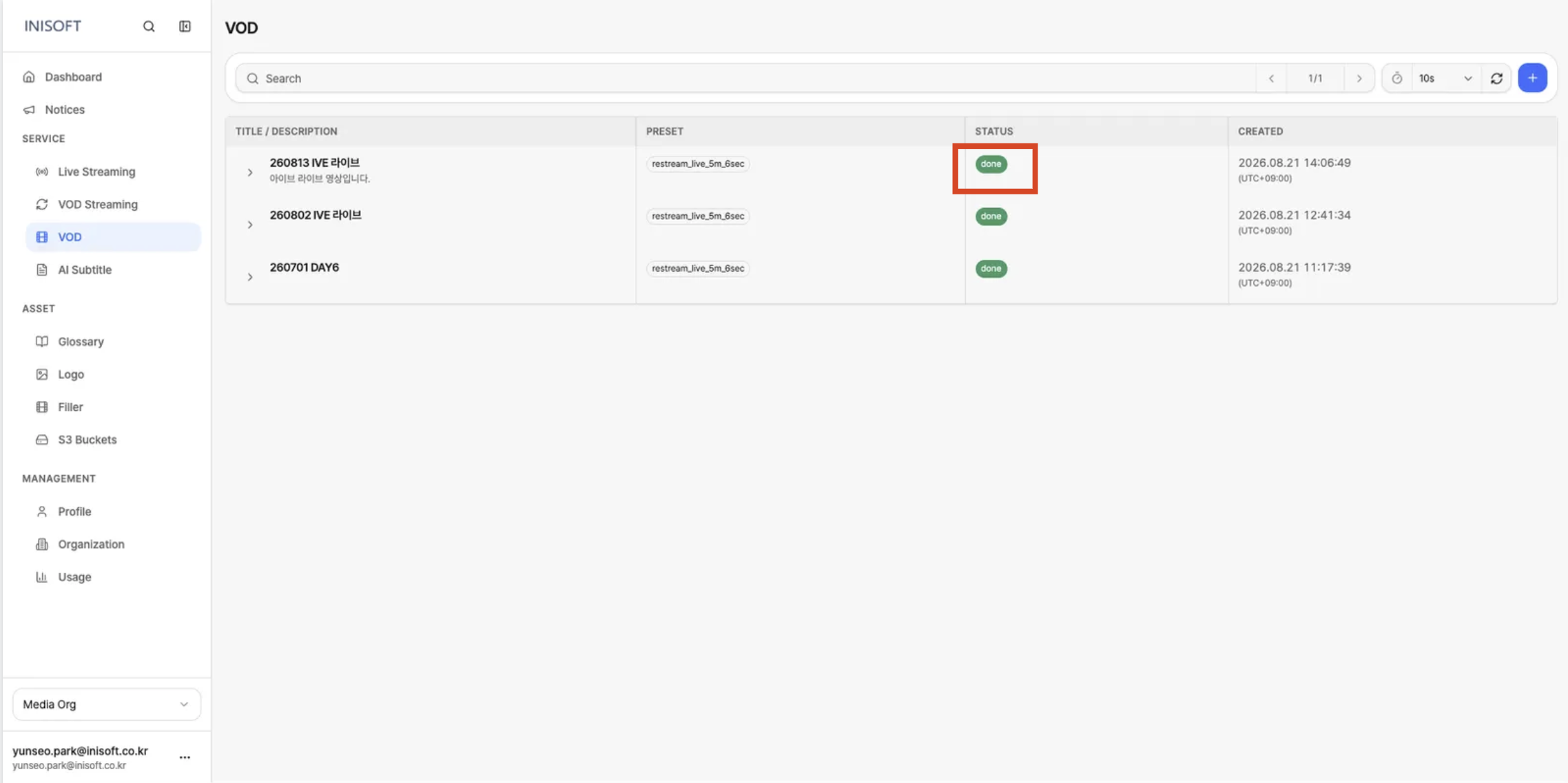
Wait in the list until the Status becomes done (auto refresh every 10s).
- Step 1: Basic
- Step 2: Media Input
- Step 3: Encoding Settings
- Step 4: Review & Submit
Step 1. Basic
The step where you enter the basic information needed to create the Encoding Job.
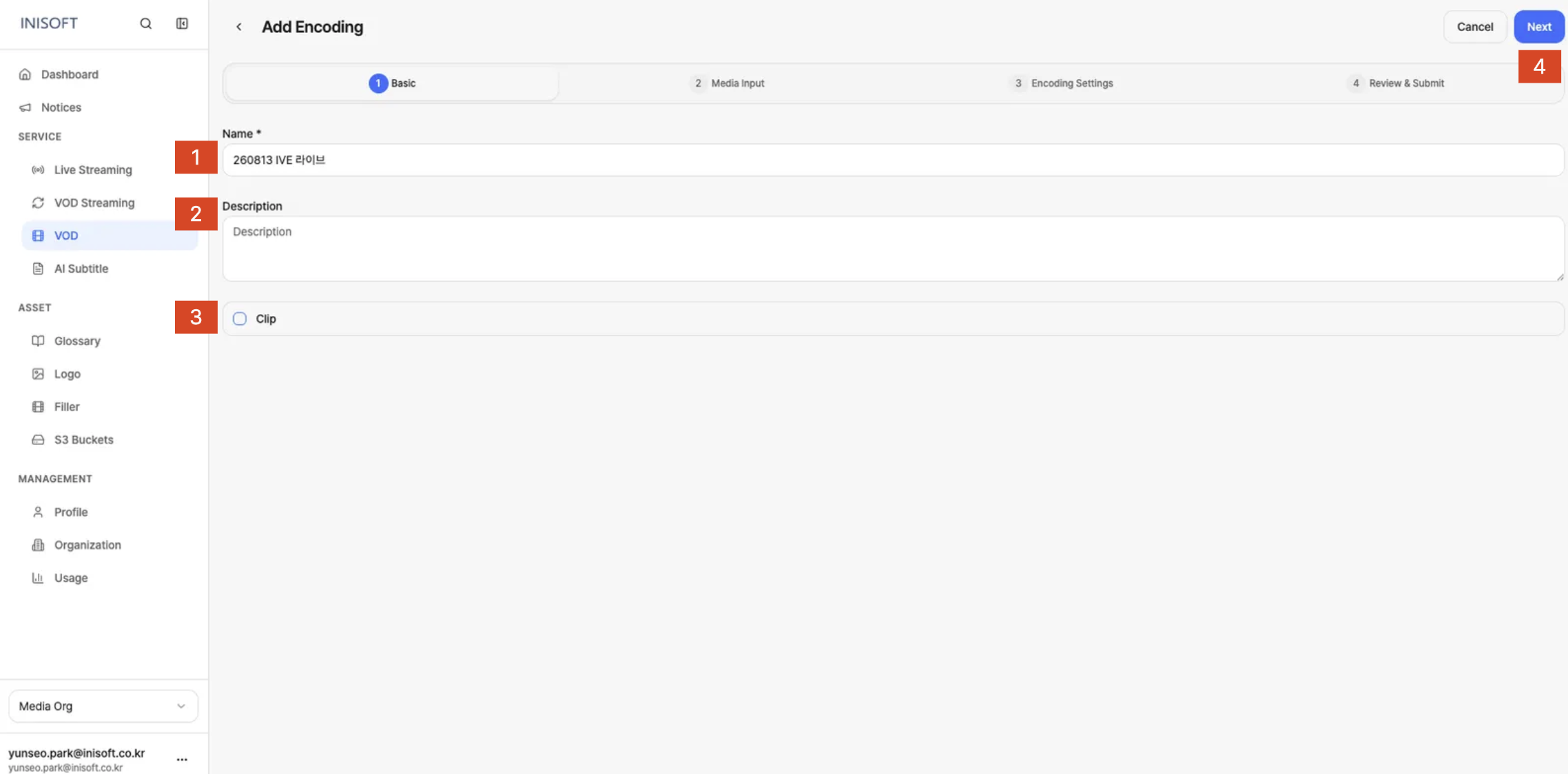
Fig. Add Encoding - Step 1 Basic
How to Set It Up
- Enter a name for the Encoding Job in the Name field.
- If needed, enter a description of the job in the Description field.
- If you're creating an encoding for a Clip, check the Clip checkbox.
- Once you've finished entering information, click the Next button at the top right to move to the next step.
The fields shown on screen are as follows.
| Field | Required | Description |
|---|---|---|
| Name | Yes | Enter a name for the Encoding Job you're creating. Used to identify the job in the list. |
| Description | No | Enter a description of the Encoding Job. You can add details about the purpose of the job or the video, if needed. |
| Clip | No | Check this if you're creating an encoding for a Clip. |
Step 2. Media Input
The step where you specify the original video file and audio file to encode.
The original file is selected from a bucket registered under Asset → S3 Buckets.
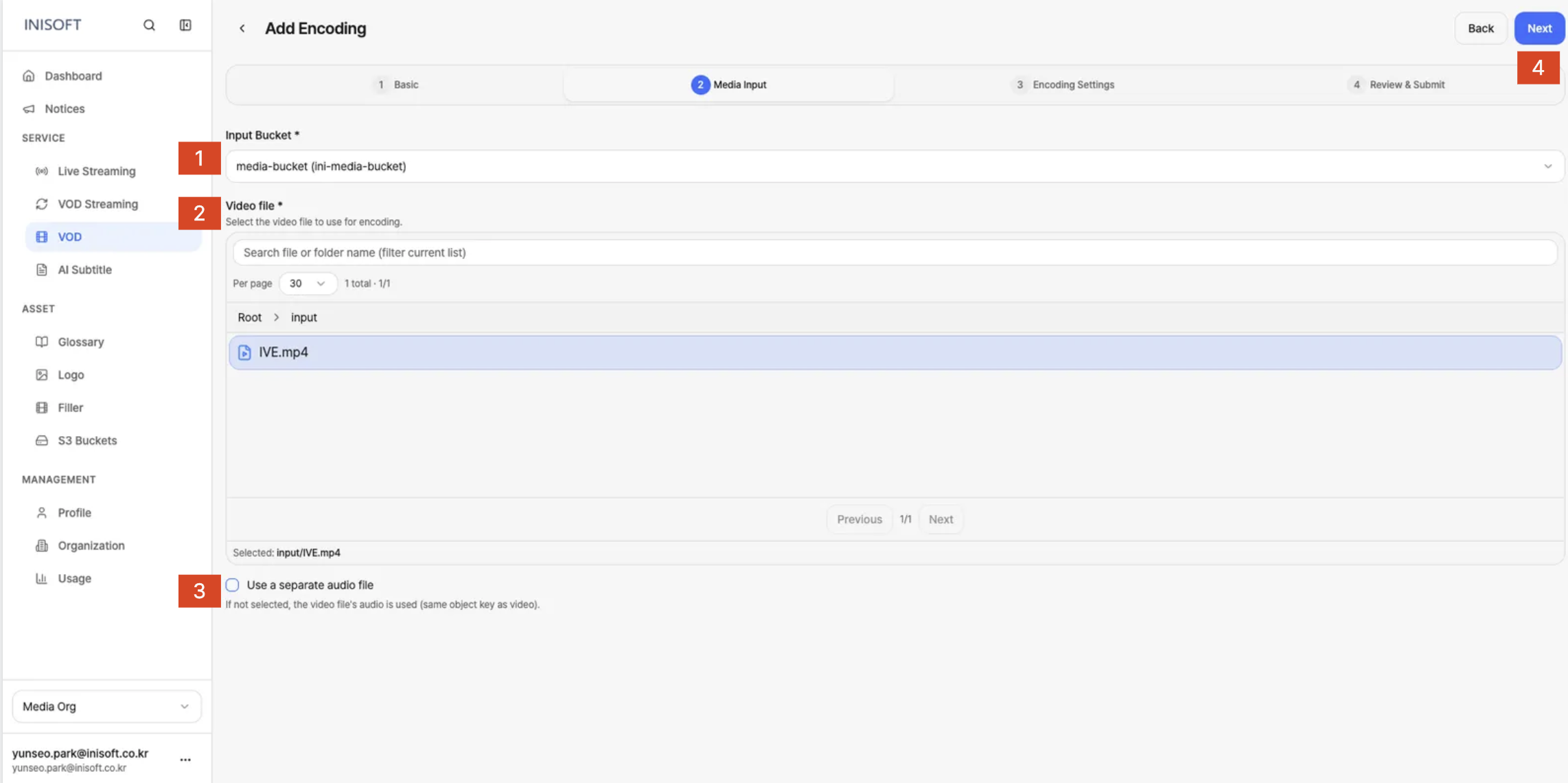
Fig. Add Encoding - Step 2 Media Input
How to Set It Up
- In Input Bucket, select the S3 Bucket where the original video is stored.
- Browse the folders inside the bucket to select the Video File to encode.
- If needed, select an Audio File.
- Once you've finished entering information, click the Next button at the top right to move to the next step.
The fields shown on screen are as follows.
| Field | Required | Description |
|---|---|---|
| Input Bucket | Yes | Select the S3 Bucket where the original video is stored. You can choose from buckets registered under Asset → S3 Buckets. |
| Video File | Yes | Select the original video file to encode. You can browse folders or use Search to find the file you want. |
| Audio File | No | Select this if you're using a separate audio file. You can leave it unselected if a separate audio file isn't needed. |
Step 3. Encoding Settings
The step where you configure the Encoding Preset, Logo, and where the output will be stored for the video being encoded.
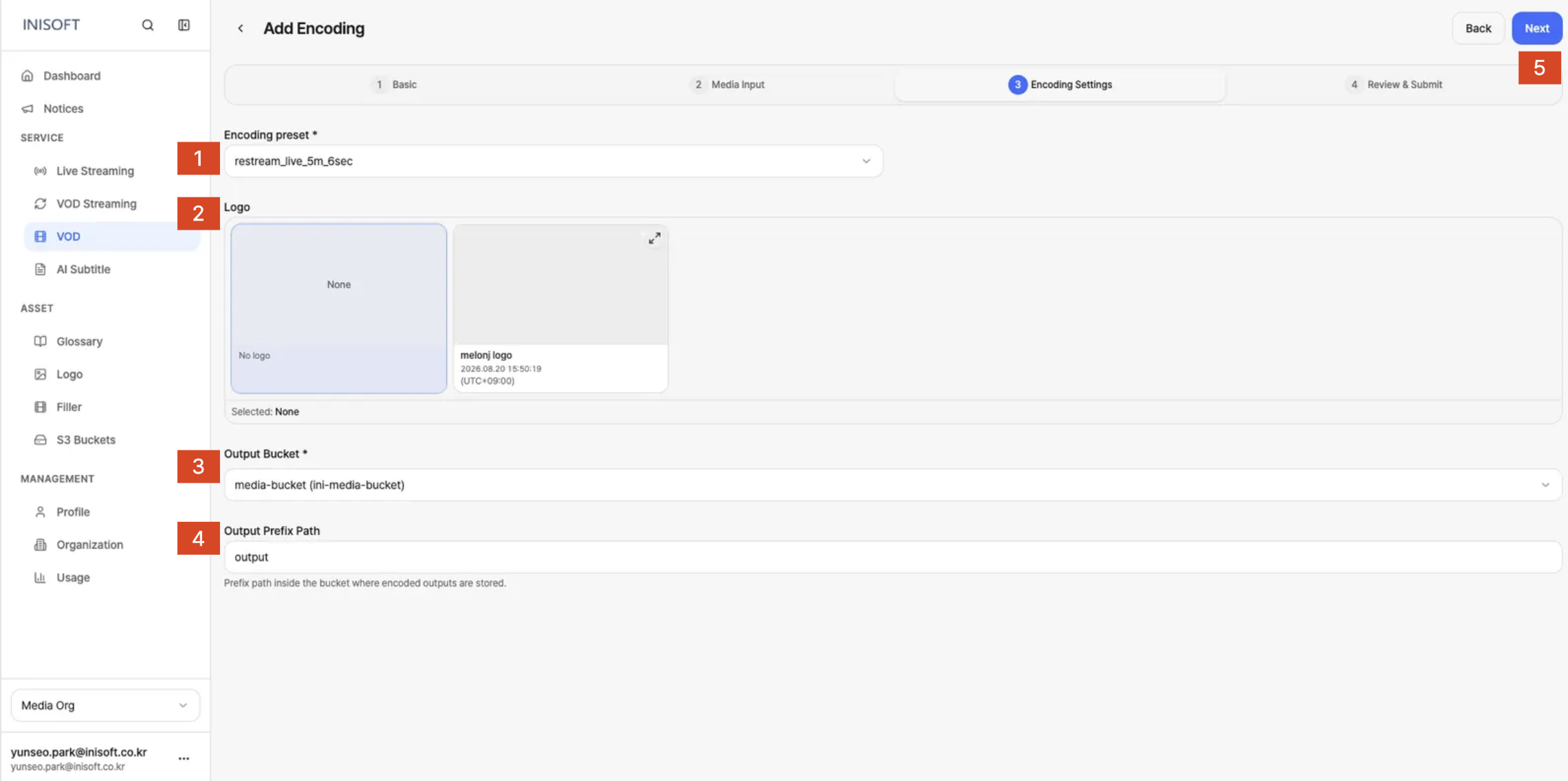
Fig. Add Encoding - Step 3 Encoding Settings
How to Set It Up
- In Encoding Preset, select the preset to use for encoding.
- If needed, select a Logo to apply to the video.
- In Output Bucket, select the S3 Bucket where the encoding output will be stored.
- If needed, enter a path in Output Prefix Path for where the output should be stored.
- Once you're done configuring, click the Next button at the top right to move to the next step.
The fields shown on screen are as follows.
| Field | Required | Description |
|---|---|---|
| Encoding Preset | Yes | Select a preset with predefined encoding settings such as video quality and bitrate. The quality and track composition of the encoding output can vary depending on the preset. |
| Logo | No | Select a logo to display on the video. You can choose from logos registered under Asset → Logo, or select None to apply no logo. |
| Output Bucket | Yes | Select the S3 Bucket where the completed encoding output will be stored. |
| Output Prefix Path | No | Specify a path within the Output Bucket for where the encoding output should be stored. For example, entering test/ stores the output at that path. |
The Encoding Preset affects the quality and composition of the encoding output, so choose a preset that matches the purpose of the job.
To apply a Logo, the image must already be registered under Asset → Logo.
Since the Output Bucket is where the encoding output will be stored, the S3 Bucket you plan to use must already be registered under Asset → S3 Buckets before you begin.
Step 4. Review & Submit
The step where you do a final review of the settings entered in Basic, Media Input, and Encoding Settings.
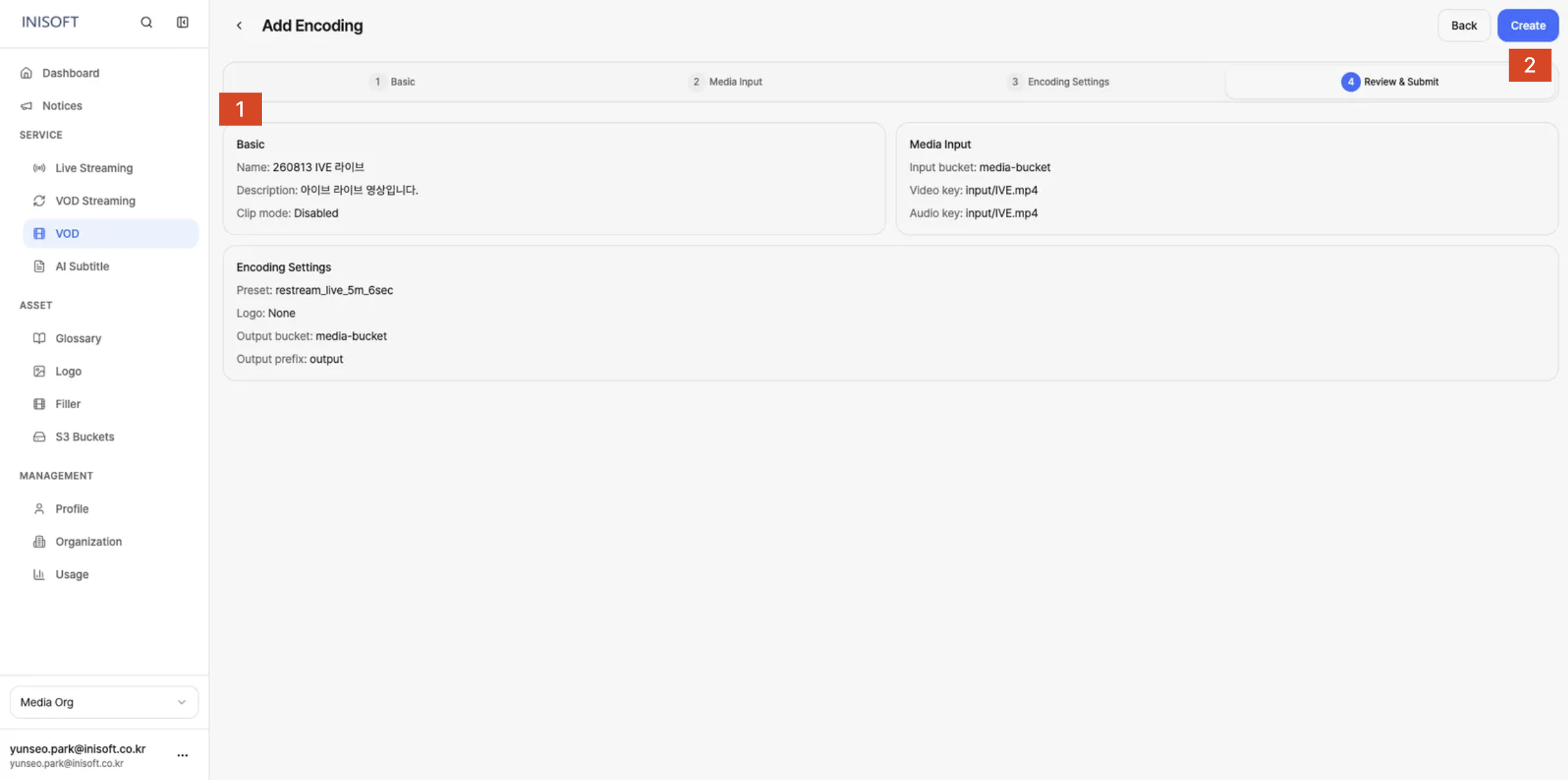
Fig. Add Encoding - Step 4 Review & Submit
Confirming the Settings
- Do a final check that the settings shown on the Review & Submit screen match the original video you want to encode and the purpose of the job.
- If everything looks correct, click the Create button at the top right to create the Encoding Job.
Before clicking Create, review the values entered in the previous steps.
- Basic: Confirm that Name, Description, and Clip were entered correctly.
- Media Input: Confirm that Input Bucket, Video File, and Audio File were selected correctly.
- Encoding Settings: Confirm that Encoding Preset, Logo, Output Bucket, and Output Prefix Path were set correctly.
Clicking Create submits the encoding job, and the resulting Encoding Job can be found on the VOD list screen.