List Screen
The list screen lets you check the status of your Encoding Jobs, create a new Encoding Job, or view the Packaging Jobs linked to an existing Encoding Job.
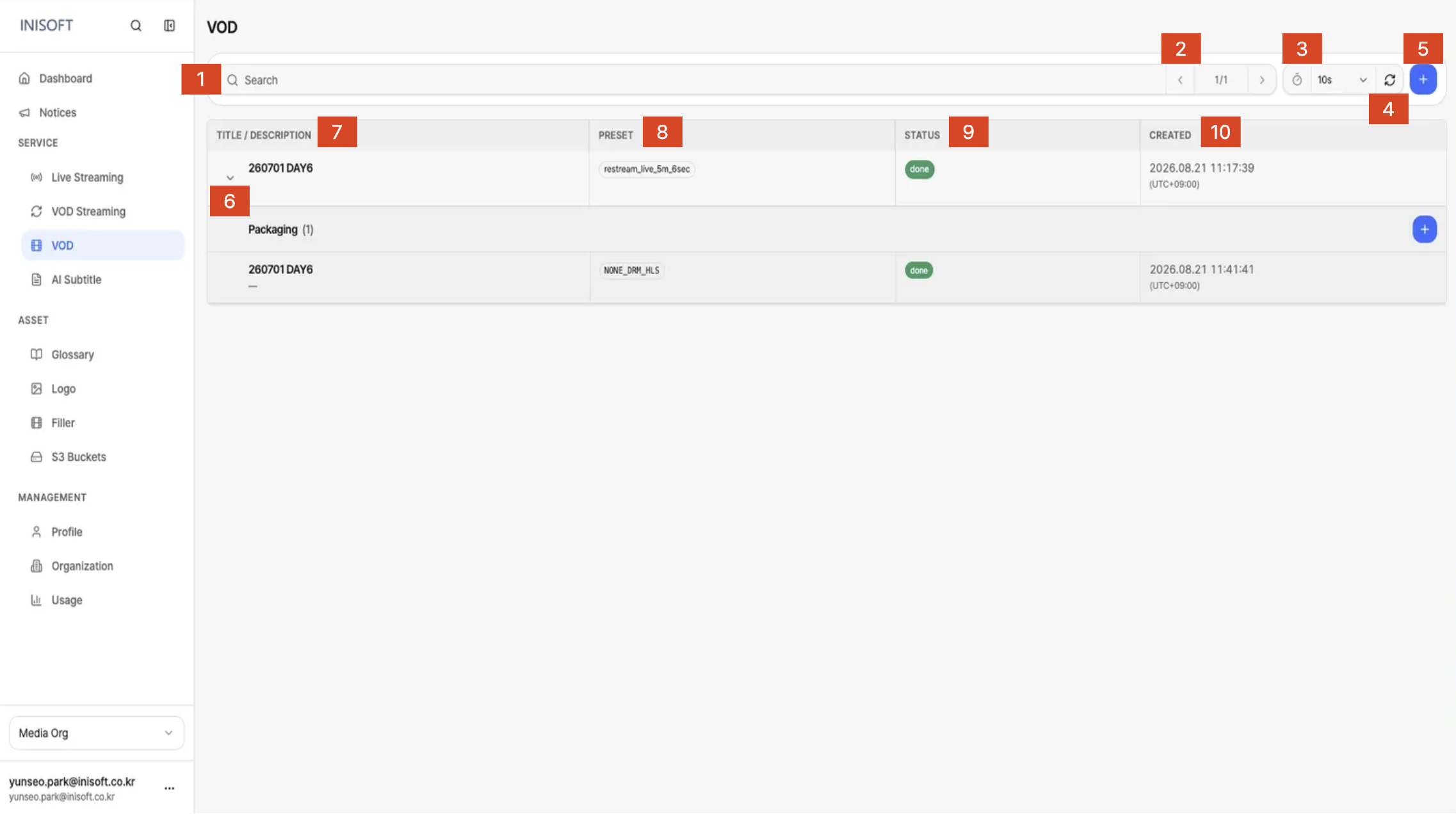
Fig. VOD list screen — Search, page navigation, Auto Refresh, refresh, Add Encoding, Packaging list
Screen Layout
| NO | Item | Description |
|---|---|---|
| 1 | Search | Search by job name or description to quickly find the Encoding Job you're looking for. |
| 2 | Page navigation | When the list spans multiple pages, click the left/right arrows to move between pages. The current page and total page count are shown together. |
| 3 | Auto Refresh | Automatically refreshes the list at an interval you set, reloading the job list. |
| 4 | Refresh | Click the button to refresh the list immediately. |
| 5 | Add Encoding (+) | Creates a new Encoding Job. Clicking the button takes you to the Encoding Job creation screen. |
| 6 | Row expand (▶) | If Packaging Jobs are linked, click the arrow to expand and view the list of Packaging Jobs linked to that Encoding Job. |
| 7 | Title / Description | Shows the title and description of the Encoding Job. The title is shown above, and the description below it. |
| 8 | Preset | Shows the Encoding Preset applied to that Encoding Job. |
| 9 | Status | Shows the current status of the Encoding Job. |
| 10 | Created | Shows the date and time the Encoding Job was created. Times are shown in UTC+09:00 (Korea Standard Time). |
Viewing the Packaging List
Clicking the arrow (▶) on an Encoding Job that has linked Packaging Jobs expands the list of Packaging Jobs under it.
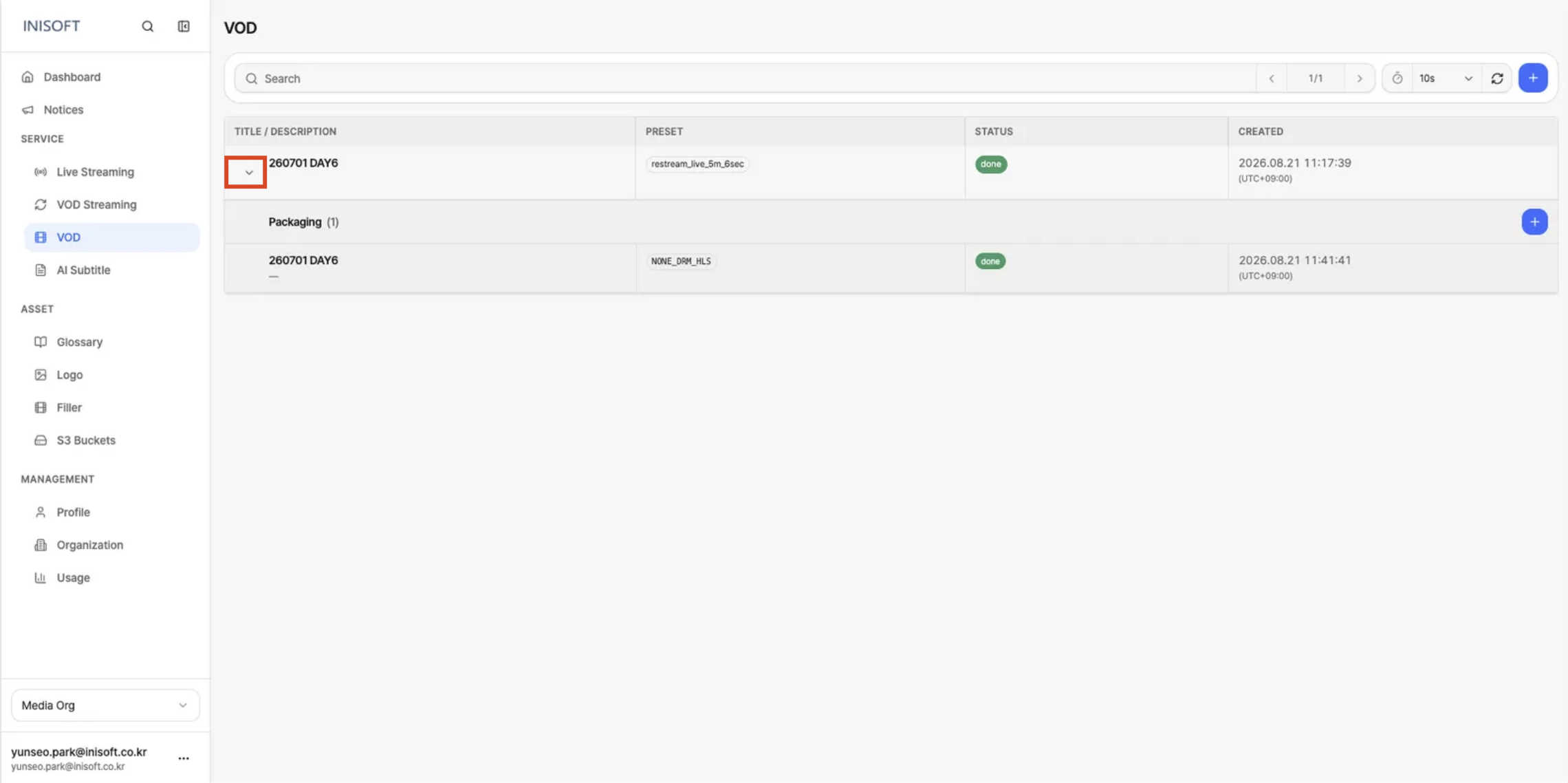
Fig. Packaging list screen