Creating a Packaging Job
Packaging is the task of assembling video that has finished Encoding into a form a streaming service can play.
It arranges the multiple quality levels of video and audio produced during Encoding into a streaming format, and lets you apply subtitles and DRM (Digital Rights Management) if needed.
A Packaging job proceeds through the following 4 steps:
Basic → Output → Subtitles → Review & Submit
A Packaging Job can only be added when the linked Encoding Job's Status is done.
You can reach the Packaging creation screen in the following way:
- Add from the VOD list: Expand the row of the Encoding Job you want to add Packaging to, then click the Add Packaging (+) button.
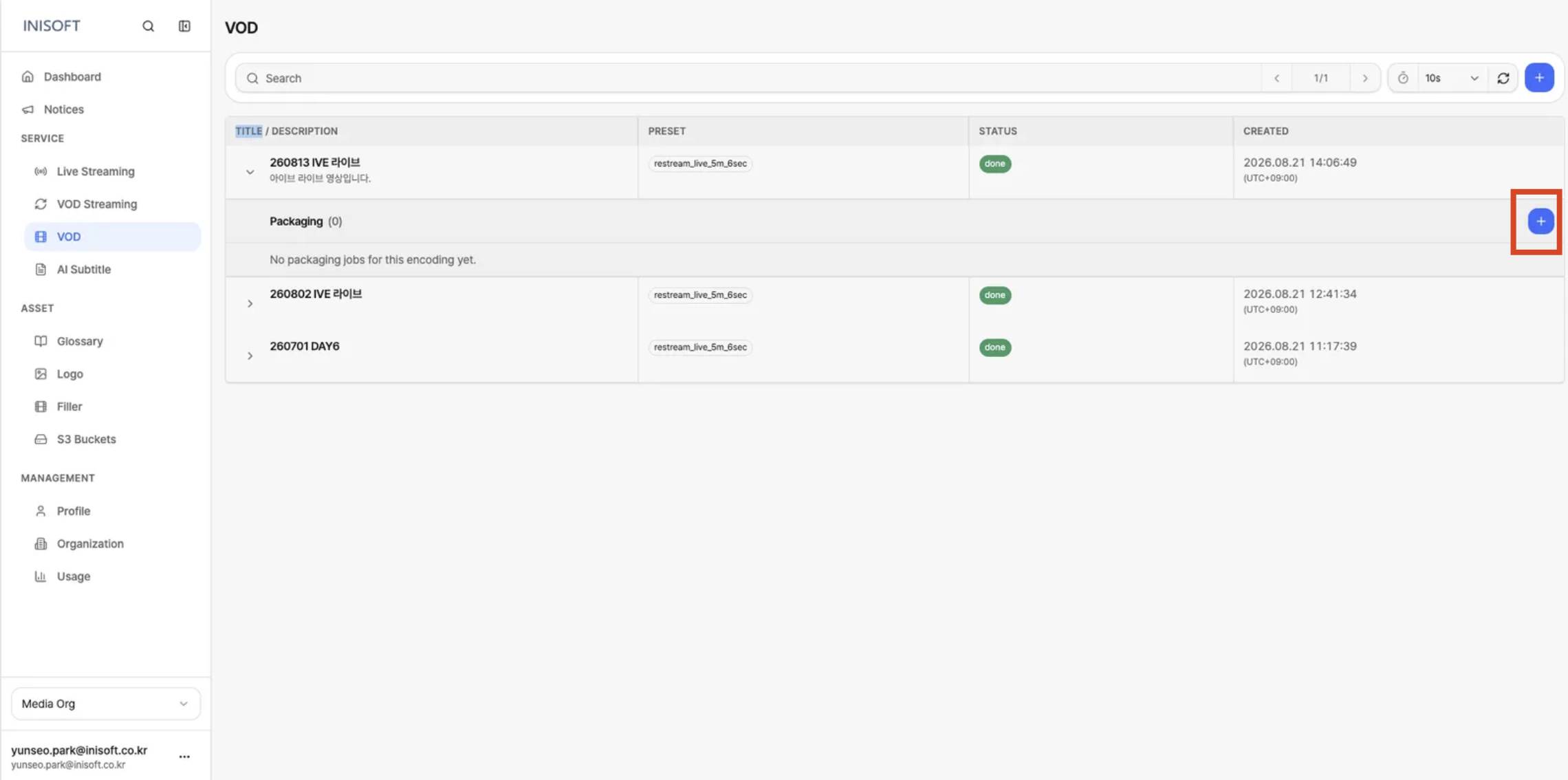
Fig. Entering the Packaging page
- Step 1: Basic
- Step 2: Output
- Step 3: Subtitles
- Step 4: Review & Submit
Step 1. Basic
The step where you enter basic information to identify the Packaging Job, and confirm the Encoding Job that Packaging will be applied to.
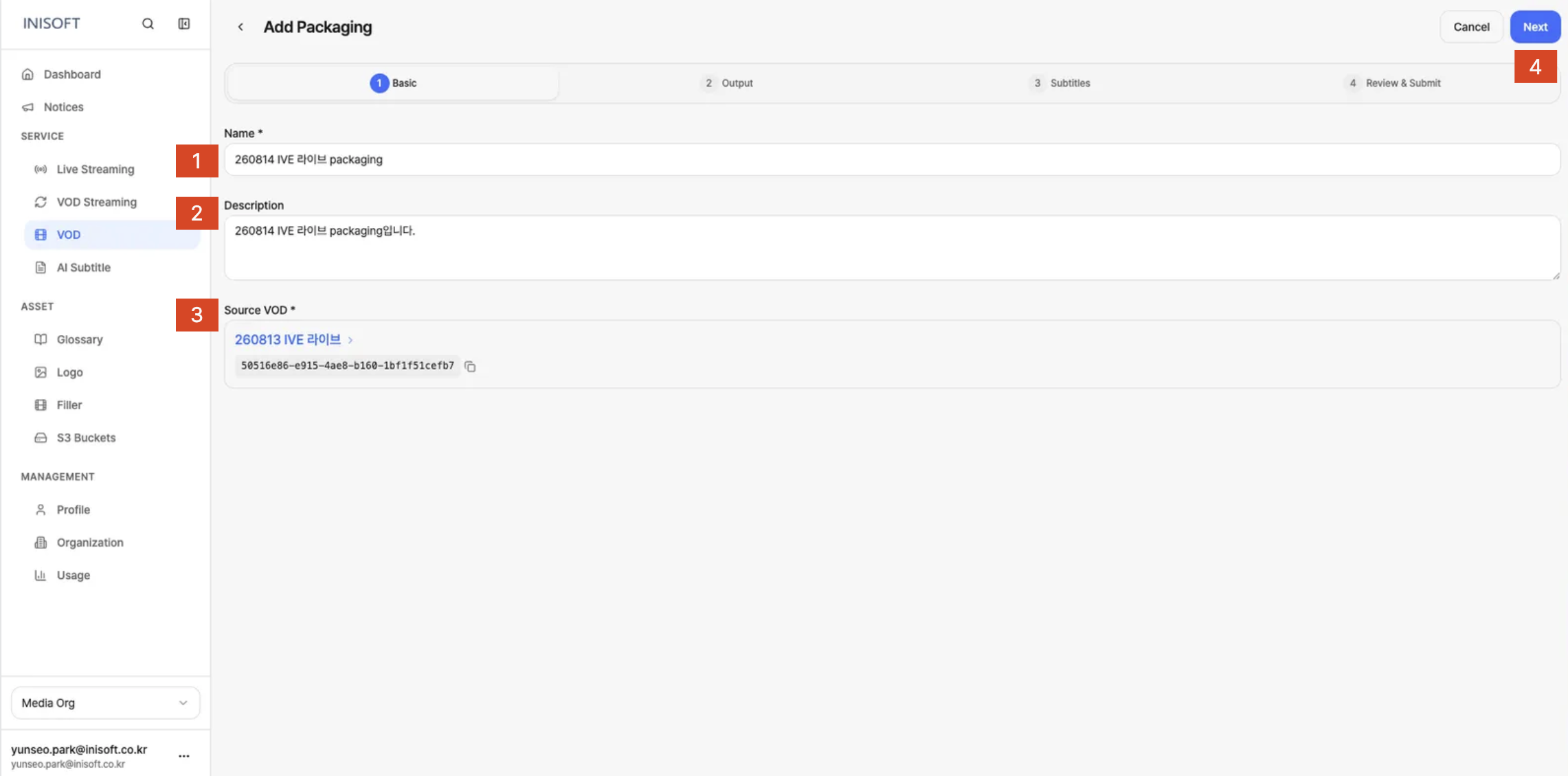
Fig. Add Packaging - Step 1 Basic
How to Set It Up
- Enter a name for the Packaging Job you're creating in the Name field.
- If needed, enter a description of the job in the Description field.
- Confirm that Source VOD correctly shows the Encoding Job that Packaging will be applied to.
- Once you've finished entering and confirming information, click the Next button to move to the next step.
The fields shown on screen are as follows.
| Field | Required | Description |
|---|---|---|
| Name | Yes | Enter a name for the Packaging Job you're creating. Used to identify the job in the list. |
| Description | No | Enter a description of the Packaging Job. You can add details about the purpose of the job, if needed. |
| Source VOD | Yes | Shows information about the Encoding Job that Packaging will be applied to. The Encoding Job you added Packaging from is linked automatically, so there's no need for you to select it separately. |
Step 2. Output
The step where you specify the Packaging Preset and DRM settings to use, and where the packaging output will be stored.
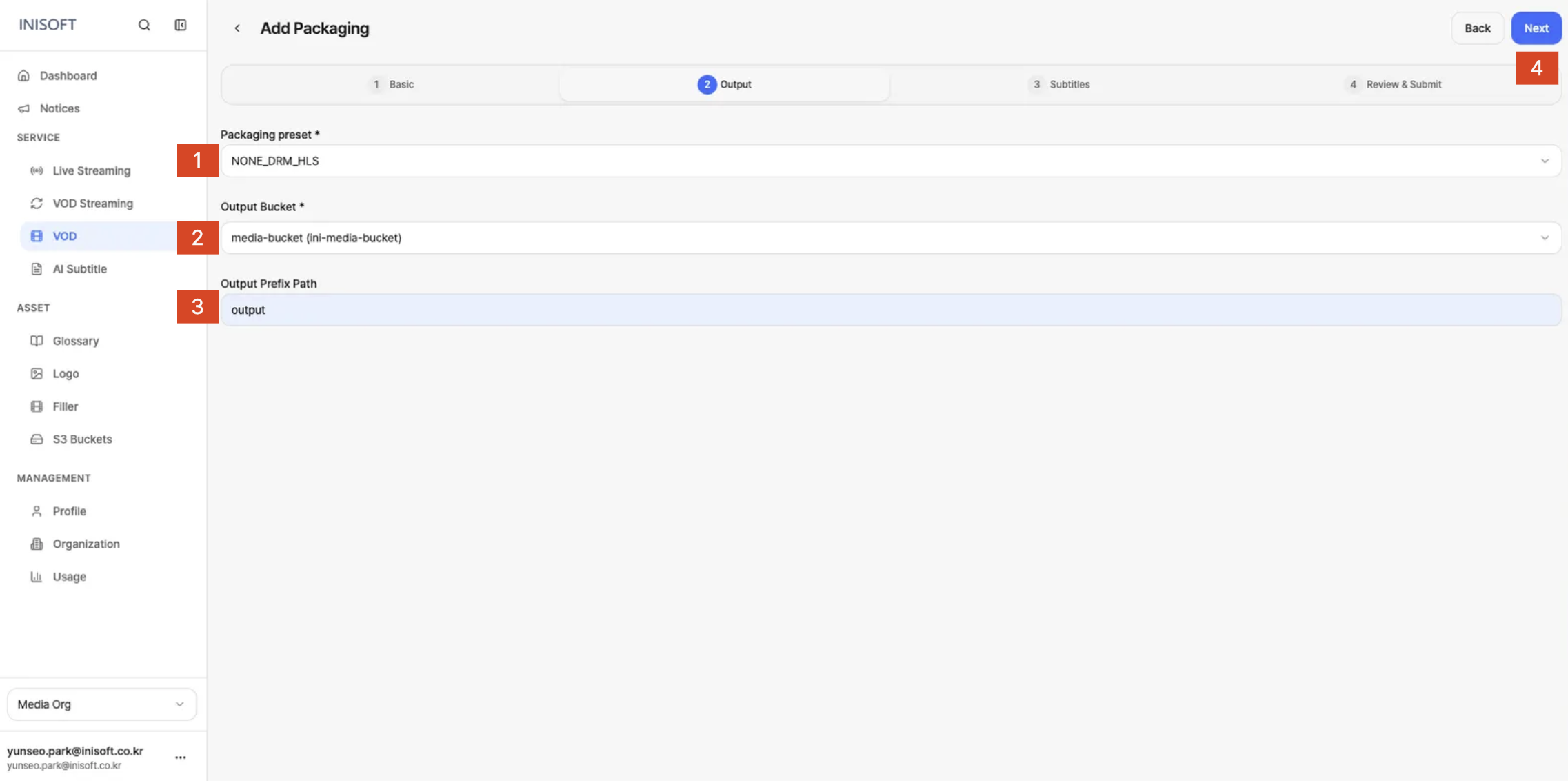
Fig. Add Packaging - Step 2 Output
How to Set It Up
- In Packaging Preset, select a preset that matches the streaming format and DRM setting you want to use.
- In Output Bucket, select the S3 Bucket where the Packaging output will be stored.
- If needed, enter a path in Output Prefix Path for where the output should be stored.
- Once you're done configuring, click the Next button to move to the next step.
The fields shown on screen are as follows.
| Field | Required | Description |
|---|---|---|
| Packaging Preset | Yes | Select a preset with a predefined playback format (HLS/DASH) and DRM setting for streaming. • NONE_DRM_HLS: HLS without DRM applied• NONE_DRM_DASH: DASH without DRM applied• DRM: A format with DRM encryption applied |
| Output Bucket | Yes | Select the S3 Bucket where the completed Packaging output will be stored. |
| Output Prefix Path | No | Specify a path within the Output Bucket for where the Packaging output should be stored. For example, entering test/ stores the output at that path. |
A Packaging Preset is a predefined setting for the streaming output's playback format and whether DRM is applied.
HLS and DASH are formats used for streaming video, and DRM is a security technology used to restrict unauthorized users from accessing or using the content.
Step 3. Subtitles
The step where you select which subtitle languages to include in the Packaging output, and specify the subtitle file to use for each language.
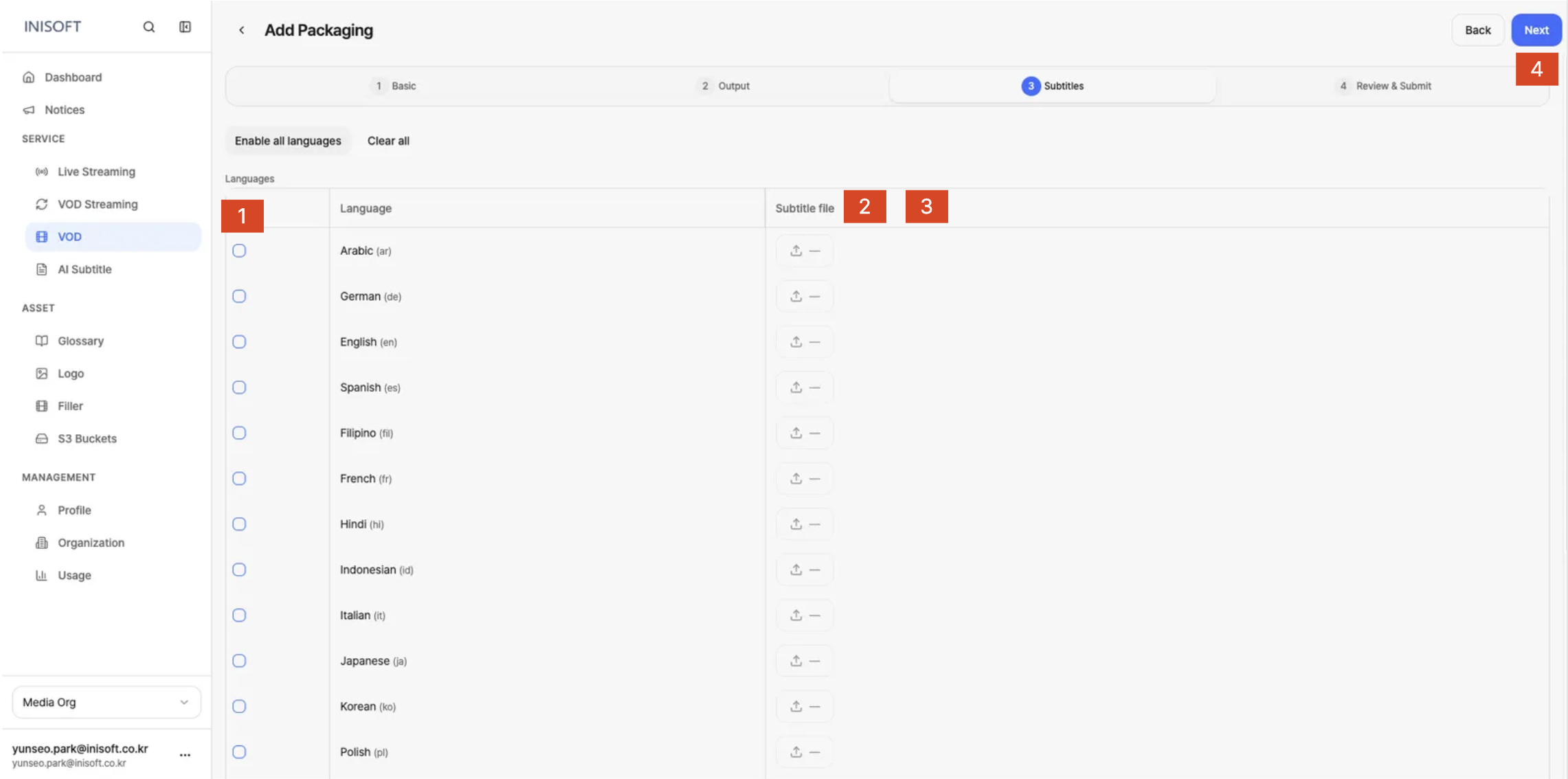
Fig. Add Packaging - Step 3 Subtitles
How to Set It Up
- Check the Enable checkbox for any subtitle language you want to include in the Packaging output.
- For the selected language, specify the subtitle file to use under Subtitle file.
- If you're using subtitles in multiple languages, set Enable and Subtitle file for each language.
- If you don't need subtitles, leave the languages unselected and click Next to move to the next step.
The fields shown on screen are as follows.
| No | Item | Description |
|---|---|---|
| 1 | Enable all languages | Enables subtitles for all supported languages at once. |
| 2 | Clear all | Disables subtitles for all selected languages at once. |
| 3 | Enable | Selects whether to include that language's subtitles in the Packaging output. |
| 4 | Language | Shows the language used for the subtitle. For example: ko (Korean), en (English), ja (Japanese), zh-Hans (Simplified Chinese) |
| 5 | Subtitle file | Specifies the subtitle file to link to the selected language. |
You can upload a VTT or SRT file to use as a subtitle file.
If you only want to configure the video's streaming format without subtitles, you can skip selecting subtitles and move on to the next step.
Step 4. Review & Submit
The step where you do a final review of the settings entered in Basic, Output, and Subtitles.
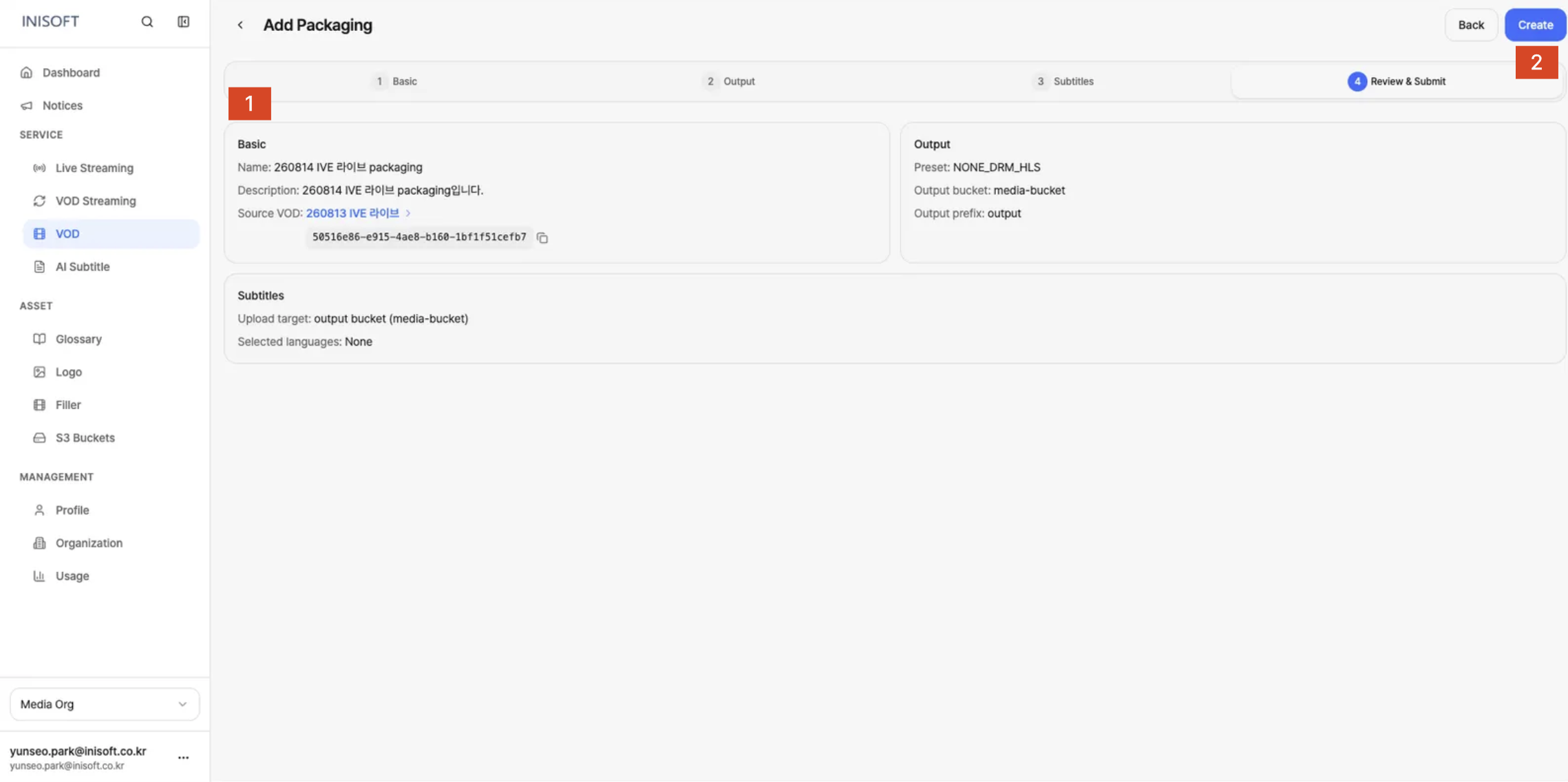
Fig. Add Packaging - Step 4 Review & Submit
Confirming the Settings
- Do a final check that the settings shown on the Review & Submit screen match the streaming format, output location, and subtitle settings you want.
- If everything looks correct, click the Create button at the top right to create the Packaging Job.
- Basic: Confirm that Name, Description, and Source VOD were set correctly.
- Output: Confirm that Packaging Preset, Output Bucket, and Output Prefix Path were set correctly.
- Subtitles: Confirm that the S3 Bucket the subtitle files will be uploaded from and the selected languages were set correctly.
Clicking Create submits the Packaging job, and the resulting Packaging Job can be found nested under the corresponding Encoding Job in the VOD list.