Packaging Detail and Preview
You can view a Packaging Job by expanding the Packaging list for the corresponding Encoding Job in the VOD list.
To view a Packaging Job's details, click the Detail button on the Overview screen to go to that job's Detail screen.
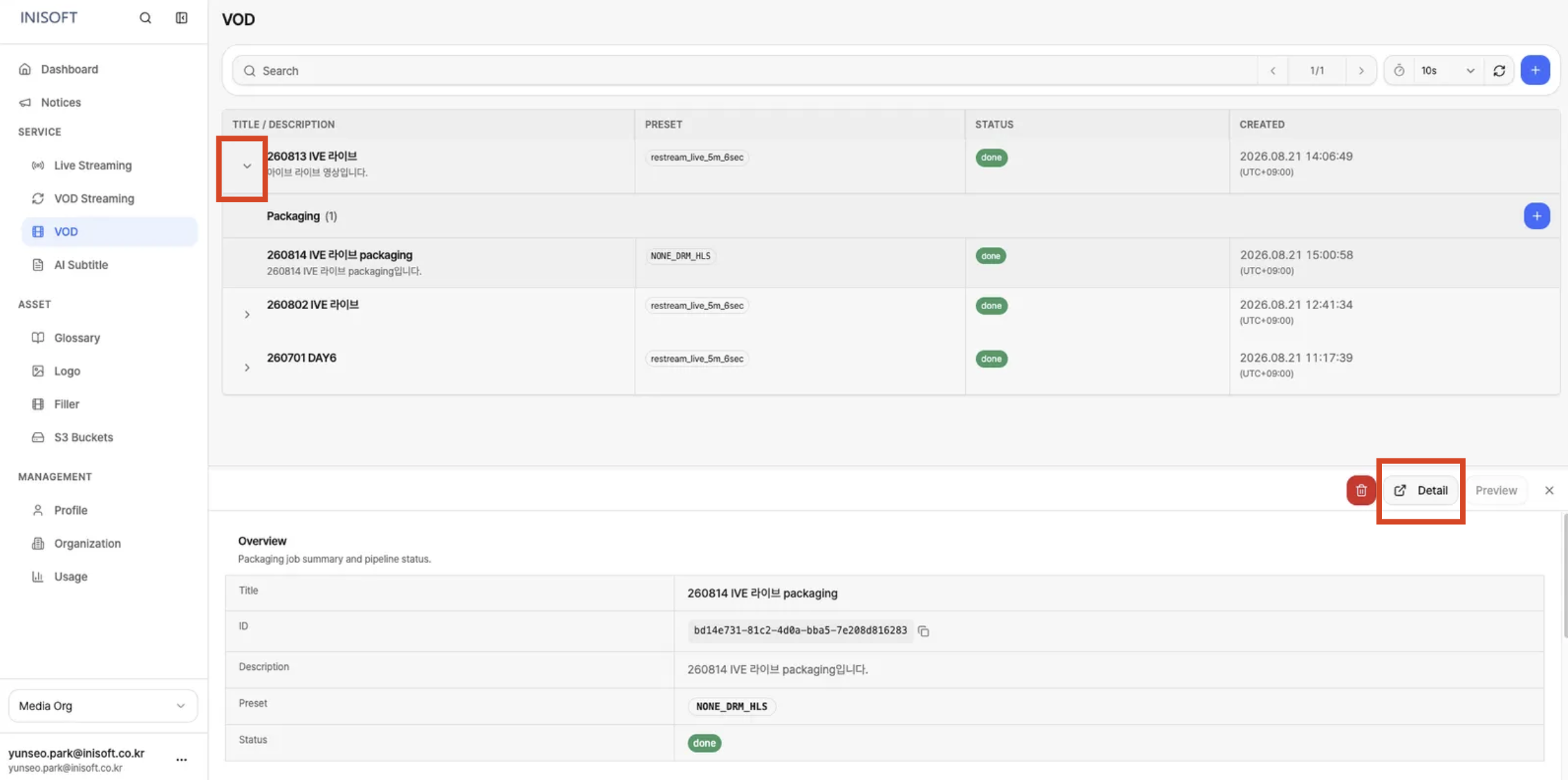
Fig. Packaging Overview
Clicking the Detail button on the Overview panel takes you to the Packaging Job's Detail screen.
Detail Information
The Packaging Detail screen lets you check the Packaging Job's status, Source VOD, output, and subtitle and streaming playback information.
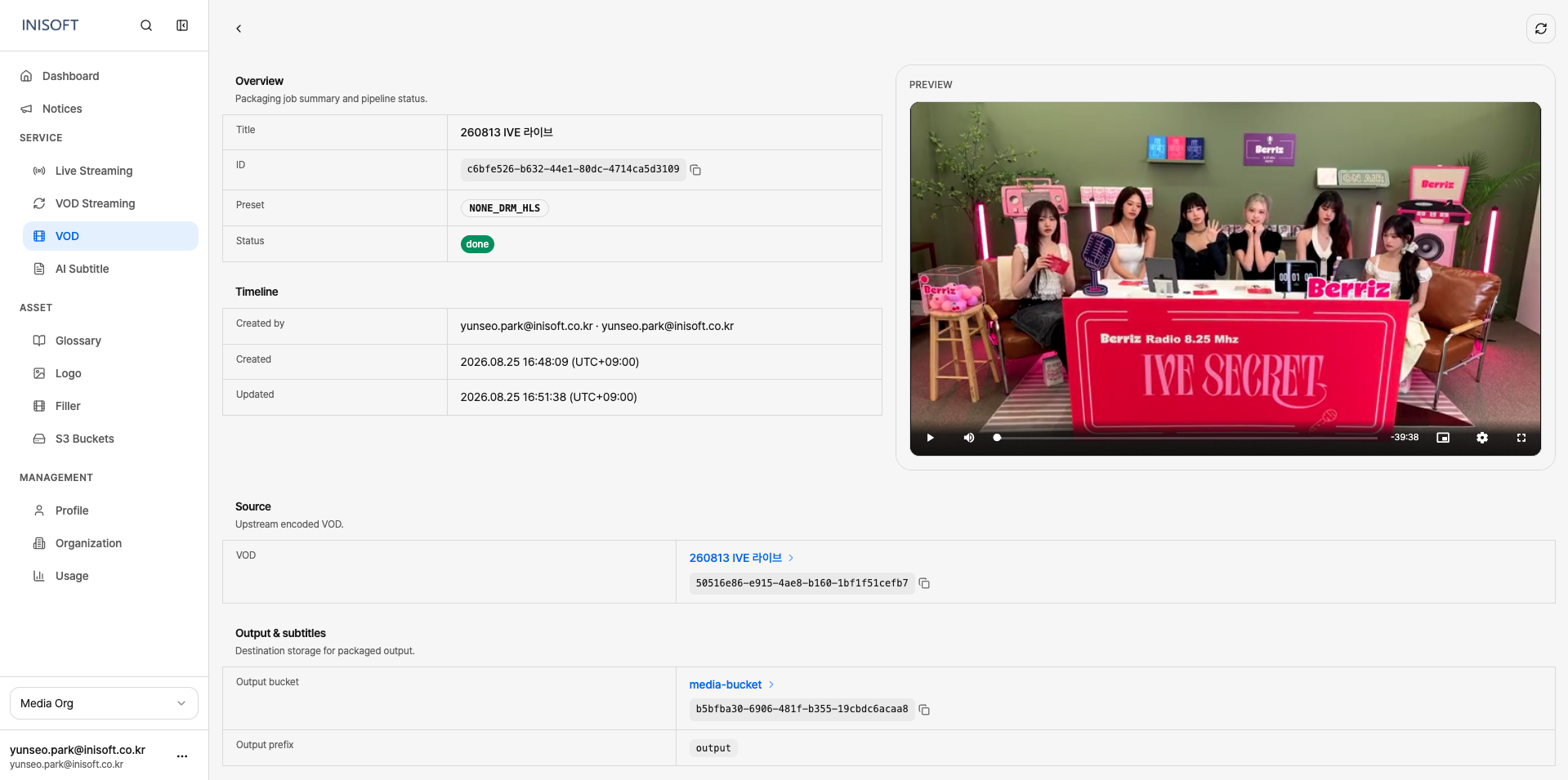
Fig. Packaging Detail — Overview · Source · Output & Subtitles · Preview
| Section | Information Shown |
|---|---|
| Overview | Shows the Packaging Job's basic information and current status. • Title: The job's name• ID: The job's ID• Description: The job's description• Preset: The applied Packaging Preset• Status: The current status |
| Timeline | Shows the Packaging Job's creation and change history. • Created by: Information about the user who created the Packaging Job• Created: The date and time the Packaging Job was created• Updated: The date and time the Packaging Job's information was last changed |
| Source | Shows information about the Encoding Job used for Packaging. • VOD: Information about the linked Encoding Job |
| Output & Subtitles | Shows where the Packaging output is stored and its subtitle information. • Output Bucket: The S3 Bucket where the output is stored• Output Prefix: The path within the bucket where the output is stored• Subtitle tracks: The list of subtitle tracks linked to the Packaging Job |
| Preview | Lets you preview the generated streaming output and check the Manifest URL. • Manifest URL: The manifest address used for streaming playback |
Manifest-Based Media Playback
Once Packaging is complete, a Manifest in HLS or DASH format is generated.
The manifest holds information such as the streaming video's quality levels, audio, and playback order, and the player uses the manifest to play the video.
The console's PREVIEW player lets you use the Packaging output's manifest to check that the streaming video plays back correctly.
- HLS:
manifest.m3u8 - DASH:
.mpd
The Preview screen also shows the Manifest URL used for playback. You can use this URL to locate the generated streaming output or when integrating with a player.
Packaging output that has no DRM applied can be played and checked directly in the console's PREVIEW player.
Packaging output with DRM applied requires authentication with a DRM License Server before it can be played. Because of this, DRM content may not play correctly, or the screen may not display, in the console's PREVIEW environment.
If you need to verify DRM-protected output, you should also check the DRM configuration and License Server integration in your actual production environment.